> ## Documentation Index
> Fetch the complete documentation index at: https://docs.usetuner.ai/llms.txt
> Use this file to discover all available pages before exploring further.
# Set Up an Agent from a Template
> Templates give a new agent a working configuration for a specific use case, so you start with relevant intents, evaluations, red flags, alerts, and data-extraction fields already filled in instead of an empty agent.
When you create a new agent, one way to set it up is to start from a template. A template is a prebuilt configuration for a common use case, such as customer support or appointment booking. Picking one fills in the settings that kind of agent usually needs, and you edit from there.
This is one of three ways to configure a new agent. The other two are [configuring via MCP](/docs/mcp/set-up-your-agent) and configuring manually from a blank slate. See [Create Your Agent](/docs/getting-started/quick-start#step-2-create-your-agent) for how all three fit into the creation flow.
## Start with a template
A template is the fastest way to set up a new agent, and it's a good default for most agents. Pick the template closest to what your agent does. It doesn't have to be an exact match, since a template is a starting point you shape to fit rather than a finished configuration. Once it's applied, you refine it in **Agent Settings**.
From there you have two ways to take it further:
* Edit any tab by hand in **Agent Settings**.
* Use [MCP](/docs/mcp/set-up-your-agent) to generate and update the configuration with natural language from your IDE or a chat app.
If you'd rather build everything yourself from nothing, choose **Configure manually** to start from a blank slate.
## What a template sets up
A template pre-configures these parts of [Agent Settings](/docs/agent-configurations/configuring-your-agent-agent-setup):
* **Call outcomes**: what counts as success or failure for this use case, so Tuner can track the agent's success rate. See [Classifying Calls](/docs/agent-configurations/classifying-calls-call-analysis-settings).
* **User intents**: the reasons callers reach this kind of agent, so Tuner can classify each call by what the caller wanted. See [Classifying Calls](/docs/agent-configurations/classifying-calls-call-analysis-settings).
* **Evaluations**: the checks Tuner runs on every call to judge whether the agent behaved correctly for this use case. See [Create Evals](/docs/agent-configurations/creating-custom-evaluations-evaluation-criteria).
* **Red flags**: the conditions that mark a call as needing attention, such as a required step being skipped. See [Configure Red Flags & Labels](/docs/agent-configurations/configuring-red-flags).
* **Alerts**: real-time notifications for the failure modes that matter most for this use case. See [How to Configure Real-Time Alerts](/docs/agent-configurations/how-to-configure-real-time-alerts).
* **Data-extraction fields**: the structured details Tuner pulls from each transcript, such as an account reference or an appointment time. See [Classifying Calls](/docs/agent-configurations/classifying-calls-call-analysis-settings).
Everything a template adds is editable. Nothing is locked, so treat the template as a starting point and change it to match how your agent actually works.
## Choose a template
Fill in the agent details and click **Create agent**, following [Create Your Agent](/docs/getting-started/quick-start#step-2-create-your-agent).
On the **How would you like to set it up?** screen, choose **Start from a template**, then click **Continue**.
On the **Browse all templates** screen, find the one that fits your agent. Search by name, or filter with the **All**, **Inbound**, and **Outbound** buttons. Each card shows the template's call direction, so match it to your agent.
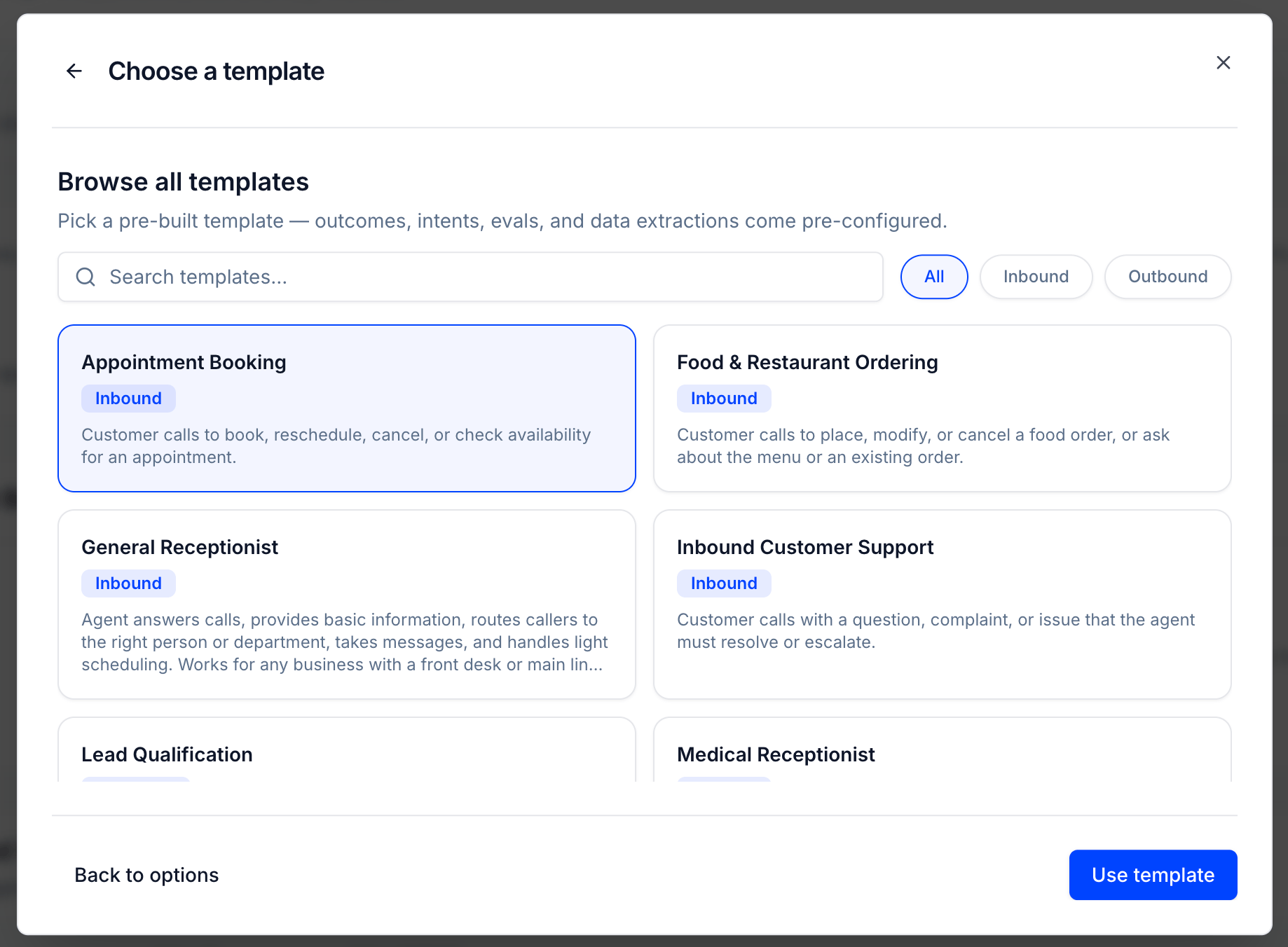 Click **Use template**. Tuner applies the template's configuration to the agent, and you can review and edit it in **Agent Settings**.
### Available templates
The current library covers these use cases:
| Template | Direction | Use case |
| -------------------------- | --------- | ------------------------------------------------------------------------------------------------ |
| Inbound Customer Support | Inbound | Questions, complaints, and issues the agent resolves or escalates. |
| Appointment Booking | Inbound | Booking, rescheduling, cancelling, or checking availability. |
| Medical Receptionist | Inbound | Patient scheduling, prescription refill routing, insurance queries, and emergency escalation. |
| General Receptionist | Inbound | Answering, routing callers, taking messages, and light scheduling for a front desk or main line. |
| Food & Restaurant Ordering | Inbound | Placing, modifying, or cancelling orders and answering menu questions. |
| Real Estate | Inbound | Buyer, seller, and renter inquiries, listing questions, and viewing bookings. |
| Payment Reminders | Outbound | Reminding a customer of a payment and confirming the amount or arranging payment. |
| Lead Qualification | Outbound | Qualifying a prospect, gathering key details, and booking a next step. |
| Recruitment / HR Screening | Outbound | Screening candidates against job criteria before a recruiter takes over. |
The template library changes over time, so the options you see when creating an agent may differ from this list.
## After you pick a template
Open **Agent Settings** and go through each tab to check the template's configuration against your agent:
* Review the intents and data-extraction fields under **Call Analysis**.
* Review the evaluations and red flags under **Evaluation Rules**.
* Review the alerts under **Alerts**, and adjust any thresholds that don't match your call volume.
From here you can keep editing in the dashboard or refine the configuration with [MCP](/docs/mcp/set-up-your-agent).
A tour of the Agent Settings tabs where you review and edit what a template applied.
How intents and data-extraction fields turn calls into structured data.
Click **Use template**. Tuner applies the template's configuration to the agent, and you can review and edit it in **Agent Settings**.
### Available templates
The current library covers these use cases:
| Template | Direction | Use case |
| -------------------------- | --------- | ------------------------------------------------------------------------------------------------ |
| Inbound Customer Support | Inbound | Questions, complaints, and issues the agent resolves or escalates. |
| Appointment Booking | Inbound | Booking, rescheduling, cancelling, or checking availability. |
| Medical Receptionist | Inbound | Patient scheduling, prescription refill routing, insurance queries, and emergency escalation. |
| General Receptionist | Inbound | Answering, routing callers, taking messages, and light scheduling for a front desk or main line. |
| Food & Restaurant Ordering | Inbound | Placing, modifying, or cancelling orders and answering menu questions. |
| Real Estate | Inbound | Buyer, seller, and renter inquiries, listing questions, and viewing bookings. |
| Payment Reminders | Outbound | Reminding a customer of a payment and confirming the amount or arranging payment. |
| Lead Qualification | Outbound | Qualifying a prospect, gathering key details, and booking a next step. |
| Recruitment / HR Screening | Outbound | Screening candidates against job criteria before a recruiter takes over. |
The template library changes over time, so the options you see when creating an agent may differ from this list.
## After you pick a template
Open **Agent Settings** and go through each tab to check the template's configuration against your agent:
* Review the intents and data-extraction fields under **Call Analysis**.
* Review the evaluations and red flags under **Evaluation Rules**.
* Review the alerts under **Alerts**, and adjust any thresholds that don't match your call volume.
From here you can keep editing in the dashboard or refine the configuration with [MCP](/docs/mcp/set-up-your-agent).
A tour of the Agent Settings tabs where you review and edit what a template applied.
How intents and data-extraction fields turn calls into structured data.