> ## Documentation Index
> Fetch the complete documentation index at: https://docs.usetuner.ai/llms.txt
> Use this file to discover all available pages before exploring further.
# Connecting to Retell
> Connect your Retell voice agent to Tuner. The integration is a no-code process that can be completed in minutes.
**Prerequisites:** You'll need an active Retell account and a Tuner account to follow this guide.
## Overview
Connecting your Retell agent to Tuner follows this order: gather credentials from Retell, **save your Retell API key in Tuner Workspace Settings first**, then **create your agent**.
Copy your Retell API key and Agent ID from the Retell dashboard.
Paste the key under **Workspace Settings** → **API Keys & Integrations** and save, before you create an agent.
Fill in **Create a New Agent** and click **Create agent**.
**Estimated time:** 5 minutes from start to finish
**No Webhook Configuration Needed:** Tuner automatically handles the webhook setup for you. After your Retell API key is saved and your agent is created with the correct Agent ID, Tuner will configure everything in the background.
***
## Step 1: Get Your Retell API Key
Your Retell **API Key** lets Tuner authenticate with Retell so call data can be ingested into your workspace.
1. Log in to your [Retell dashboard](https://dashboard.retellai.com/).
2. Open **Settings** and go to **API Keys** (or your workspace’s API key section, depending on your Retell UI).
3. **Create** a new key or copy an existing one.
4. Keep the key safe. You will paste it into **Tuner Workspace Settings** in Step 3.
Treat your Retell API Key like a password. Do not commit it to source control or expose it in client-side code.
***
## Step 2: Get Your Retell Agent ID
1. Log in to your [Retell dashboard](https://dashboard.retellai.com/agents).
2. You'll see a list of all your agents. Click on the agent you want to connect to Tuner.
3. On the agent details page, locate the **Agent ID** displayed at the top of the page (it starts with `agent_` followed by a string of characters).
4. Click on the Agent ID to copy it to your clipboard.
The Agent ID is also visible in the URL when viewing an agent. For example: `https://dashboard.retellai.com/agents/agent_bcf7565e36612c8b9929857f4b`
***
## Step 3: Add your Retell API key in Tuner (before creating an agent)
Do this **before** you click **Add New Agent**, so your workspace is authorized to talk to Retell when you finish setup.
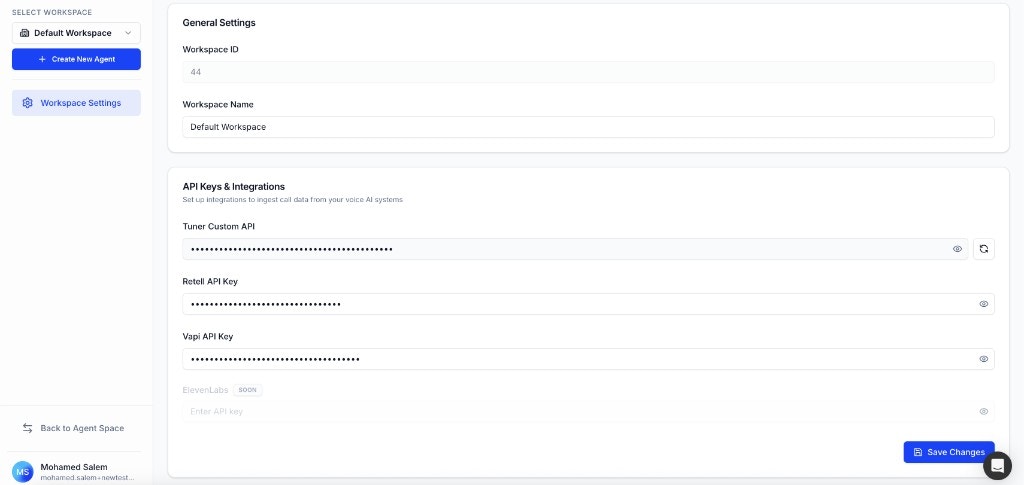
1. In Tuner, open **Workspace Settings** (gear icon in the sidebar).
2. Under **API Keys & Integrations**, paste your **Retell API Key** into the **Retell API Key** field.
3. Click **Save Changes**.
 ***
## Step 4: Create your agent in Tuner
1. Click the **Select Agent** dropdown in the sidebar and select **Add New Agent**.
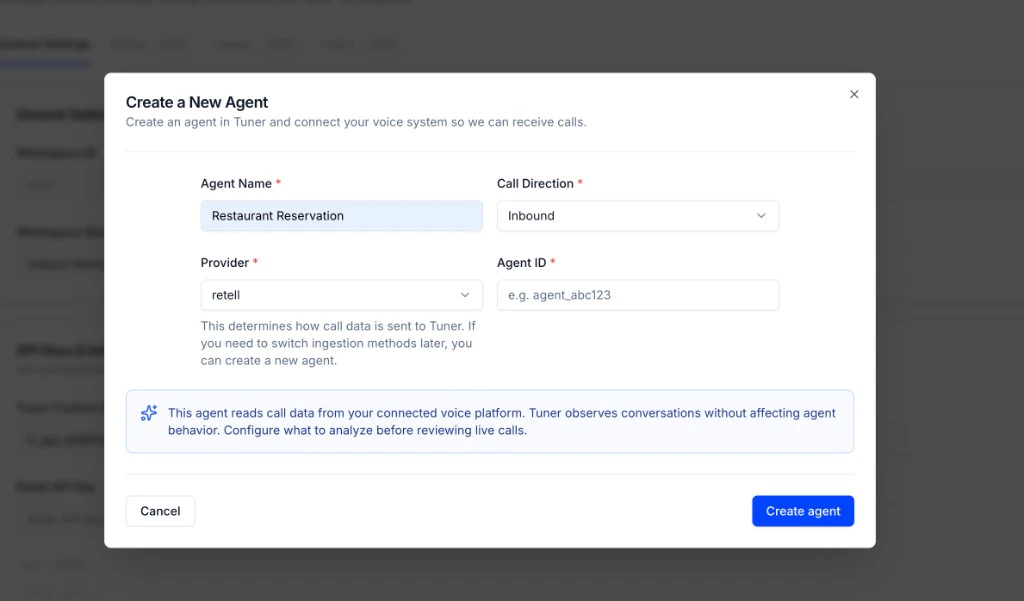
2. In the **Create a New Agent** modal, fill in the required fields:
* **Agent Name:** A display name for this agent in Tuner.
* **Call Direction:** **Inbound** or **Outbound**, matching how this agent is used.
* **Provider:** **retell**. This tells Tuner how call data is ingested.
* **Agent Remote ID:** Paste the Agent ID you copied from Retell (for example `agent_…`).
3. Click **Create agent**.
***
## Step 4: Create your agent in Tuner
1. Click the **Select Agent** dropdown in the sidebar and select **Add New Agent**.
2. In the **Create a New Agent** modal, fill in the required fields:
* **Agent Name:** A display name for this agent in Tuner.
* **Call Direction:** **Inbound** or **Outbound**, matching how this agent is used.
* **Provider:** **retell**. This tells Tuner how call data is ingested.
* **Agent Remote ID:** Paste the Agent ID you copied from Retell (for example `agent_…`).
3. Click **Create agent**.
 That's it! Tuner will automatically configure the webhook connection with Retell in the background.
***
## Webhooks
You can add a webhook URL to your agent under **Agent Settings** → **Webhooks** to receive Tuner events — call analysis results and real-time alerts. For Retell agents, Tuner also forwards the **original Retell call payload** to your URL, so if you already had a webhook set in Retell (n8n, Zapier, etc.), your existing automations keep working after connecting to Tuner.
See the [Webhooks](/docs/agent-configurations/webhooks) guide for setup and payload examples.
## Troubleshooting
Verify that you entered the correct Agent ID. The Agent ID should start with `agent_` followed by a string of characters.
Double-check that you copied the complete Agent ID from Retell. Make sure there are no extra spaces before or after the ID.
Confirm your **Retell API Key** is saved under **Workspace Settings** → **API Keys & Integrations** *before* you rely on ingestion. Without it, Retell cannot send call data to Tuner.
***
## 🎉 Congratulations!
You've successfully connected your Retell agent to Tuner! Here's what you've accomplished:
✅ Obtained your Retell API Key and Agent ID from Retell
✅ Saved your Retell API Key in Tuner Workspace Settings first
✅ Created your agent in Tuner with the correct Agent ID
✅ Tuner automatically configured the webhook connection
### What's Next?
Your Retell agent is now connected. All future calls will be automatically sent to Tuner for analysis.
Connect Tuner's simulator to your Retell agent over SIP and run your first test batch.
Set up MCP or blank configuration and send your first call.
Use your IDE or chat app to generate outcomes, intents, evaluations, and alerts automatically.
A step-by-step guide to analyzing your first call.
Learn how to effectively monitor your agent and catch issues early.
That's it! Tuner will automatically configure the webhook connection with Retell in the background.
***
## Webhooks
You can add a webhook URL to your agent under **Agent Settings** → **Webhooks** to receive Tuner events — call analysis results and real-time alerts. For Retell agents, Tuner also forwards the **original Retell call payload** to your URL, so if you already had a webhook set in Retell (n8n, Zapier, etc.), your existing automations keep working after connecting to Tuner.
See the [Webhooks](/docs/agent-configurations/webhooks) guide for setup and payload examples.
## Troubleshooting
Verify that you entered the correct Agent ID. The Agent ID should start with `agent_` followed by a string of characters.
Double-check that you copied the complete Agent ID from Retell. Make sure there are no extra spaces before or after the ID.
Confirm your **Retell API Key** is saved under **Workspace Settings** → **API Keys & Integrations** *before* you rely on ingestion. Without it, Retell cannot send call data to Tuner.
***
## 🎉 Congratulations!
You've successfully connected your Retell agent to Tuner! Here's what you've accomplished:
✅ Obtained your Retell API Key and Agent ID from Retell
✅ Saved your Retell API Key in Tuner Workspace Settings first
✅ Created your agent in Tuner with the correct Agent ID
✅ Tuner automatically configured the webhook connection
### What's Next?
Your Retell agent is now connected. All future calls will be automatically sent to Tuner for analysis.
Connect Tuner's simulator to your Retell agent over SIP and run your first test batch.
Set up MCP or blank configuration and send your first call.
Use your IDE or chat app to generate outcomes, intents, evaluations, and alerts automatically.
A step-by-step guide to analyzing your first call.
Learn how to effectively monitor your agent and catch issues early.