> ## Documentation Index
> Fetch the complete documentation index at: https://docs.usetuner.ai/llms.txt
> Use this file to discover all available pages before exploring further.
# Add Dataset calls
> Pick a real production call or upload a recording. Tuner finds the caller, cuts their side into turns, and gets the call ready to replay.
Add a real call to your Dataset: either one Tuner recorded from your agent, or a recording you upload. Tuner keeps only the caller's side, split into turns (each thing the caller said), and gets the call ready to replay.
## Add a call
Open the dialog, name the call, choose a source, and extract it. Only step 3 depends on your source.
Go to **Simulations > Dataset** and click **Add call**.
Enter a **Name**: required, up to 255 characters, and unique for this agent. Add a **Description** if you like, up to 1,000 characters, saying what makes the call worth replaying. It shows on the call's card.
Choose **From production** for a call Tuner already recorded from your agent, or **From an upload** for an audio file you already have.
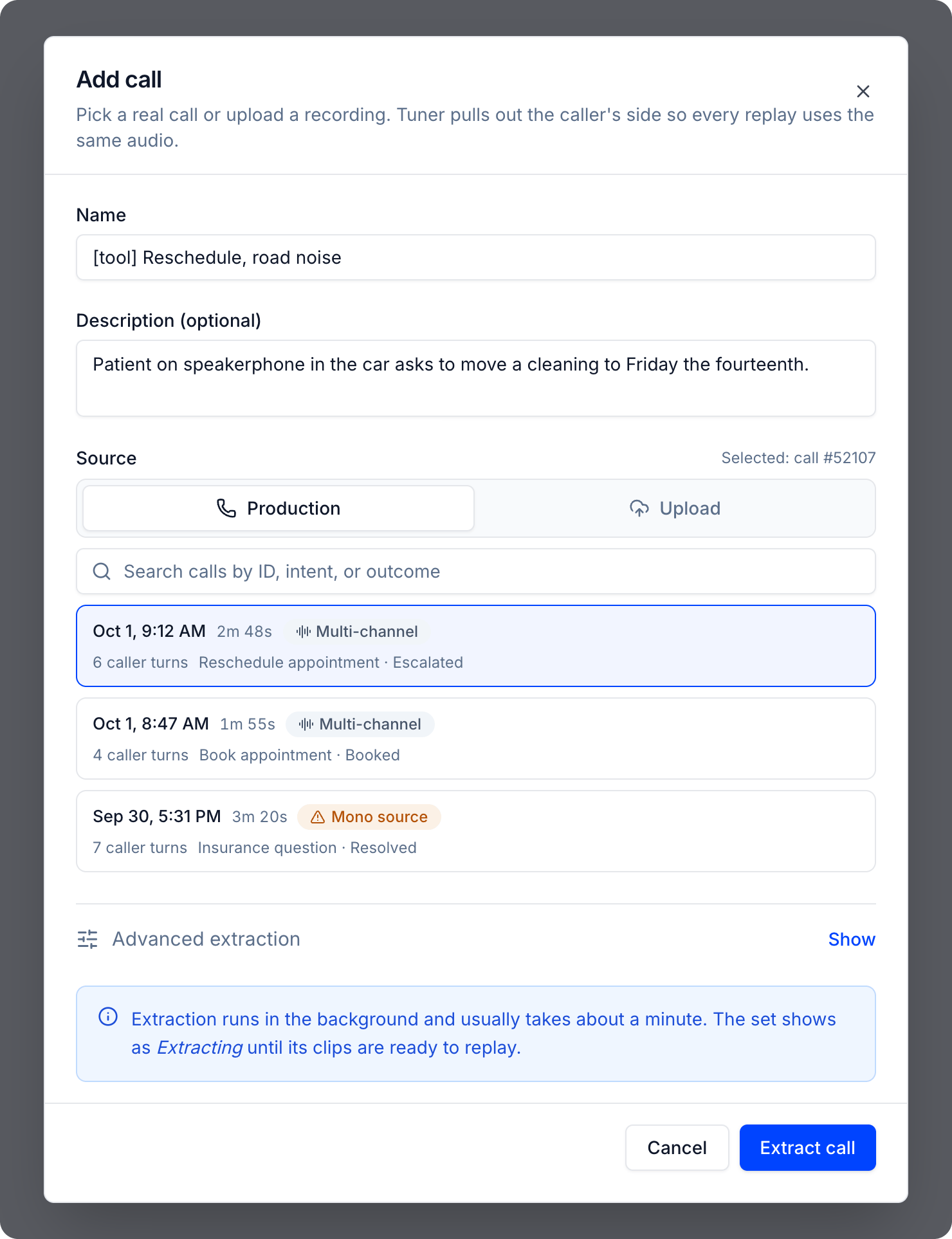
Once your voice agent is connected to Tuner, the real calls it takes show up in Tuner with a recording and a transcript. With this option, you pick one of those calls and add it to your Dataset. It's the quickest way to save a call that went wrong, because everything Tuner needs is already there.
 * **Cost:** free.
* Click the call you want from the list. The newest calls come first, and you can search by call ID.
* Only calls that have both a recording and a transcript are listed. Simulation test calls aren't, but you can [replay a simulated call](/docs/simulation/replays#replay-a-simulation) instead.
* Tuner already knows which side is the caller, so there's nothing to pick.
* Prefer calls marked **Multi-channel**, where the caller and your agent are recorded separately. On a **Mono source** call, the agent's voice can bleed into the caller's turns.
Already have recordings of real calls, from another system or from before you started using Tuner? Upload them as audio files and add them to your Dataset. Your agent doesn't need to have taken any calls in Tuner yet, so you can start on day one. You just tell Tuner which side of the recording is the caller.
* **Cost:** free.
* Click the call you want from the list. The newest calls come first, and you can search by call ID.
* Only calls that have both a recording and a transcript are listed. Simulation test calls aren't, but you can [replay a simulated call](/docs/simulation/replays#replay-a-simulation) instead.
* Tuner already knows which side is the caller, so there's nothing to pick.
* Prefer calls marked **Multi-channel**, where the caller and your agent are recorded separately. On a **Mono source** call, the agent's voice can bleed into the caller's turns.
Already have recordings of real calls, from another system or from before you started using Tuner? Upload them as audio files and add them to your Dataset. Your agent doesn't need to have taken any calls in Tuner yet, so you can start on day one. You just tell Tuner which side of the recording is the caller.
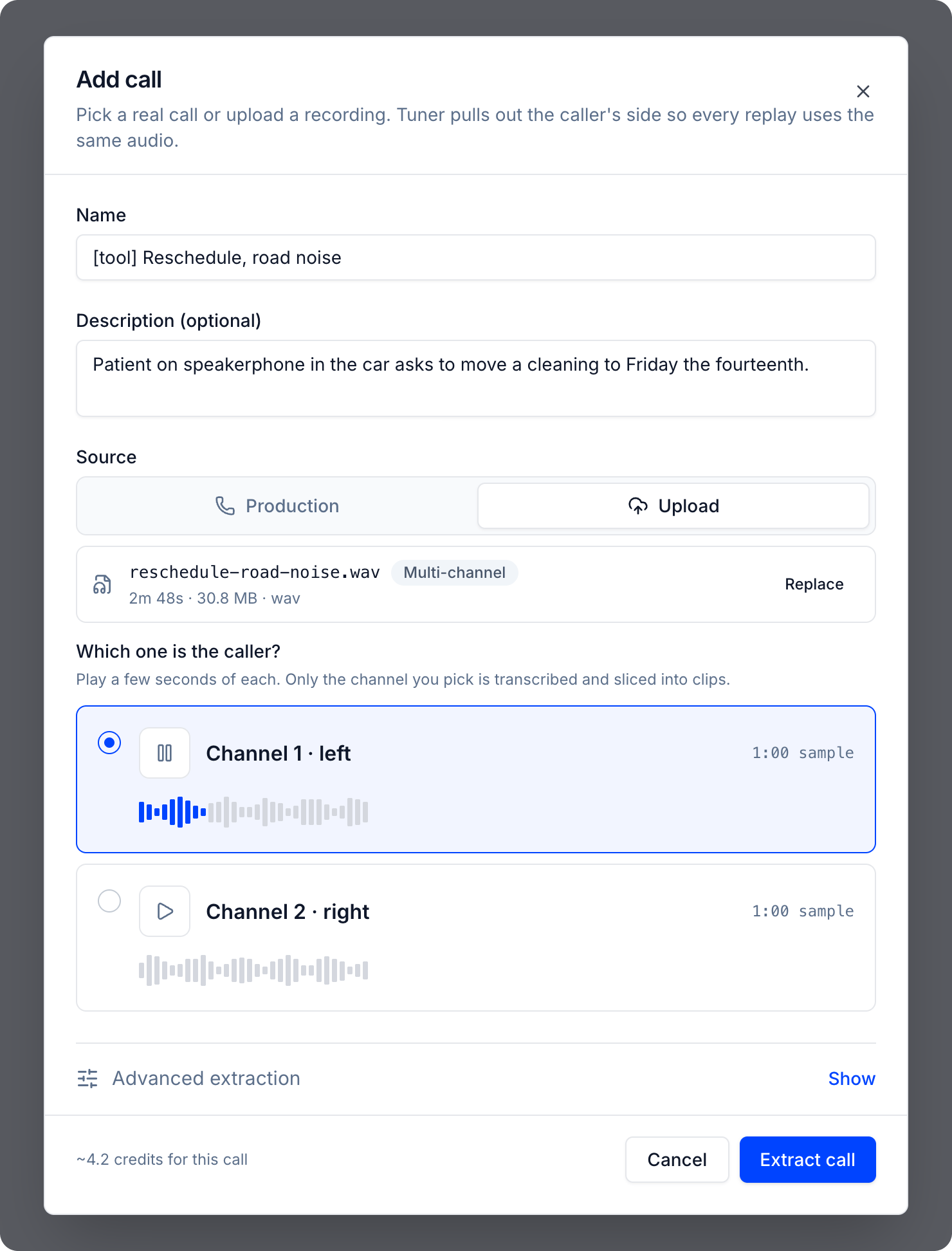 * **Cost:** 1.5 credits per minute of audio, shown as an estimate before you extract. You're charged once, when the call is **Ready**, and nothing is charged if it fails or you cancel.
* Drop your file in, or click **browse**. It can be wav, mp3, m4a, flac, ogg, or webm, up to 200 MB and 30 minutes.
* The file must be stereo, with the caller on one channel and your agent on the other. Mono files, with everything mixed together, are rejected.
* Click **Analyze audio**. Tuner uploads and checks the file, usually in under two minutes, so keep the dialog open. If the upload is interrupted, click **Try again**.
* Play the one-minute sample of each channel and pick the one with the caller.
Optional: expand **Advanced extraction** to change how the caller's speech is cut (see [Advanced extraction](#advanced-extraction)). Then click **Extract call**.
The call appears on the Dataset tab as **Extracting**, which updates on its own. It's usually **Ready** within a minute, and then it can be replayed. If it shows **Failed**, see [Troubleshooting](#troubleshooting).
***
## After you add a call
### Check the status
| Status | What it means |
| - | - |
| **Extracting** | Tuner is preparing the call. It can't be replayed yet. |
| **Ready** | The call can be previewed and replayed. |
| **Failed** | Nothing was extracted. The reason shows on the card. |
### Review the caller turns
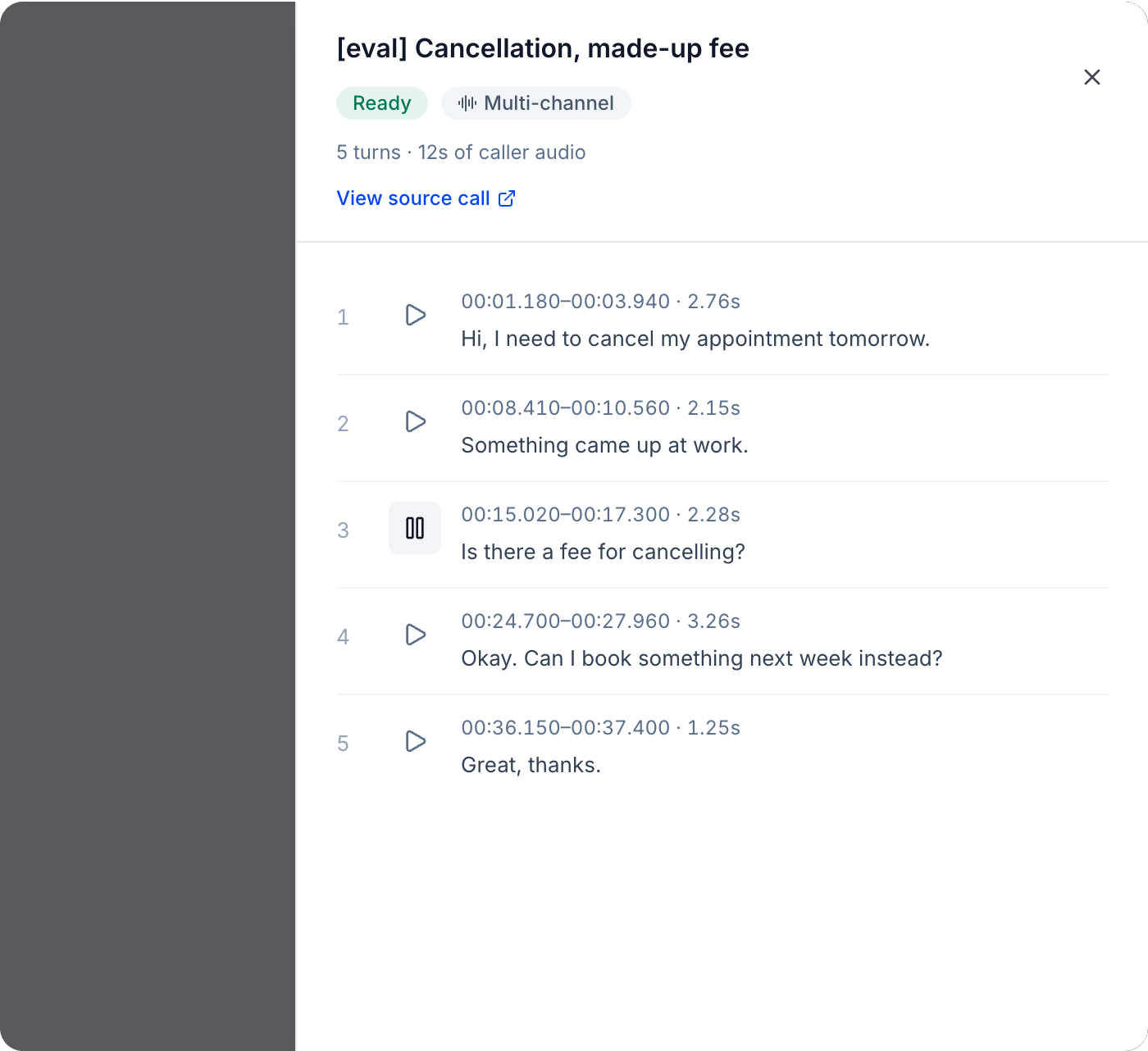
Click the headphones icon on a **Ready** call to open its turns. Each turn shows its position in the original recording, its duration, and its reference transcript. Click play to hear just that turn. For production calls, **View source call** opens the original call.
* **Cost:** 1.5 credits per minute of audio, shown as an estimate before you extract. You're charged once, when the call is **Ready**, and nothing is charged if it fails or you cancel.
* Drop your file in, or click **browse**. It can be wav, mp3, m4a, flac, ogg, or webm, up to 200 MB and 30 minutes.
* The file must be stereo, with the caller on one channel and your agent on the other. Mono files, with everything mixed together, are rejected.
* Click **Analyze audio**. Tuner uploads and checks the file, usually in under two minutes, so keep the dialog open. If the upload is interrupted, click **Try again**.
* Play the one-minute sample of each channel and pick the one with the caller.
Optional: expand **Advanced extraction** to change how the caller's speech is cut (see [Advanced extraction](#advanced-extraction)). Then click **Extract call**.
The call appears on the Dataset tab as **Extracting**, which updates on its own. It's usually **Ready** within a minute, and then it can be replayed. If it shows **Failed**, see [Troubleshooting](#troubleshooting).
***
## After you add a call
### Check the status
| Status | What it means |
| - | - |
| **Extracting** | Tuner is preparing the call. It can't be replayed yet. |
| **Ready** | The call can be previewed and replayed. |
| **Failed** | Nothing was extracted. The reason shows on the card. |
### Review the caller turns
Click the headphones icon on a **Ready** call to open its turns. Each turn shows its position in the original recording, its duration, and its reference transcript. Click play to hear just that turn. For production calls, **View source call** opens the original call.
 Before you rely on a call, listen for:
* **Clipped words** at the start or end of a turn: raise **Padding** and re-extract.
* **Agent speech inside a caller turn**: common with mono sources. Pick a multi-channel call if you can.
* **Turns that are split or merged in the wrong place**: adjust **Merge gap** or **Minimum turn** and re-extract.
### Re-extract a call
If the turns come out wrong, cut the call again with different settings. Click the refresh icon on a production call. Tuner creates a **new** Dataset call from the same recording and suggests a versioned name, like **Billing dispute, Feb 4 v2**. The original stays as it is, so earlier replays remain comparable.
* The extraction settings start from the defaults, so set them again before you extract.
* Uploaded calls can't be re-extracted. Upload the file again instead.
### Advanced extraction
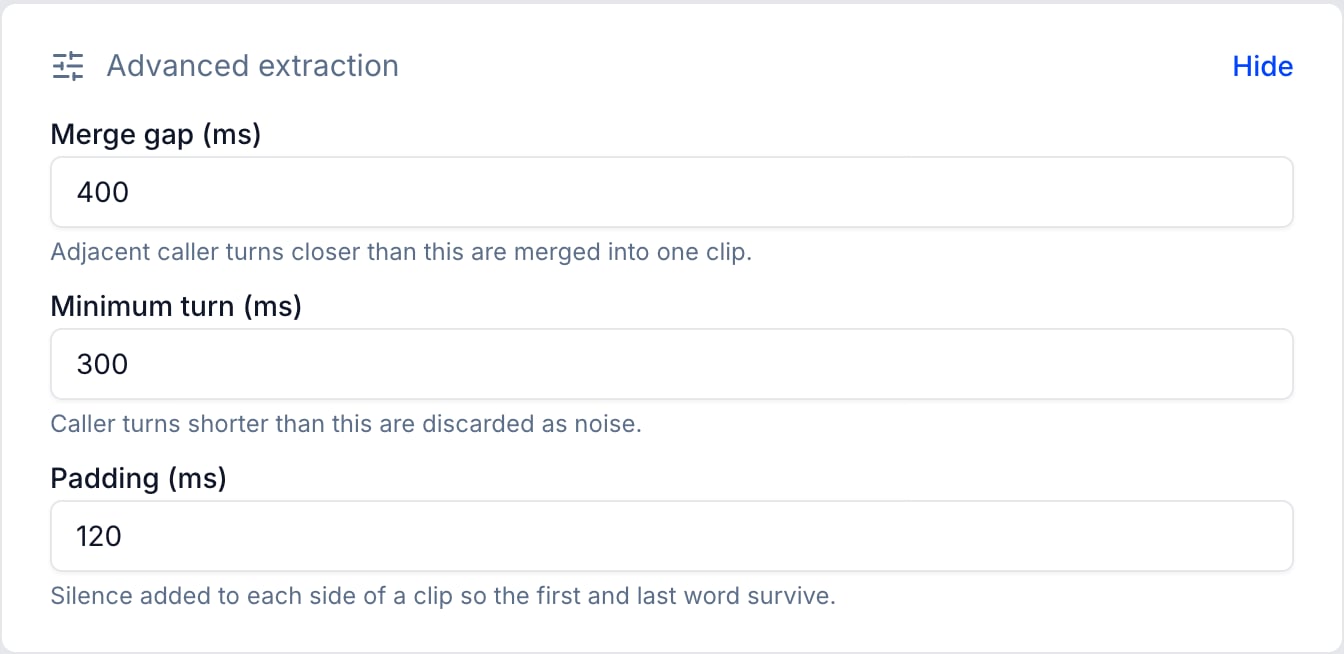
These settings are in the **Add call** dialog, and you set them again when you re-extract. The defaults suit most calls.
Before you rely on a call, listen for:
* **Clipped words** at the start or end of a turn: raise **Padding** and re-extract.
* **Agent speech inside a caller turn**: common with mono sources. Pick a multi-channel call if you can.
* **Turns that are split or merged in the wrong place**: adjust **Merge gap** or **Minimum turn** and re-extract.
### Re-extract a call
If the turns come out wrong, cut the call again with different settings. Click the refresh icon on a production call. Tuner creates a **new** Dataset call from the same recording and suggests a versioned name, like **Billing dispute, Feb 4 v2**. The original stays as it is, so earlier replays remain comparable.
* The extraction settings start from the defaults, so set them again before you extract.
* Uploaded calls can't be re-extracted. Upload the file again instead.
### Advanced extraction
These settings are in the **Add call** dialog, and you set them again when you re-extract. The defaults suit most calls.
 | Setting | Default (range) | What it does |
| - | - | - |
| **Merge gap (ms)** | 400 (0 to 5,000) | Merges caller turns that are closer together than this. Raise it if a caller who pauses mid-sentence gets split into several turns. Lower it if separate answers get merged. |
| **Minimum turn (ms)** | 300 (50 to 5,000) | Drops caller turns shorter than this as noise. Lower it to keep short answers like "yes" or "no". Raise it to drop coughs and background sounds. |
| **Padding (ms)** | 120 (0 to 2,000) | Adds silence before and after each turn so the first and last word aren't clipped. Raise it if turns start or end mid-word. |
**Merge gap** isn't used for uploads, or for multi-channel LiveKit, Pipecat, Dograh, and Custom API calls, which merge automatically unless the agent speaks in between. **Padding** is always 0 for mono sources.
### Delete a call
Click the trash icon and confirm. The call can no longer be replayed, but runs that already replayed it keep their results. Its name becomes available again.
***
## Add calls with the API
You can also build your Dataset from code, for example to add every escalated call as it happens. The endpoints are in the **API Reference** tab, in the **Simulation** group.
Send your Tuner API key as a Bearer token; see [authentication](/docs/integrations/custom-stack/overview#the-contract). All paths start with `https://api.usetuner.ai/api/v1/workspaces/{workspace_id}/agents/{agent_id}`, where `agent_id` is your agent's Tuner ID, the `id` returned by **List Agents**.
1. **Find the call.** **List Source Call Candidates** (`GET /voice-clip-sets/source-calls`) returns the calls you can add, each with its `call_id`.
2. **Create the Dataset call.** **Create Voice Clip Set** (`POST /voice-clip-sets`) with a `name` and the `source_call_id`:
```bash theme={null}
curl -X POST "https://api.usetuner.ai/api/v1/workspaces/$WORKSPACE_ID/agents/$AGENT_ID/voice-clip-sets" \
-H "Authorization: Bearer $TUNER_API_KEY" \
-H "Content-Type: application/json" \
-d '{"name": "Billing dispute, Feb 4", "source_call_id": 12345}'
```
3. **Wait for it.** Poll **Get Voice Clip Set** (`GET /voice-clip-sets/{id}`) until `status` is `ready`, or `failed` with a `failure_reason`.
1. **Start the upload.** **Start Voice Clip Upload** (`POST /voice-clip-uploads`) with the `filename`, `extension`, and exact `size_bytes`. The response has a presigned URL for each 8 MiB part.
2. **Upload the parts.** `PUT` each part of the file to its URL, without your Tuner API key, and keep the `ETag` of each response.
3. **Complete it.** **Complete Voice Clip Upload** (`POST /voice-clip-uploads/{id}/complete`) with each `part_number` and `etag`.
4. **Wait for analysis.** Poll **Get Voice Clip Upload** until `status` is `awaiting_selection`. Its `speakers` list shows the two channels, and **Get Voice Clip Upload Channel Sample URL** returns a one-minute sample of each.
5. **Create the Dataset call.** **Create Voice Clip Set** with a `name`, the `voice_clip_upload_id`, and the `caller_channel_index` of the caller's channel, then poll it until `ready`.
Both accept optional `extraction_settings` (`merge_gap_ms`, `min_turn_ms`, `pad_ms`), which work like [Advanced extraction](#advanced-extraction). Uploads cost the same 1.5 credits per minute, charged when the call is ready.
***
## Troubleshooting
Nothing was extracted, and the reason shows on the call's card. Common reasons:
| Message | What to do |
| - | - |
| Source call has no recording (mono or multi-channel) to extract audio from. | Pick a call that has a recording. |
| Source call has no transcript; cannot extract caller turns. | Pick a call that has a transcript. |
| No usable caller turns were found in the source call's transcript. | The caller barely spoke, or every turn was shorter than **Minimum turn**. Lower it and try again, or pick another call. |
| No speech was found on the selected channel. | You may have picked the agent's channel. Upload the file again and pick the other channel. |
The file is checked during analysis, before you extract.
| Message | What to do |
| - | - |
| Only stereo recordings with the caller and agent on separate channels are supported for now. | Export a stereo recording from your platform. |
| This file has more than two channels. | Upload a stereo recording with the caller and agent on separate channels. |
| This file is longer than the 30 minute limit. | Trim the recording to the part you want to replay. |
| We could not read this audio file. | Upload a valid wav, mp3, m4a, flac, ogg, or webm file. |
***
### Next steps
Replay your Dataset calls against your agent and read the results.
How to choose, name, and maintain calls so every replay tells you something.
This documentation is built and hosted on [Mintlify](https://mintlify.com), a developer documentation platform.
| Setting | Default (range) | What it does |
| - | - | - |
| **Merge gap (ms)** | 400 (0 to 5,000) | Merges caller turns that are closer together than this. Raise it if a caller who pauses mid-sentence gets split into several turns. Lower it if separate answers get merged. |
| **Minimum turn (ms)** | 300 (50 to 5,000) | Drops caller turns shorter than this as noise. Lower it to keep short answers like "yes" or "no". Raise it to drop coughs and background sounds. |
| **Padding (ms)** | 120 (0 to 2,000) | Adds silence before and after each turn so the first and last word aren't clipped. Raise it if turns start or end mid-word. |
**Merge gap** isn't used for uploads, or for multi-channel LiveKit, Pipecat, Dograh, and Custom API calls, which merge automatically unless the agent speaks in between. **Padding** is always 0 for mono sources.
### Delete a call
Click the trash icon and confirm. The call can no longer be replayed, but runs that already replayed it keep their results. Its name becomes available again.
***
## Add calls with the API
You can also build your Dataset from code, for example to add every escalated call as it happens. The endpoints are in the **API Reference** tab, in the **Simulation** group.
Send your Tuner API key as a Bearer token; see [authentication](/docs/integrations/custom-stack/overview#the-contract). All paths start with `https://api.usetuner.ai/api/v1/workspaces/{workspace_id}/agents/{agent_id}`, where `agent_id` is your agent's Tuner ID, the `id` returned by **List Agents**.
1. **Find the call.** **List Source Call Candidates** (`GET /voice-clip-sets/source-calls`) returns the calls you can add, each with its `call_id`.
2. **Create the Dataset call.** **Create Voice Clip Set** (`POST /voice-clip-sets`) with a `name` and the `source_call_id`:
```bash theme={null}
curl -X POST "https://api.usetuner.ai/api/v1/workspaces/$WORKSPACE_ID/agents/$AGENT_ID/voice-clip-sets" \
-H "Authorization: Bearer $TUNER_API_KEY" \
-H "Content-Type: application/json" \
-d '{"name": "Billing dispute, Feb 4", "source_call_id": 12345}'
```
3. **Wait for it.** Poll **Get Voice Clip Set** (`GET /voice-clip-sets/{id}`) until `status` is `ready`, or `failed` with a `failure_reason`.
1. **Start the upload.** **Start Voice Clip Upload** (`POST /voice-clip-uploads`) with the `filename`, `extension`, and exact `size_bytes`. The response has a presigned URL for each 8 MiB part.
2. **Upload the parts.** `PUT` each part of the file to its URL, without your Tuner API key, and keep the `ETag` of each response.
3. **Complete it.** **Complete Voice Clip Upload** (`POST /voice-clip-uploads/{id}/complete`) with each `part_number` and `etag`.
4. **Wait for analysis.** Poll **Get Voice Clip Upload** until `status` is `awaiting_selection`. Its `speakers` list shows the two channels, and **Get Voice Clip Upload Channel Sample URL** returns a one-minute sample of each.
5. **Create the Dataset call.** **Create Voice Clip Set** with a `name`, the `voice_clip_upload_id`, and the `caller_channel_index` of the caller's channel, then poll it until `ready`.
Both accept optional `extraction_settings` (`merge_gap_ms`, `min_turn_ms`, `pad_ms`), which work like [Advanced extraction](#advanced-extraction). Uploads cost the same 1.5 credits per minute, charged when the call is ready.
***
## Troubleshooting
Nothing was extracted, and the reason shows on the call's card. Common reasons:
| Message | What to do |
| - | - |
| Source call has no recording (mono or multi-channel) to extract audio from. | Pick a call that has a recording. |
| Source call has no transcript; cannot extract caller turns. | Pick a call that has a transcript. |
| No usable caller turns were found in the source call's transcript. | The caller barely spoke, or every turn was shorter than **Minimum turn**. Lower it and try again, or pick another call. |
| No speech was found on the selected channel. | You may have picked the agent's channel. Upload the file again and pick the other channel. |
The file is checked during analysis, before you extract.
| Message | What to do |
| - | - |
| Only stereo recordings with the caller and agent on separate channels are supported for now. | Export a stereo recording from your platform. |
| This file has more than two channels. | Upload a stereo recording with the caller and agent on separate channels. |
| This file is longer than the 30 minute limit. | Trim the recording to the part you want to replay. |
| We could not read this audio file. | Upload a valid wav, mp3, m4a, flac, ogg, or webm file. |
***
### Next steps
Replay your Dataset calls against your agent and read the results.
How to choose, name, and maintain calls so every replay tells you something.
This documentation is built and hosted on [Mintlify](https://mintlify.com), a developer documentation platform.