> ## Documentation Index
> Fetch the complete documentation index at: https://docs.usetuner.ai/llms.txt
> Use this file to discover all available pages before exploring further.
# Introduction to Datasets
> Save real calls and replay them against your agent with the exact same caller audio. Reproduce the call that failed, prove your fix, and pick your stack on your own calls.
Build Datasets on the **Dataset** tab and replay them from the **Replays** tab, both under **Simulations**. You need a plan with Call Simulation and an agent set up for [inbound simulation](/docs/simulation/inbound/setup).
## What is a Dataset?
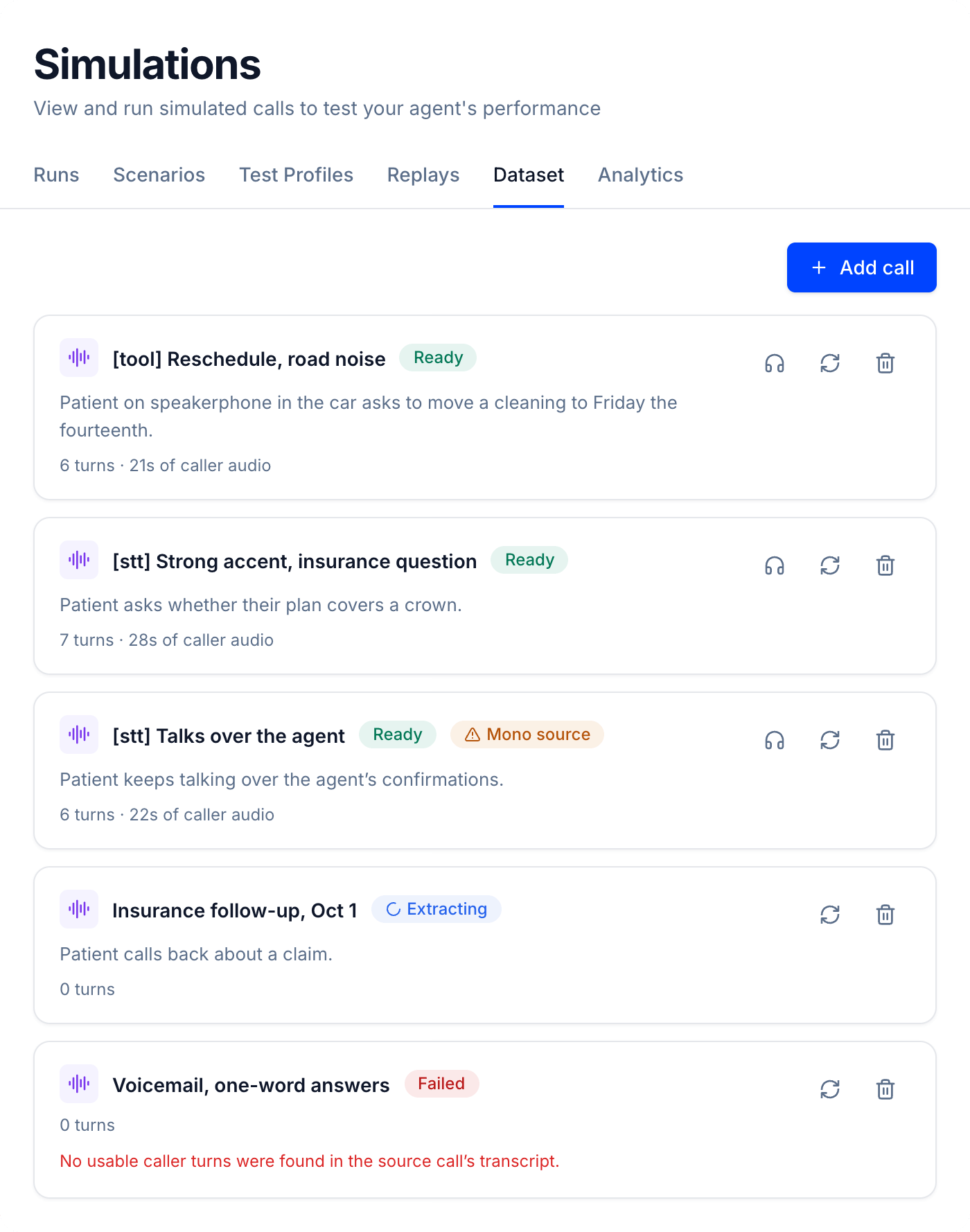
A Dataset is a set of real calls you save to test your agent. Each saved call, a Dataset call, keeps only what the caller said, cut into turns. When you replay it, Tuner calls your agent and plays those turns back, and your agent answers as it would on a real call. The caller never changes, so when a result changes, your agent changed.
The loop is simple: save a call, replay it, change your agent, and replay it again.
 ***
## Why use a Dataset
Most teams use a Dataset for two things.
### Reproduce the call that failed
Prove your fix on the exact call that broke.
* Save the call that failed, like a noisy line where your agent misheard a date.
* Replay it to see the failure, fix your agent, then replay it again.
* Keep it in your Dataset as a test, so the failure can't quietly come back.
***
## Why use a Dataset
Most teams use a Dataset for two things.
### Reproduce the call that failed
Prove your fix on the exact call that broke.
* Save the call that failed, like a noisy line where your agent misheard a date.
* Replay it to see the failure, fix your agent, then replay it again.
* Keep it in your Dataset as a test, so the failure can't quietly come back.
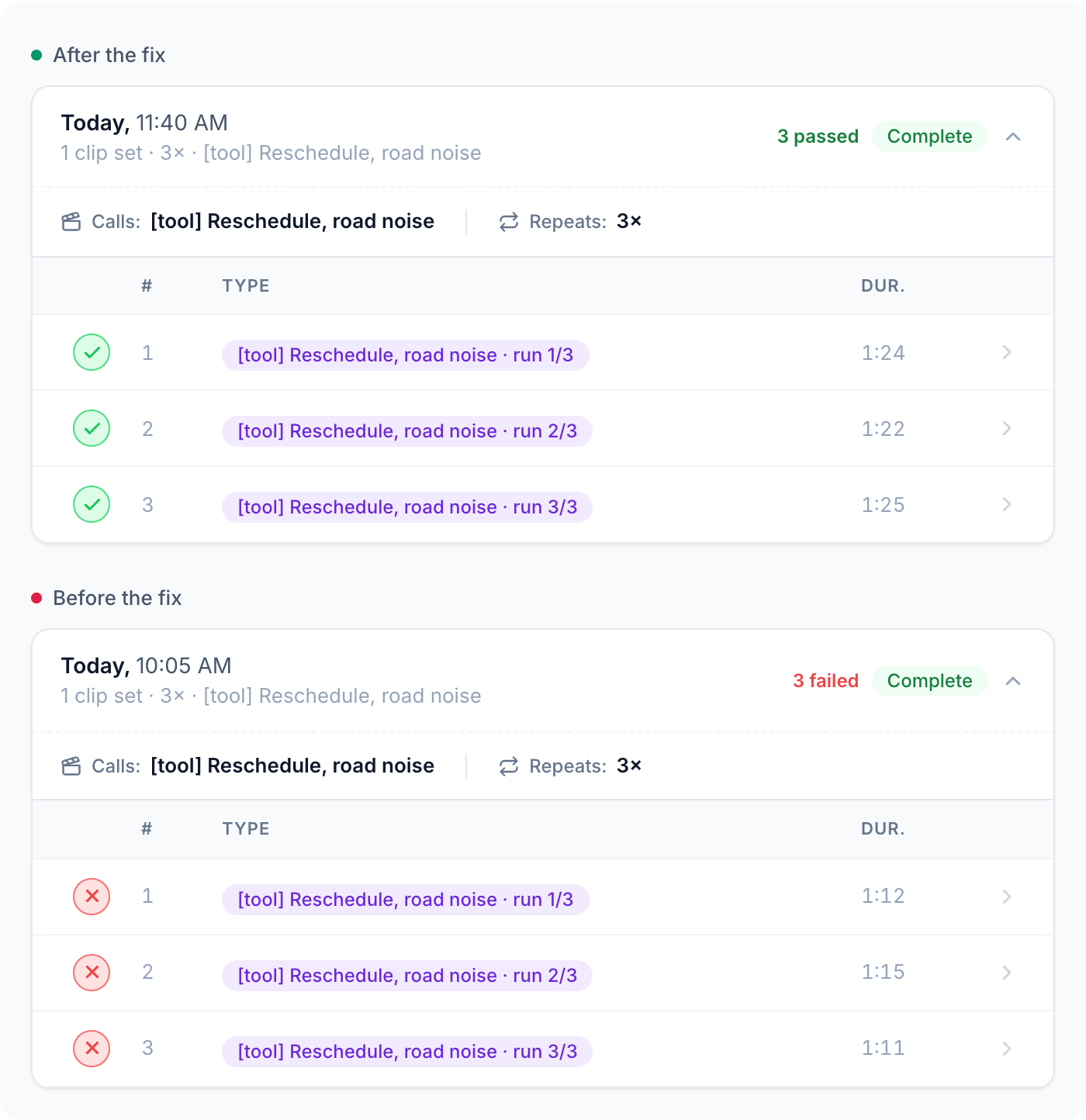 From failure to verified fix, step by step.
### Pick your stack on your own calls
Build your own benchmark to test a new model or provider on your callers before you switch.
* Public benchmarks use generic audio, not your callers or your stack.
* Save your typical and hardest calls to your Dataset. That's your benchmark.
* Replay it on your current setup and on the new one: same calls, same scoring, latency measured on every run.
From failure to verified fix, step by step.
### Pick your stack on your own calls
Build your own benchmark to test a new model or provider on your callers before you switch.
* Public benchmarks use generic audio, not your callers or your stack.
* Save your typical and hardest calls to your Dataset. That's your benchmark.
* Replay it on your current setup and on the new one: same calls, same scoring, latency measured on every run.
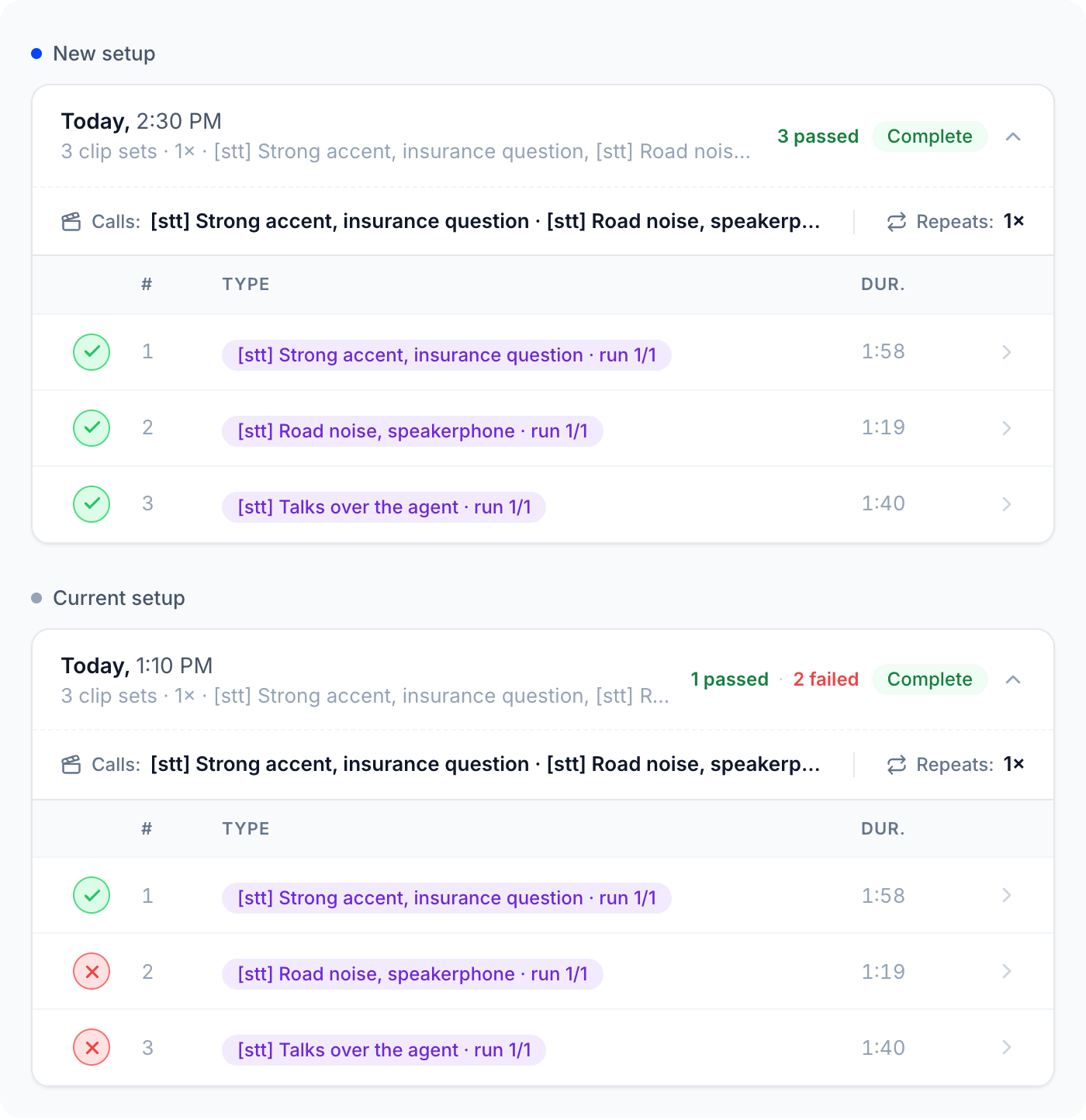 How to build your benchmark and compare two setups.
***
## How a Dataset works
Either way, you start with real calls in your Dataset.
**Start on day one with your own calls**, or use real calls Tuner recorded from your agent. Open **Simulations > Dataset**, click **Add call**, name it, and pick a source.
Audio recordings you already have, even before your agent takes any calls in Tuner. Stereo, 1.5 credits per minute.
A real call your agent took that Tuner recorded, like one that just failed. Free.
It keeps only the caller's side, cut into **caller turns**. The call shows as **Extracting**, then **Ready**, usually within a minute.
Click the headphones icon to listen to each turn before you rely on the call.
How to build your benchmark and compare two setups.
***
## How a Dataset works
Either way, you start with real calls in your Dataset.
**Start on day one with your own calls**, or use real calls Tuner recorded from your agent. Open **Simulations > Dataset**, click **Add call**, name it, and pick a source.
Audio recordings you already have, even before your agent takes any calls in Tuner. Stereo, 1.5 credits per minute.
A real call your agent took that Tuner recorded, like one that just failed. Free.
It keeps only the caller's side, cut into **caller turns**. The call shows as **Extracting**, then **Ready**, usually within a minute.
Click the headphones icon to listen to each turn before you rely on the call.
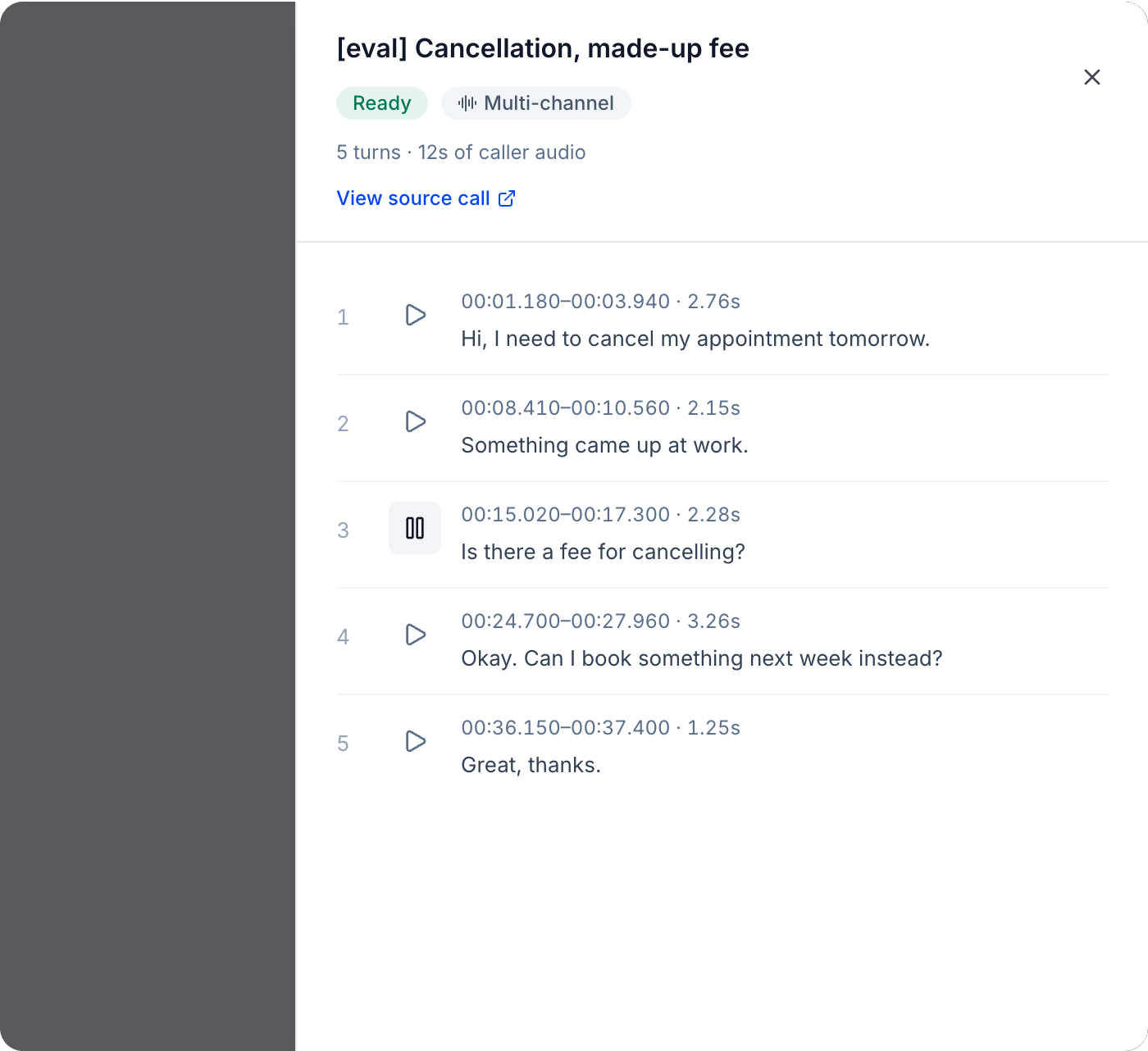 Upload your own recording or pick a production call.
***
## How a Dataset is used
Your Dataset is built. Now use it in a **Replay**, a separate feature under Simulations. Tuner calls your agent and plays back the caller turns, like a live call, then grades each call against your Pass/Fail evals and measures latency.
Upload your own recording or pick a production call.
***
## How a Dataset is used
Your Dataset is built. Now use it in a **Replay**, a separate feature under Simulations. Tuner calls your agent and plays back the caller turns, like a live call, then grades each call against your Pass/Fail evals and measures latency.
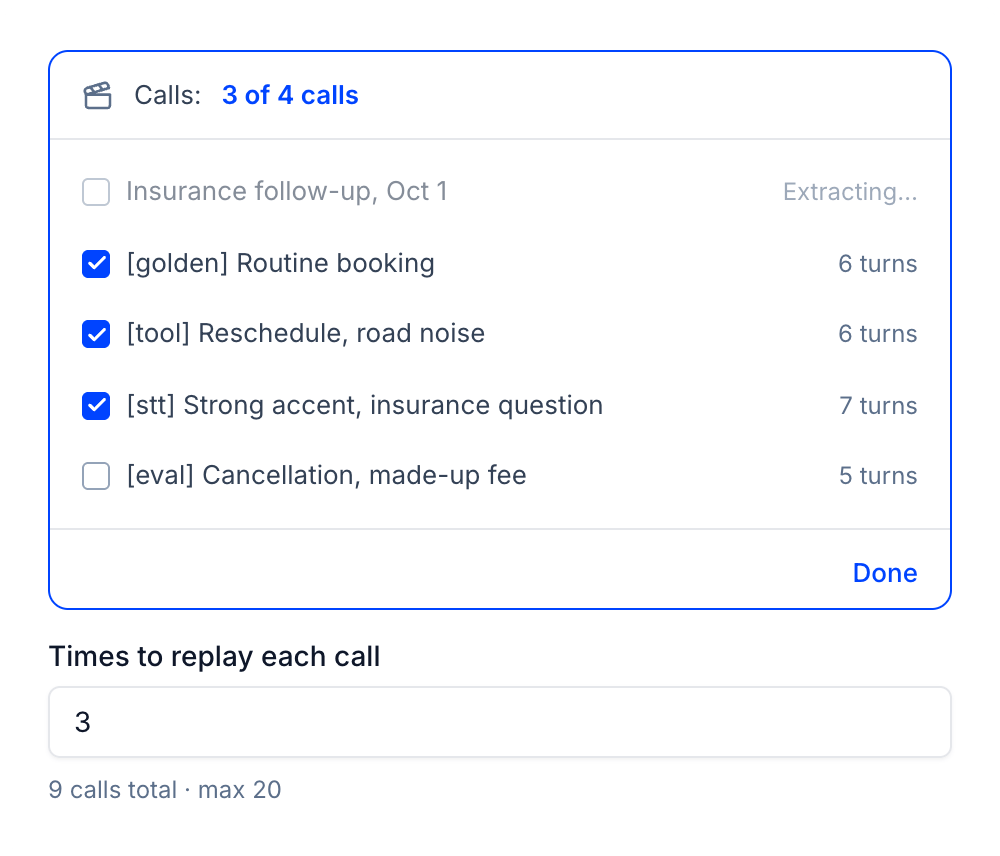 Run a replay, read the results, and compare runs.
***
## FAQ
| Part | What it is |
| - | - |
| **Caller turns** | Each stretch of the caller speaking, played in order during a replay |
| **Caller audio** | A caller-only track, the audio your agent hears |
| **Reference transcript** | What the caller said in each turn, for your review |
| **Channel mode** | **Multi-channel**, or **Mono source** when the agent's voice can bleed in |
| **Status** | **Extracting**, **Ready**, or **Failed** with a reason |
| | Generated simulations | Replays of Dataset calls |
| - | - | - |
| **Caller** | A simulation agent that improvises | The recorded caller from a real call |
| **Same caller every run?** | No | Yes |
| **Best for** | Finding new failure modes | Reproducing a call, proving a fix, comparing setups |
Found a failure in a generated run? [Save its scenario to your library](/docs/simulation/replays#replay-a-simulation) and run it again.
Start from a question each call answers, and add a prefix like **\[stt]**, **\[tool]**, or **\[eval]** so related calls group together. See [Dataset best practices](/docs/datasets/best-practices).
Production calls are free. Uploads cost **1.5 credits per minute** of audio, charged when the call is **Ready**. Replays use the standard simulation rate.
No, so every replay stays comparable. To cut a call differently, re-extract it, or upload the file again if it was an upload. The original stays as it is.
Inbound agents on Vapi, Retell, Dograh, LiveKit, Pipecat, or a Custom API integration. Outbound agents can't replay calls yet.
This documentation is built and hosted on [Mintlify](https://mintlify.com), a developer documentation platform.
Run a replay, read the results, and compare runs.
***
## FAQ
| Part | What it is |
| - | - |
| **Caller turns** | Each stretch of the caller speaking, played in order during a replay |
| **Caller audio** | A caller-only track, the audio your agent hears |
| **Reference transcript** | What the caller said in each turn, for your review |
| **Channel mode** | **Multi-channel**, or **Mono source** when the agent's voice can bleed in |
| **Status** | **Extracting**, **Ready**, or **Failed** with a reason |
| | Generated simulations | Replays of Dataset calls |
| - | - | - |
| **Caller** | A simulation agent that improvises | The recorded caller from a real call |
| **Same caller every run?** | No | Yes |
| **Best for** | Finding new failure modes | Reproducing a call, proving a fix, comparing setups |
Found a failure in a generated run? [Save its scenario to your library](/docs/simulation/replays#replay-a-simulation) and run it again.
Start from a question each call answers, and add a prefix like **\[stt]**, **\[tool]**, or **\[eval]** so related calls group together. See [Dataset best practices](/docs/datasets/best-practices).
Production calls are free. Uploads cost **1.5 credits per minute** of audio, charged when the call is **Ready**. Replays use the standard simulation rate.
No, so every replay stays comparable. To cut a call differently, re-extract it, or upload the file again if it was an upload. The original stays as it is.
Inbound agents on Vapi, Retell, Dograh, LiveKit, Pipecat, or a Custom API integration. Outbound agents can't replay calls yet.
This documentation is built and hosted on [Mintlify](https://mintlify.com), a developer documentation platform.