> ## Documentation Index
> Fetch the complete documentation index at: https://docs.usetuner.ai/llms.txt
> Use this file to discover all available pages before exploring further.
# API keys and IDs
> Create a Tuner API key, and find the workspace ID and Agent Remote ID that every SDK, API and MCP integration needs.
API keys live on the **API Keys** page in workspace space. The workspace ID is on **Workspace Settings > General Settings**, and each agent's Agent Remote ID is on **Agent Settings > Agent Setup**.
## The three values
Every integration that sends calls to Tuner from your own code (LiveKit, Pipecat, Dograh, the custom SDK, the public API) and every MCP client connected with a key uses some of these three values.
| Value | What it identifies | Where to find it |
| - | - | - |
| **Tuner API key** | Your workspace, when your code or MCP client calls Tuner. Starts with `tr_api_`. | **API Keys**, shown once when you create it |
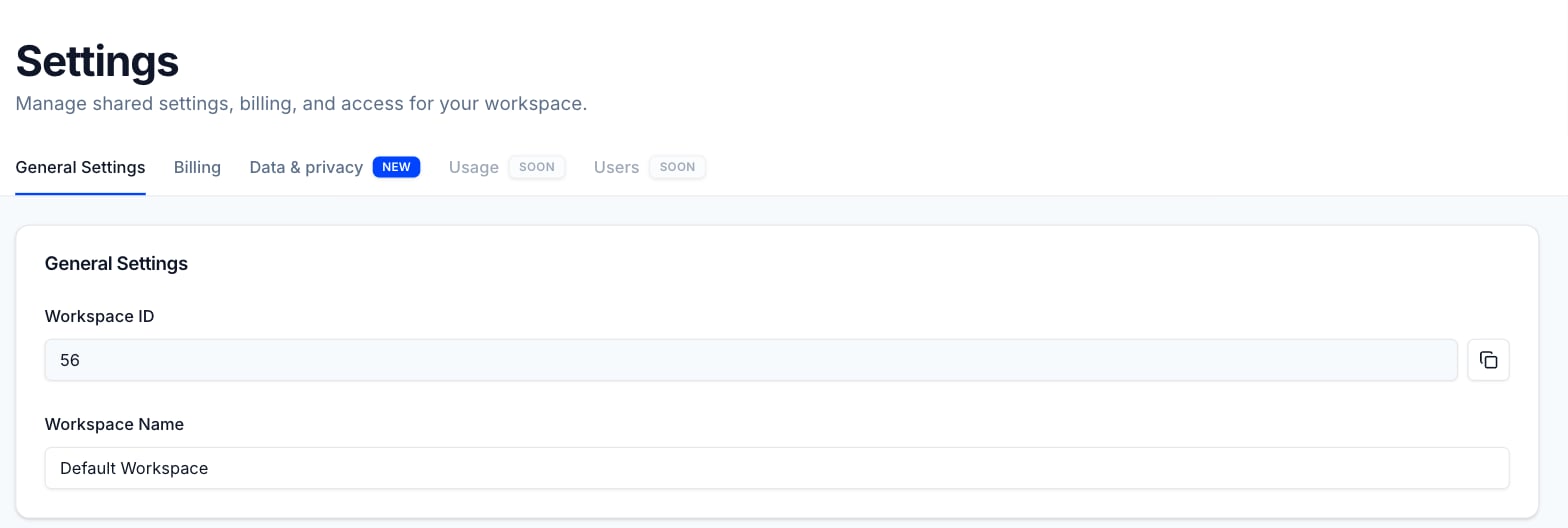
| **workspace ID** | The workspace a call belongs to. Sent as `workspace_id`. | **Workspace Settings > General Settings** |
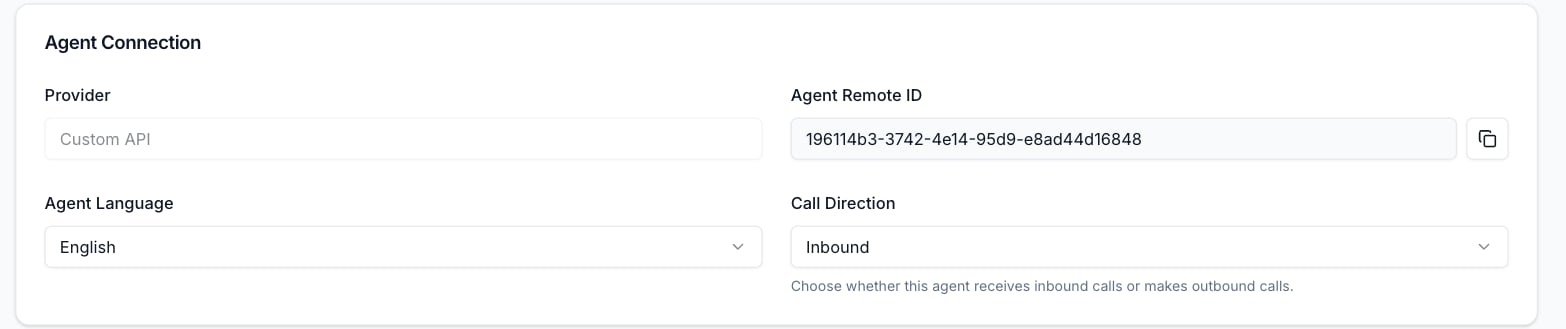
| **Agent Remote ID** | The agent a call belongs to. Sent as `agent_remote_identifier`. | **Agent Settings > Agent Setup**, under **Agent Connection** |
Retell and Vapi agents don't use a Tuner API key to send calls. They connect with your Retell or Vapi key instead, which you enter while creating the agent or under **Workspace Settings > General Settings > Third-party Integrations**.
## Switch between agent space and workspace space
The sidebar has two modes. Agent space shows pages for the selected agent (**Overview**, **Call Logs**, **Simulations**, **Agent Settings** and more). Workspace space shows pages for the whole workspace (**Workspace Settings** and **API Keys**).
* To open workspace space, click **Switch to Workspace** at the bottom of the sidebar.
* To return to the agent you were on, click **Back to Agent Space**.
## Create a Tuner API key
A key's value is shown once, when you create it. Tuner stores only a hash, so nobody can show you the value again. If you lose a key, create a new one and revoke the old one.
Click **Switch to Workspace** at the bottom of the sidebar, then click **API Keys**.
Click **Create API Key**. Enter a **Key name** that says where the key will run, for example `prod`, then click **Create Key**.
The **Copy your key** dialog shows the full key. Click **Copy** and store it somewhere safe, such as your secrets manager.
Tick **I have saved this key somewhere safe. I understand it will not be shown again.**, then click **Done**. The dialog can't be closed until you tick the box.
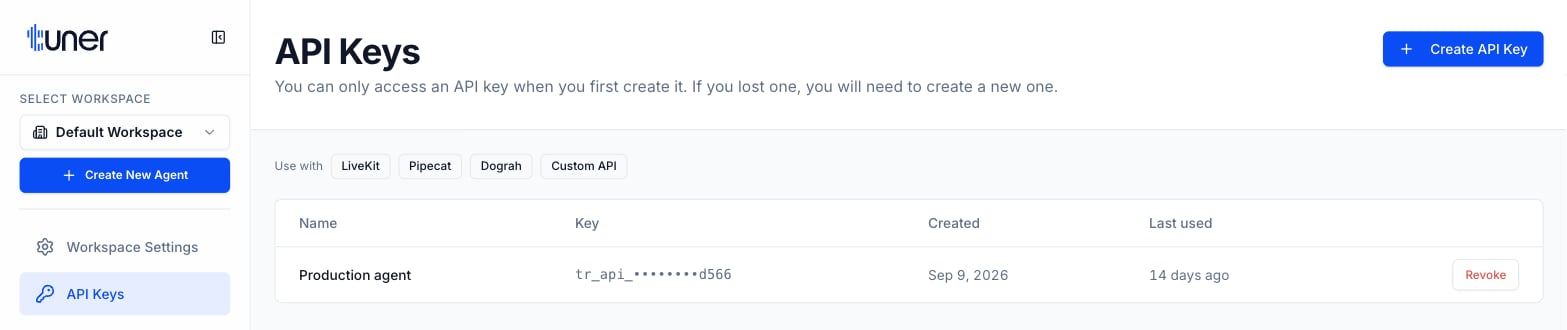 The **API Keys** table lists the workspace's active keys:
| Column | What it shows |
| - | - |
| **Name** | The key name you entered |
| **Key** | The masked key: `tr_api_` and the last four characters |
| **Created** | The day the key was created |
| **Last used** | How long ago the key last authenticated, or **Never used** |
If your workspace has no API key yet when you add a LiveKit, Pipecat, Dograh or **My own stack** agent, the setup wizard creates one named `Agent setup` and fills it into the code snippet. That is the only time it's shown. See the [Quickstart](/docs/getting-started/quickstart).
### Use the key
Send the key in the `Authorization` header as a bearer token: `Authorization: Bearer `. The SDKs do this for you when you pass the key to them. The [MCP setup](/docs/mcp/setup) page shows where it goes for each MCP client.
## Revoke a key
Revoking a key stops it working immediately and permanently. Anything still using it stops sending data. Your other keys keep working.
To replace a key without downtime, create the new key, deploy it, and then revoke the old one.
On **API Keys**, find the key by its **Name** and **Last used** time.
Click **Revoke** on its row. The dialog shows the masked key and when it was last used. Click **Revoke Key** to confirm.
## Find your workspace ID
Click **Switch to Workspace** at the bottom of the sidebar, then click **Workspace Settings**.
On the **General Settings** tab, the **Workspace ID** field is at the top. Click the copy button next to it.
The **API Keys** table lists the workspace's active keys:
| Column | What it shows |
| - | - |
| **Name** | The key name you entered |
| **Key** | The masked key: `tr_api_` and the last four characters |
| **Created** | The day the key was created |
| **Last used** | How long ago the key last authenticated, or **Never used** |
If your workspace has no API key yet when you add a LiveKit, Pipecat, Dograh or **My own stack** agent, the setup wizard creates one named `Agent setup` and fills it into the code snippet. That is the only time it's shown. See the [Quickstart](/docs/getting-started/quickstart).
### Use the key
Send the key in the `Authorization` header as a bearer token: `Authorization: Bearer `. The SDKs do this for you when you pass the key to them. The [MCP setup](/docs/mcp/setup) page shows where it goes for each MCP client.
## Revoke a key
Revoking a key stops it working immediately and permanently. Anything still using it stops sending data. Your other keys keep working.
To replace a key without downtime, create the new key, deploy it, and then revoke the old one.
On **API Keys**, find the key by its **Name** and **Last used** time.
Click **Revoke** on its row. The dialog shows the masked key and when it was last used. Click **Revoke Key** to confirm.
## Find your workspace ID
Click **Switch to Workspace** at the bottom of the sidebar, then click **Workspace Settings**.
On the **General Settings** tab, the **Workspace ID** field is at the top. Click the copy button next to it.
 ## Find your Agent Remote ID
Each agent has its own Agent Remote ID.
* **Retell and Vapi**: it's the agent's ID on Retell or Vapi, which Tuner takes from the agent you pick while creating the agent.
* **LiveKit, Pipecat, Dograh and My own stack**: Tuner generates it when you create the agent, and the setup wizard puts it in your code snippet.
To look it up later:
In agent space, choose the agent under **Select Agent** in the sidebar.
Click **Agent Settings**, then the **Agent Setup** tab.
In the **Agent Connection** card, click the copy button next to **Agent Remote ID**.
## Find your Agent Remote ID
Each agent has its own Agent Remote ID.
* **Retell and Vapi**: it's the agent's ID on Retell or Vapi, which Tuner takes from the agent you pick while creating the agent.
* **LiveKit, Pipecat, Dograh and My own stack**: Tuner generates it when you create the agent, and the setup wizard puts it in your code snippet.
To look it up later:
In agent space, choose the agent under **Select Agent** in the sidebar.
Click **Agent Settings**, then the **Agent Setup** tab.
In the **Agent Connection** card, click the copy button next to **Agent Remote ID**.
 ## Limits
| Limit | Value |
| - | - |
| Key name length | 1 to 100 characters |
| Key names | Unique among the workspace's active keys |
| Times a key value is shown | Once, at creation |
## API
The **Workspaces** group of the API Reference covers keys: [Create Workspace API Key](/api-reference/workspaces/create-workspace-api-key), [List Workspace API Keys](/api-reference/workspaces/list-workspace-api-keys) and [Revoke Workspace API Key](/api-reference/workspaces/revoke-workspace-api-key).
## Next steps
Create an agent and get your first evaluated call.
Connect Claude, Claude Code, Cursor or Antigravity to your workspace.
This documentation is built and hosted on [Mintlify](https://mintlify.com), a developer documentation platform.
## Limits
| Limit | Value |
| - | - |
| Key name length | 1 to 100 characters |
| Key names | Unique among the workspace's active keys |
| Times a key value is shown | Once, at creation |
## API
The **Workspaces** group of the API Reference covers keys: [Create Workspace API Key](/api-reference/workspaces/create-workspace-api-key), [List Workspace API Keys](/api-reference/workspaces/list-workspace-api-keys) and [Revoke Workspace API Key](/api-reference/workspaces/revoke-workspace-api-key).
## Next steps
Create an agent and get your first evaluated call.
Connect Claude, Claude Code, Cursor or Antigravity to your workspace.
This documentation is built and hosted on [Mintlify](https://mintlify.com), a developer documentation platform.