> ## Documentation Index
> Fetch the complete documentation index at: https://docs.usetuner.ai/llms.txt
> Use this file to discover all available pages before exploring further.
# Real-time Alerts
> Define what matters and let Tuner notify you the moment it happens — by email or webhook.
A **real-time alert** is a notification Tuner sends when a condition you define is met. Instead of searching for problems, you describe what matters once and hear about it the moment it happens — usually before enough users are affected to notice.
Alerts are delivered by **email** or to your agent's **webhook**, which lets you route them into Slack, PagerDuty, n8n, or your own automations.
## How to create an alert
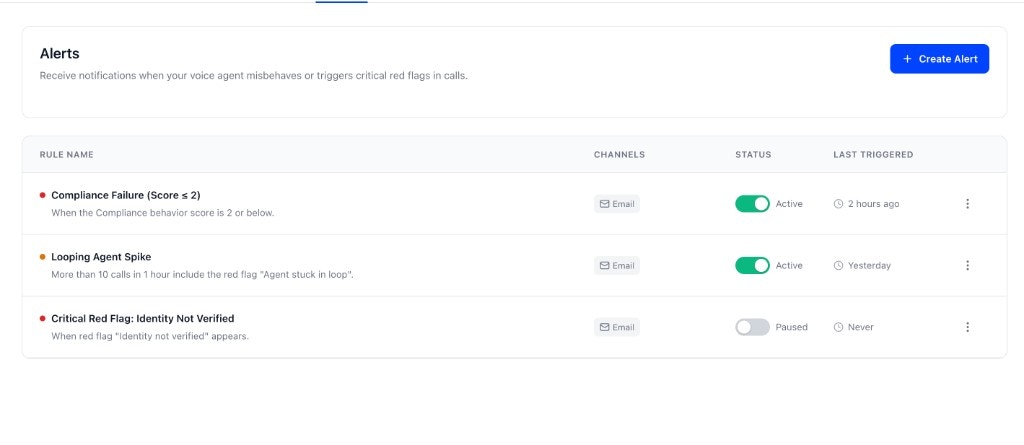
From the sidebar, click on **Agent Settings**, then select the **Alerts** tab. Here you'll see a list of your existing alerts along with their status and last triggered time.
Click the **+ Create Alert** button in the top-right corner to open the alert configuration modal.
* **Alert Name**: Give your alert a descriptive name (e.g., "High Failure Rate Alert").
* **Description** (optional): Add a note for your team explaining what this alert monitors.
* **Severity**: Choose from **Info**, **Warning**, or **Critical** based on the urgency level.
Set the condition that will trigger the alert:
* **Select Field**: Choose what to monitor (e.g., Hallucination, High Latency, Intent Missed, Identity not verified).
* **Operator**: Select how to compare (equals, not equals).
* Click **+ Add condition** to add multiple conditions if needed.
Define when the alert should fire:
* **Trigger when**: Set the number of matching calls (e.g., 10 calls).
* **Time window**: Choose the time period (5 minutes, 15 minutes, 1 hour, or 24 hours).
For example: "Trigger when 10 calls in 1 hour match the conditions above."
Choose where you want to receive alerts:
* **Email**: Enter the email addresses that should receive notifications (comma-separated for multiple recipients).
* **Webhook**: Send an `alert.fired` event to your agent's webhook — see [Webhooks](/docs/integrations/webhooks) for the payload and setup.
* **Slack**: Coming soon.
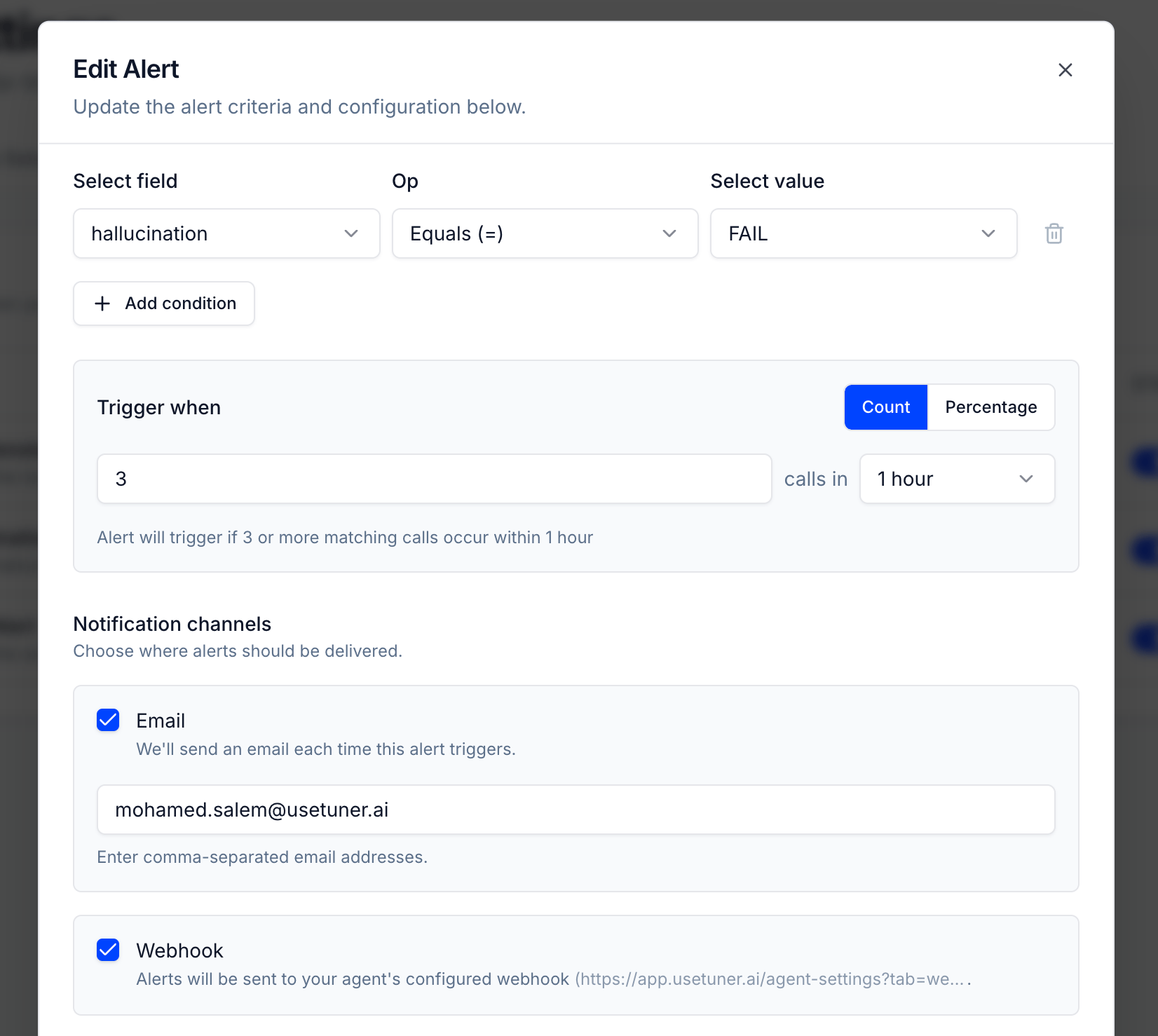 Click **Save alert** to activate your new alert. It will appear in the alerts list with an "Active" status.
 ## Example alerts
Common configurations to get you started:
**Alert Name**: Hallucination Spike\
**Severity**: Critical\
**Condition**: Hallucination equals true\
**Threshold**: 5 calls in 1 hour
This alert notifies you when your agent is providing inaccurate information frequently.
**Alert Name**: Identity Not Verified\
**Severity**: Warning\
**Condition**: Identity not verified equals true\
**Threshold**: 10 calls in 1 hour
Useful for agents that require identity verification before proceeding.
**Alert Name**: Slow Response Times\
**Severity**: Warning\
**Condition**: High Latency equals true\
**Threshold**: 15 calls in 1 hour
Alerts you when your agent is experiencing performance issues.
## Best practices
Alert on clear, critical problems only. Too many alerts and the important ones get ignored.
Too low creates noise; too high misses issues. Tune them after you see real volume.
Send critical alerts to a webhook wired into a channel your team watches. Email is fine for the rest.
Revisit your alerts as the agent changes — conditions that mattered last quarter may not now.
***
## Next steps
The rules that most alert conditions are built on.
The `alert.fired` payload and how to set up your endpoint.
## Example alerts
Common configurations to get you started:
**Alert Name**: Hallucination Spike\
**Severity**: Critical\
**Condition**: Hallucination equals true\
**Threshold**: 5 calls in 1 hour
This alert notifies you when your agent is providing inaccurate information frequently.
**Alert Name**: Identity Not Verified\
**Severity**: Warning\
**Condition**: Identity not verified equals true\
**Threshold**: 10 calls in 1 hour
Useful for agents that require identity verification before proceeding.
**Alert Name**: Slow Response Times\
**Severity**: Warning\
**Condition**: High Latency equals true\
**Threshold**: 15 calls in 1 hour
Alerts you when your agent is experiencing performance issues.
## Best practices
Alert on clear, critical problems only. Too many alerts and the important ones get ignored.
Too low creates noise; too high misses issues. Tune them after you see real volume.
Send critical alerts to a webhook wired into a channel your team watches. Email is fine for the rest.
Revisit your alerts as the agent changes — conditions that mattered last quarter may not now.
***
## Next steps
The rules that most alert conditions are built on.
The `alert.fired` payload and how to set up your endpoint.