> ## Documentation Index
> Fetch the complete documentation index at: https://docs.usetuner.ai/llms.txt
> Use this file to discover all available pages before exploring further.
# Call logs
> Find, filter and open every call your agent handled, import older Retell and Vapi calls, and read what each tab on the call details page shows.
**Call Logs** is in the sidebar of every agent. Calls appear here once your agent is connected to Tuner (see the [Quickstart](/docs/getting-started/quickstart)). No other setup is needed.
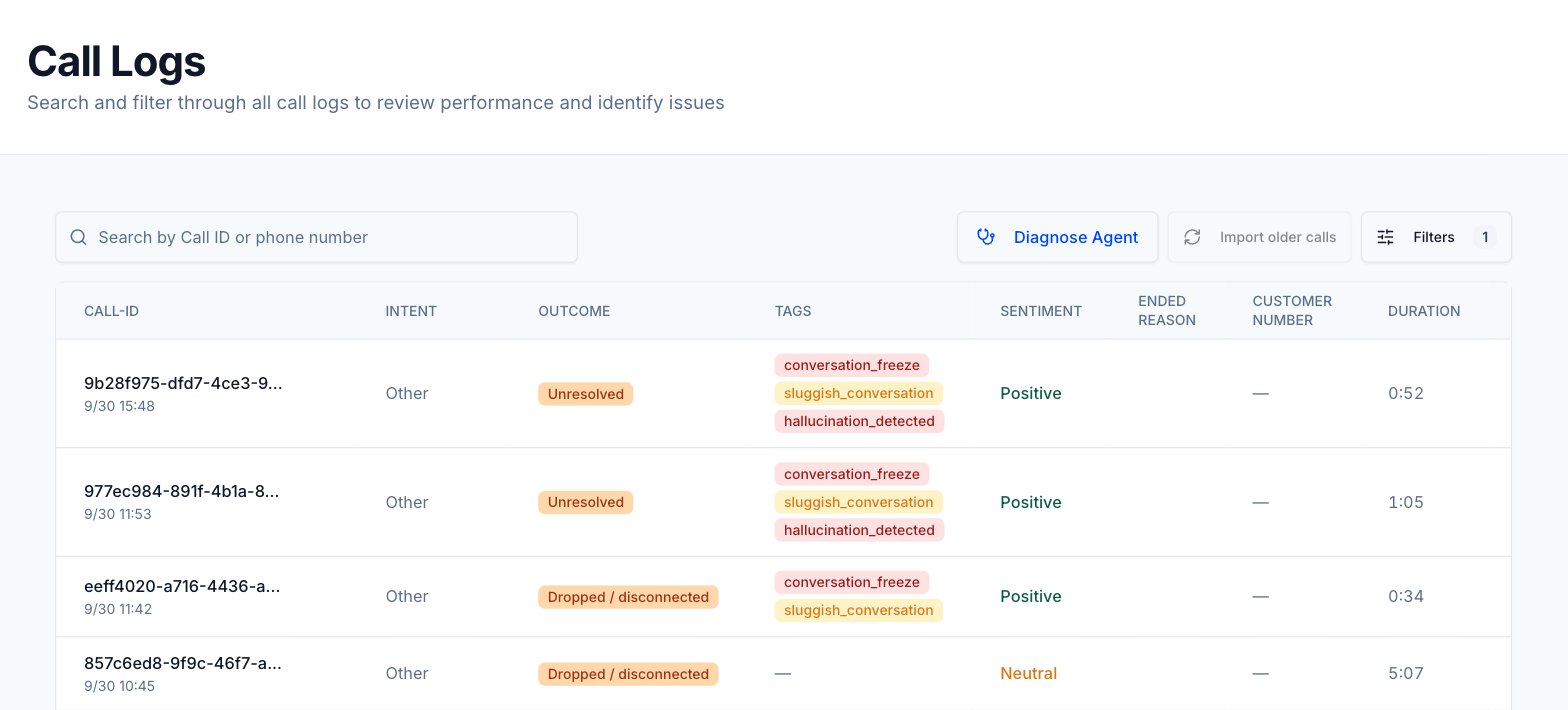
**Call Logs** lists every call Tuner received for the selected agent, newest first. Each row shows how Tuner classified the call. Click a row to open the call details page, where you can play the recording, read the transcript and see the analysis.
 ## Find a call
Click **Call Logs** in the sidebar.
Type in **Search by Call ID or phone number**. The search runs once you enter at least 3 characters. Clear the box to show all calls again.
Click **Filters** to open the filter panel, then pick values in any group. The table updates as you select. The number on the **Filters** button shows how many filters are active. Click **Reset All Filters** to clear them.
Click a row to open its call details page. To copy a Call ID without opening the call, hover over it and click the copy icon.
The **View calls** links on the [Overview dashboard](/docs/observability/overview) open Call Logs already filtered to failed calls or to calls with red flags.
## Import older calls
If your agent runs on Retell or Vapi, you can pull in calls that happened before you connected it to Tuner.
On **Call Logs**, click **Import older calls**. Tuner queues an import job and shows a confirmation.
Tuner fetches the calls from your voice provider and analyzes them like new calls. They appear in the table as they finish.
The first import covers the last 3 weeks. Later imports start from the previous import, unless that was more than 3 weeks ago. Only one import can run per agent at a time, and your workspace needs a credit balance to start one. For other providers the button is disabled, with the tooltip "Sync is only available for Retell and Vapi agents."
## Table columns
| Column | What it shows |
| - | - |
| **CALL-ID** | The provider's call ID, with the call's date and time below it. A status chip appears next to the time for simulation calls and redacted calls (see [Status chips](#status-chips)). |
| **INTENT** | The [call intent](/docs/evaluation/call-classification) Tuner detected. |
| **OUTCOME** | The [call outcome](/docs/evaluation/call-classification) Tuner assigned. |
| **TAGS** | The [labels and red flags](/docs/evaluation/red-flags) your rules added to the call. |
| **SENTIMENT** | The caller's sentiment. |
| **ENDED REASON** | Why the call ended, as reported by your voice platform. |
| **CUSTOMER NUMBER** | The caller's phone number, when there is one. |
| **DURATION** | How long the call lasted. |
| **COST** | The call cost reported for the call. |
### Status chips
| Chip | Meaning |
| - | - |
| **Simulated** | The call came from a [simulation run](/docs/simulation/overview). |
| **Redacted** | [PII redaction](/docs/observability/pii-redaction) ran on the transcript. |
| **Partial** | PII redaction completed for only part of the transcript. |
| **Failed** | PII redaction did not complete for this call. |
Calls without a chip were not simulated and were not redacted, because PII redaction was off when they arrived.
## Filters
The **Filters** panel has five groups.
| Group | Options |
| - | - |
| **DATE & DURATION** | **Date Range**: **Last 24 hours**, **Last 7 days** (default), **Last 30 days**, **Last 90 days** or **Custom date picker**. **Call Duration**: a slider in seconds. |
| **CALL INTENT** | The intents defined for this agent. |
| **CALL OUTCOME** | The outcomes defined for this agent. |
| **SENTIMENT** | Positive, Neutral, Negative or Unknown. |
| **LABELS & RED FLAGS** | The labels and red flags your rules can add. |
Your search, filters and page are saved in the page URL, so you can share or bookmark a filtered view.
## Call details
The call details page has a header, the recording and transcript on the left, and a set of tabs on the right.
## Find a call
Click **Call Logs** in the sidebar.
Type in **Search by Call ID or phone number**. The search runs once you enter at least 3 characters. Clear the box to show all calls again.
Click **Filters** to open the filter panel, then pick values in any group. The table updates as you select. The number on the **Filters** button shows how many filters are active. Click **Reset All Filters** to clear them.
Click a row to open its call details page. To copy a Call ID without opening the call, hover over it and click the copy icon.
The **View calls** links on the [Overview dashboard](/docs/observability/overview) open Call Logs already filtered to failed calls or to calls with red flags.
## Import older calls
If your agent runs on Retell or Vapi, you can pull in calls that happened before you connected it to Tuner.
On **Call Logs**, click **Import older calls**. Tuner queues an import job and shows a confirmation.
Tuner fetches the calls from your voice provider and analyzes them like new calls. They appear in the table as they finish.
The first import covers the last 3 weeks. Later imports start from the previous import, unless that was more than 3 weeks ago. Only one import can run per agent at a time, and your workspace needs a credit balance to start one. For other providers the button is disabled, with the tooltip "Sync is only available for Retell and Vapi agents."
## Table columns
| Column | What it shows |
| - | - |
| **CALL-ID** | The provider's call ID, with the call's date and time below it. A status chip appears next to the time for simulation calls and redacted calls (see [Status chips](#status-chips)). |
| **INTENT** | The [call intent](/docs/evaluation/call-classification) Tuner detected. |
| **OUTCOME** | The [call outcome](/docs/evaluation/call-classification) Tuner assigned. |
| **TAGS** | The [labels and red flags](/docs/evaluation/red-flags) your rules added to the call. |
| **SENTIMENT** | The caller's sentiment. |
| **ENDED REASON** | Why the call ended, as reported by your voice platform. |
| **CUSTOMER NUMBER** | The caller's phone number, when there is one. |
| **DURATION** | How long the call lasted. |
| **COST** | The call cost reported for the call. |
### Status chips
| Chip | Meaning |
| - | - |
| **Simulated** | The call came from a [simulation run](/docs/simulation/overview). |
| **Redacted** | [PII redaction](/docs/observability/pii-redaction) ran on the transcript. |
| **Partial** | PII redaction completed for only part of the transcript. |
| **Failed** | PII redaction did not complete for this call. |
Calls without a chip were not simulated and were not redacted, because PII redaction was off when they arrived.
## Filters
The **Filters** panel has five groups.
| Group | Options |
| - | - |
| **DATE & DURATION** | **Date Range**: **Last 24 hours**, **Last 7 days** (default), **Last 30 days**, **Last 90 days** or **Custom date picker**. **Call Duration**: a slider in seconds. |
| **CALL INTENT** | The intents defined for this agent. |
| **CALL OUTCOME** | The outcomes defined for this agent. |
| **SENTIMENT** | Positive, Neutral, Negative or Unknown. |
| **LABELS & RED FLAGS** | The labels and red flags your rules can add. |
Your search, filters and page are saved in the page URL, so you can share or bookmark a filtered view.
## Call details
The call details page has a header, the recording and transcript on the left, and a set of tabs on the right.
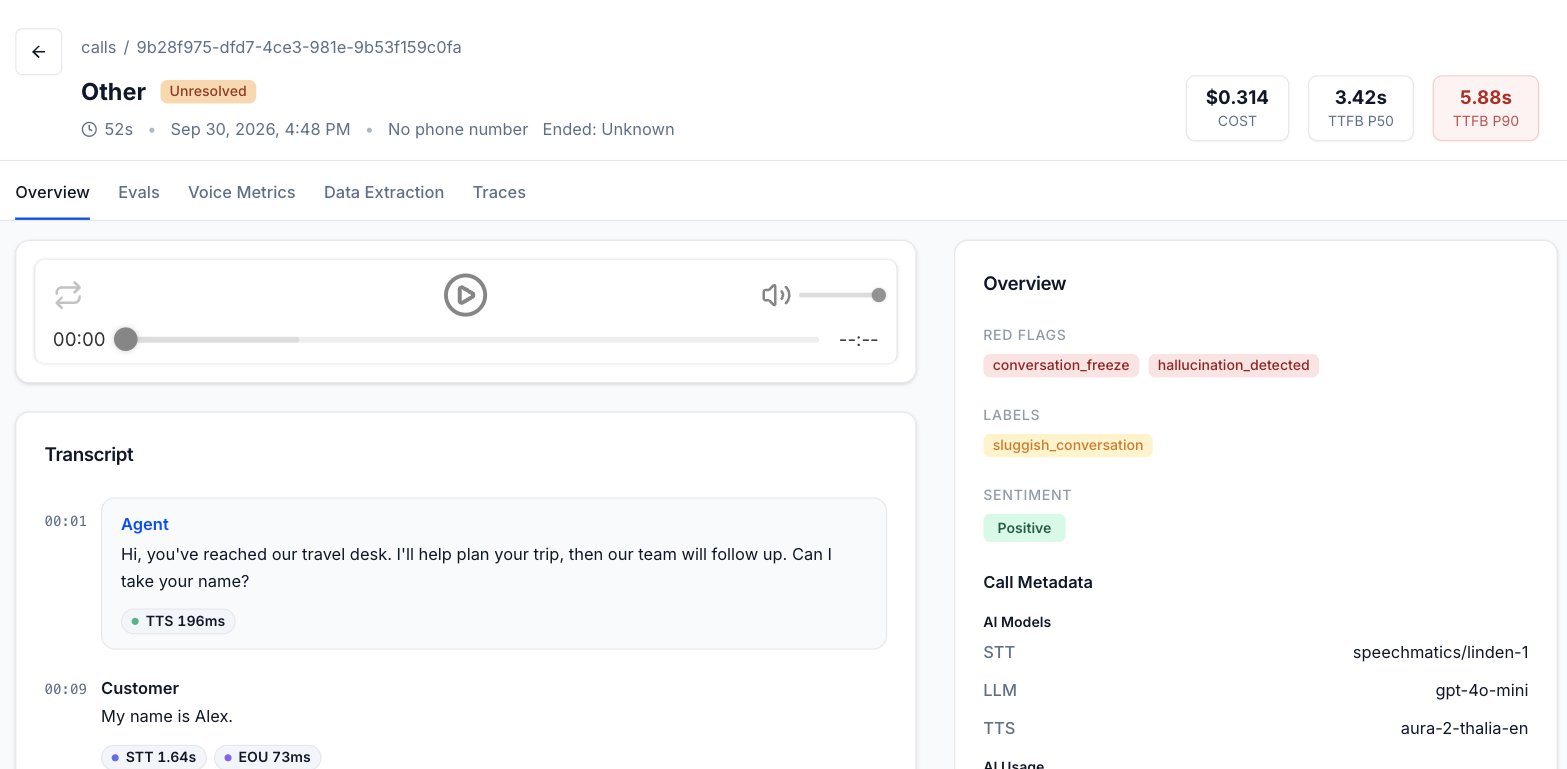 The header shows the Call ID (with a copy button), the intent and outcome, the duration, date and time, the caller's number, the reason the call ended (**Ended:**), the **COST**, and the **TTFB P50** and **TTFB P90** response times. A status chip appears next to the Call ID when one applies. For a simulation call, the header also shows the Scenario or the replayed Dataset call.
The transcript shows each turn with its latency badges. See [Voice metrics](/docs/observability/voice-metrics#per-turn-latency-in-the-transcript) for what each badge means.
### Tabs
| Tab | What it shows |
| - | - |
| **Overview** | **Red Flags**, **Labels** and **Sentiment** for the call, plus **Call Metadata** when your integration sent it. |
| **Evals** | Each [eval](/docs/evaluation/overview) result: **PASS**, **FAIL**, a score such as `4/5`, or **N/A** when there's no result, with the evidence behind it. |
| **Voice Metrics** | Response time (TTFB p50 and p90), latency by stage, and the longest agent monologue. See [Voice metrics](/docs/observability/voice-metrics). |
| **Data Extraction** | The values Tuner extracted into your [data extraction fields](/docs/evaluation/data-extraction). |
| **Traces** | The OpenTelemetry span tree for the call. This tab appears only when the call has a trace. See [OpenTelemetry Traces](/docs/observability/traces). |
### Call Metadata
The **Call Metadata** section on the **Overview** tab shows the metadata your integration sent with the call. Each group appears only when it has data.
| Group | What it shows |
| - | - |
| **AI Models** | The **STT**, **LLM** and **TTS** models used on the call. |
| **AI Usage** | Usage and cost counters: **STT duration**, **LLM tokens**, **TTS characters**, **Input tokens**, **Output tokens**, **LLM cost** and **Voice cost**. |
| **Extra Metadata** | Any other keys you sent, shown as JSON. |
How to send metadata depends on your integration. See the [LiveKit](/docs/integrations/livekit), [Pipecat](/docs/integrations/pipecat) or [SDK quickstart](/docs/integrations/custom-stack/sdk-quickstart) page, or the `metadata` field of [Create call](/api-reference/calls/create-call).
### Calls removed by retention
When your [data retention](/docs/observability/data-retention) policy has erased part of a call, the call details page says so:
* A banner reads **Retention policy:** followed by the erasure scope, and explains what was removed.
* A **Recording removed** card replaces the audio player.
* The transcript area shows **Transcript removed**, or **Transcript and caller data removed**.
* If caller data was removed, the header shows **Number removed**, and the **Evals** and **Data Extraction** tabs mark evidence notes and field values as removed.
Calls erased with the **Full call record** scope are deleted and no longer appear in **Call Logs**.
## Limits
| Limit | Value |
| - | - |
| Minimum search length | 3 characters |
| Rows per page | 10 (default), 20, 30 or 50 |
| Call Duration filter range | 0 to 1200 seconds |
| Import older calls | Retell and Vapi agents only; up to the last 3 weeks; one import per agent at a time |
Call Logs data is also available through the public API, in the **Calls** group of the API Reference: [List calls](/api-reference/calls/list-calls), [Get call](/api-reference/calls/get-call) and [List filter options](/api-reference/calls/list-filter-options).
## Next steps
Work through a single problem call using the call details page.
Read the per-turn latency badges and the Voice Metrics tab.
This documentation is built and hosted on [Mintlify](https://mintlify.com), a developer documentation platform.
The header shows the Call ID (with a copy button), the intent and outcome, the duration, date and time, the caller's number, the reason the call ended (**Ended:**), the **COST**, and the **TTFB P50** and **TTFB P90** response times. A status chip appears next to the Call ID when one applies. For a simulation call, the header also shows the Scenario or the replayed Dataset call.
The transcript shows each turn with its latency badges. See [Voice metrics](/docs/observability/voice-metrics#per-turn-latency-in-the-transcript) for what each badge means.
### Tabs
| Tab | What it shows |
| - | - |
| **Overview** | **Red Flags**, **Labels** and **Sentiment** for the call, plus **Call Metadata** when your integration sent it. |
| **Evals** | Each [eval](/docs/evaluation/overview) result: **PASS**, **FAIL**, a score such as `4/5`, or **N/A** when there's no result, with the evidence behind it. |
| **Voice Metrics** | Response time (TTFB p50 and p90), latency by stage, and the longest agent monologue. See [Voice metrics](/docs/observability/voice-metrics). |
| **Data Extraction** | The values Tuner extracted into your [data extraction fields](/docs/evaluation/data-extraction). |
| **Traces** | The OpenTelemetry span tree for the call. This tab appears only when the call has a trace. See [OpenTelemetry Traces](/docs/observability/traces). |
### Call Metadata
The **Call Metadata** section on the **Overview** tab shows the metadata your integration sent with the call. Each group appears only when it has data.
| Group | What it shows |
| - | - |
| **AI Models** | The **STT**, **LLM** and **TTS** models used on the call. |
| **AI Usage** | Usage and cost counters: **STT duration**, **LLM tokens**, **TTS characters**, **Input tokens**, **Output tokens**, **LLM cost** and **Voice cost**. |
| **Extra Metadata** | Any other keys you sent, shown as JSON. |
How to send metadata depends on your integration. See the [LiveKit](/docs/integrations/livekit), [Pipecat](/docs/integrations/pipecat) or [SDK quickstart](/docs/integrations/custom-stack/sdk-quickstart) page, or the `metadata` field of [Create call](/api-reference/calls/create-call).
### Calls removed by retention
When your [data retention](/docs/observability/data-retention) policy has erased part of a call, the call details page says so:
* A banner reads **Retention policy:** followed by the erasure scope, and explains what was removed.
* A **Recording removed** card replaces the audio player.
* The transcript area shows **Transcript removed**, or **Transcript and caller data removed**.
* If caller data was removed, the header shows **Number removed**, and the **Evals** and **Data Extraction** tabs mark evidence notes and field values as removed.
Calls erased with the **Full call record** scope are deleted and no longer appear in **Call Logs**.
## Limits
| Limit | Value |
| - | - |
| Minimum search length | 3 characters |
| Rows per page | 10 (default), 20, 30 or 50 |
| Call Duration filter range | 0 to 1200 seconds |
| Import older calls | Retell and Vapi agents only; up to the last 3 weeks; one import per agent at a time |
Call Logs data is also available through the public API, in the **Calls** group of the API Reference: [List calls](/api-reference/calls/list-calls), [Get call](/api-reference/calls/get-call) and [List filter options](/api-reference/calls/list-filter-options).
## Next steps
Work through a single problem call using the call details page.
Read the per-turn latency badges and the Voice Metrics tab.
This documentation is built and hosted on [Mintlify](https://mintlify.com), a developer documentation platform.