> ## Documentation Index
> Fetch the complete documentation index at: https://docs.usetuner.ai/llms.txt
> Use this file to discover all available pages before exploring further.
# Find the root cause of a failing call
> A step-by-step guide to performing a deep-dive analysis of a single call. Learn how to use the Call Details view to uncover the root cause of an issue and identify opportunities for improvement.
## The Goal of a Root Cause Analysis
The goal of a root cause analysis is to move beyond simply identifying that a problem occurred and to understand *why* it occurred. By uncovering the root cause, you can implement a lasting solution that prevents the issue from happening again.
## When to Perform a Root Cause Analysis
You should perform a root cause analysis when:
* A critical red flag is triggered (e.g., hallucination, system prompt compliance failure).
* A user reports a poor experience.
* You notice a recurring issue in your Call Logs.
## How to Perform a Root Cause Analysis
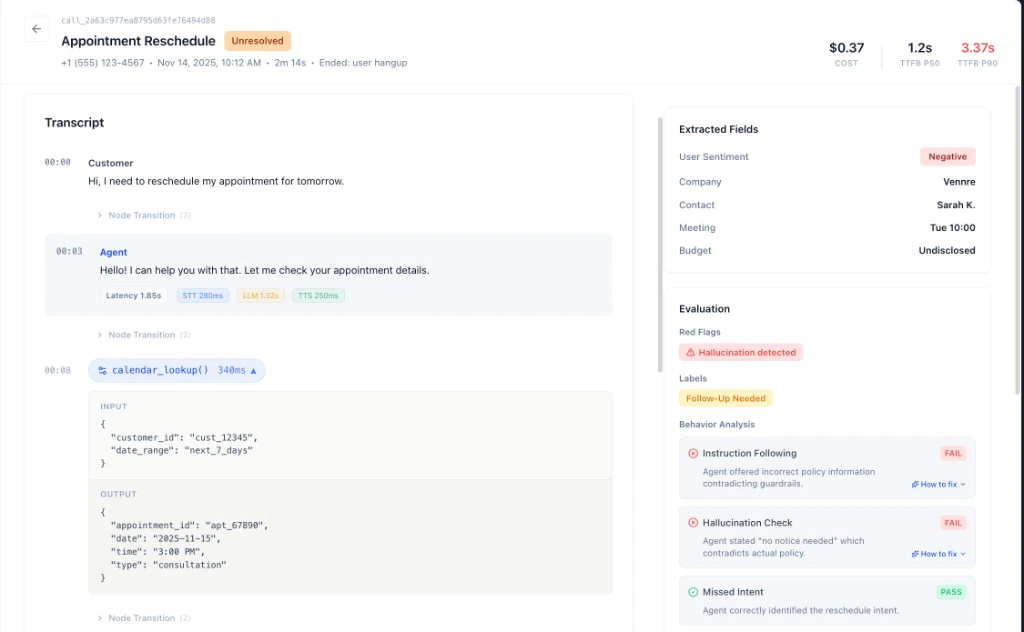
From the **Call Logs** or **Recent Red Flags**, click on a call to open the **Call Details** view.
Read the full conversation to understand the context. Pay close attention to the moments leading up to the issue.
Use the **Events** and **Metrics** tabs to get a more detailed view. Look for anomalies like long silences, high crosstalk, or unexpected events.
Based on your review, form a hypothesis about the root cause. For example: "The agent hallucinated because the prompt was ambiguous," or "The agent failed to follow the system prompt because a specific instruction was missing."
Look for other calls with similar issues to see if your hypothesis holds true. If it does, you've likely found the root cause.
 ## Common Root Causes
The agent's instructions were not clear, leading to unexpected behavior.
The agent misheard or misunderstood the user.
A problem with a backend system or API caused the agent to fail.
***
### Diagnose Across All Calls
Manual root cause analysis is the right tool for investigating a single call in depth. When you want to find the root cause of a pattern across many calls at once — for example, why a specific intent keeps failing, or which eval is consistently failing on your worst calls — use the MCP Diagnose agent. It reads your call logs, red flags, and eval results in bulk, identifies the pattern, and tells you what to fix.
Analyze patterns across all your calls, find the root cause, and get specific fix recommendations.
***
### Next Steps
Now that you know how to analyze and triage issues, it's time to learn how to configure your agent to prevent them in the first place.
A guide to the agent configuration settings in Tuner.
## Common Root Causes
The agent's instructions were not clear, leading to unexpected behavior.
The agent misheard or misunderstood the user.
A problem with a backend system or API caused the agent to fail.
***
### Diagnose Across All Calls
Manual root cause analysis is the right tool for investigating a single call in depth. When you want to find the root cause of a pattern across many calls at once — for example, why a specific intent keeps failing, or which eval is consistently failing on your worst calls — use the MCP Diagnose agent. It reads your call logs, red flags, and eval results in bulk, identifies the pattern, and tells you what to fix.
Analyze patterns across all your calls, find the root cause, and get specific fix recommendations.
***
### Next Steps
Now that you know how to analyze and triage issues, it's time to learn how to configure your agent to prevent them in the first place.
A guide to the agent configuration settings in Tuner.