> ## Documentation Index
> Fetch the complete documentation index at: https://docs.usetuner.ai/llms.txt
> Use this file to discover all available pages before exploring further.
# Simulate a Dograh agent
> Route an extension through Cloudonix, build the SIP URI, and paste it into Tuner.
Start at [**Simulation SIP setup**](/docs/simulation/inbound/setup).
Dograh does not speak SIP itself, its SIP provider Cloudonix does that on Dograh's behalf. So the address you give Tuner belongs to Cloudonix, and the steps below set up a route through it to one specific agent. You don't need your own SIP carrier or a phone number, simulations run over the Cloudonix domain Dograh already provisions for your organization.
## Before you start
* The Tuner node configured and enabled on your Dograh workflow (see [Connecting to Dograh](/docs/integrations/dograh)).
* In Tuner, that same agent has **Call Direction** set to **Inbound**.
* The agent already works, tested from the Dograh agent editor.
An inbound simulation only attaches to its scenario when the Tuner agent's **Call Direction** is **Inbound**. If it's set to Outbound, Tuner matches the returned call on a different field and files it as ordinary production traffic instead.
## Step 1: Add an extension for simulations
In Dograh, open **Telephony configurations** → **Dograh Cloudonix SIP**. Under **Phone numbers**, click **Add phone number** and enter a short extension, for example `9001`.
You don't need a real phone number, that field also accepts plain extensions. Dograh registers it with Cloudonix for you.
## Step 2: Point the extension at your agent
Edit the extension you just added, set its **Inbound workflow** to the agent that should answer simulation calls, and save.
## Step 3: Publish the workflow
In the workflow editor, click **Save**, then **Publish**.
Inbound calls always run the **published** version of a workflow, never the draft. If the Tuner node is only in your draft, calls will connect and the conversation happens normally, but nothing reaches Tuner and no error appears anywhere.
## Step 4: Build the SIP URI
Expand **SIP connectivity** on the Dograh configuration page, choose your **region**, and copy the **inbound hostname**. Combine it with the extension from Step 1:
```text theme={null}
sip:9001@a1b2c3d4-0000-0000-0000-9f8e7d6c5b4a.sip.cloudonix.net
```
Set the region **before** copying anything, every value on the panel is region-specific, including the port:
| Region | Hostname ends with | Port | Include the port? |
| ------ | -------------------- | ------ | -------------------------- |
| Global | `.sip.cloudonix.net` | `5060` | Optional, it's the default |
| India | `.in.dimi.tel` | `9060` | Required |
| UAE | `.uae.dimi.tel` | `9081` | Required |
On India or UAE, leaving the port off sends the call to port 5060, where nothing is listening, the failure looks like an unreachable agent rather than a wrong address. Add `:9060` or `:9081` to the URI.
## Step 5: Paste into Tuner
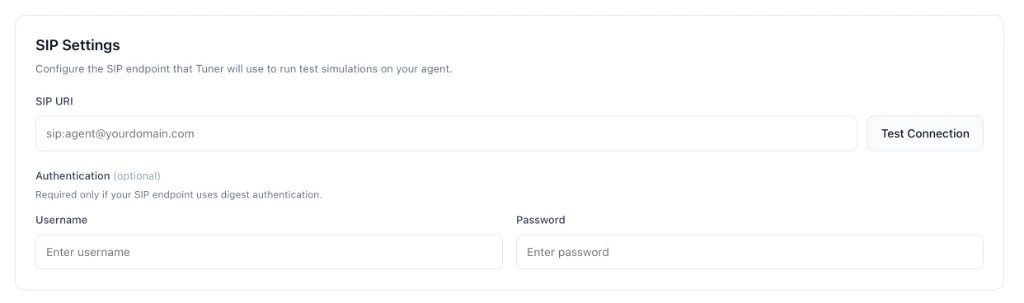
1. **Agent Settings** → **SIP Settings**.
2. **SIP URI:** the address you built in Step 4.
3. Leave **Username** and **Password** empty, Dograh's inbound endpoint does not use SIP authentication.
4. Click **Verify & Save**. Tuner places a short test call immediately.
 **Known issue.** With both auth fields blank, verification can fail with "endpoint did not answer." Entering any non-empty placeholder values, for example `tuner` and `tuner`, works around it, Dograh never checks them. Clear both fields again once this is fixed.
## How calls are matched to scenarios
Nothing to configure, this is automatic. Cloudonix reports the caller's SIP call ID to Dograh, and Dograh includes it when it exports the finished call. Tuner uses that ID to attach the call to the scenario that placed it. Without it, the call would still be ingested, just filed as ordinary production traffic instead of a simulation result.
## Troubleshooting
| Issue | What to check |
| ---------------------------------------------- | -------------------------------------------------------------------------------------------------------------------------------------------------------------------------------------------------- |
| `603 Declined` | Cloudonix found the route but couldn't fetch call instructions from Dograh. On a self-hosted deployment, confirm your backend is publicly reachable. |
| "Endpoint did not answer" on Verify & Save | With blank auth fields, this is the known issue above, use placeholder credentials. Otherwise confirm the extension exists, has an inbound workflow assigned, and the region's port is in the URI. |
| Agent answers but nothing reaches Tuner | The Tuner node isn't in the **published** version of the workflow. Publish and try again. |
| Calls land in Call Logs instead of Simulations | Confirm the Tuner agent's **Call Direction** is **Inbound**. |
Paste your SIP URI into **Agent Settings → SIP Settings**, click **Verify & Save**, and you're ready to run simulations.
***
Configure your simulation mix and start a batch.
**Known issue.** With both auth fields blank, verification can fail with "endpoint did not answer." Entering any non-empty placeholder values, for example `tuner` and `tuner`, works around it, Dograh never checks them. Clear both fields again once this is fixed.
## How calls are matched to scenarios
Nothing to configure, this is automatic. Cloudonix reports the caller's SIP call ID to Dograh, and Dograh includes it when it exports the finished call. Tuner uses that ID to attach the call to the scenario that placed it. Without it, the call would still be ingested, just filed as ordinary production traffic instead of a simulation result.
## Troubleshooting
| Issue | What to check |
| ---------------------------------------------- | -------------------------------------------------------------------------------------------------------------------------------------------------------------------------------------------------- |
| `603 Declined` | Cloudonix found the route but couldn't fetch call instructions from Dograh. On a self-hosted deployment, confirm your backend is publicly reachable. |
| "Endpoint did not answer" on Verify & Save | With blank auth fields, this is the known issue above, use placeholder credentials. Otherwise confirm the extension exists, has an inbound workflow assigned, and the region's port is in the URI. |
| Agent answers but nothing reaches Tuner | The Tuner node isn't in the **published** version of the workflow. Publish and try again. |
| Calls land in Call Logs instead of Simulations | Confirm the Tuner agent's **Call Direction** is **Inbound**. |
Paste your SIP URI into **Agent Settings → SIP Settings**, click **Verify & Save**, and you're ready to run simulations.
***
Configure your simulation mix and start a batch.