> ## Documentation Index
> Fetch the complete documentation index at: https://docs.usetuner.ai/llms.txt
> Use this file to discover all available pages before exploring further.
# SIP for Retell
> Find your Retell SIP URI and paste it into Tuner SIP Settings.
Start at [**Simulation SIP setup**](/docs/simulation/setup).
Retell surfaces SIP next to an imported number, SIP trunk, or agent telephony settings, the label varies by deployment. Copy the **complete destination URI** Retell shows for **inbound** calls to your agent.
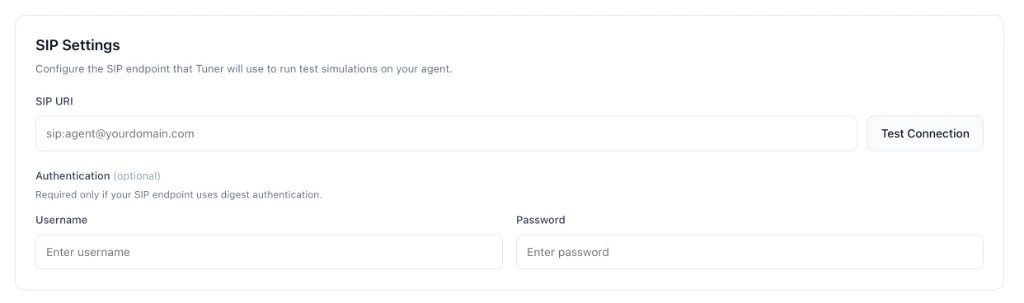
* SIP URI: whatever Retell displays (often `sip:@sip.retellai.com`).
* Username / Password: leave empty unless Retell issued digest credentials.
Follow Retell's docs for the current dashboard steps:
* [Receive calls](https://docs.retellai.com/deploy/inbound-call)
* [Custom telephony](https://docs.retellai.com/deploy/custom-telephony)
If your integration uses Retell's [Register Phone Call](https://docs.retellai.com/api-references/register-phone-call) API, the returned `sip:{call_id}@sip.retellai.com` is **temporary** (\~5 min) and meant for programmatic dialing, not for **Agent Settings → SIP Settings**. Use a stable SIP endpoint instead.
## Paste into Tuner
1. In Tuner: **Agent Settings** → **SIP Settings**.
2. Paste **SIP URI** (and username/password only if Retell provides them).
3. Click **Verify & Save**.
 ***
Configure your simulation mix and start a batch.
***
Configure your simulation mix and start a batch.