> ## Documentation Index
> Fetch the complete documentation index at: https://docs.usetuner.ai/llms.txt
> Use this file to discover all available pages before exploring further.
# Scenarios
> Build your own simulated callers, or save the best ones from a simulation run, then run them again after every change to see whether your agent still handles them.
Build and run scenarios on the **Scenarios** tab under **Simulations**. To run one, you need a plan with Call Simulation, an agent set up for [inbound](/docs/simulation/inbound/setup) or [outbound](/docs/simulation/outbound) simulation, and at least one Pass/Fail eval.
## What is a scenario?
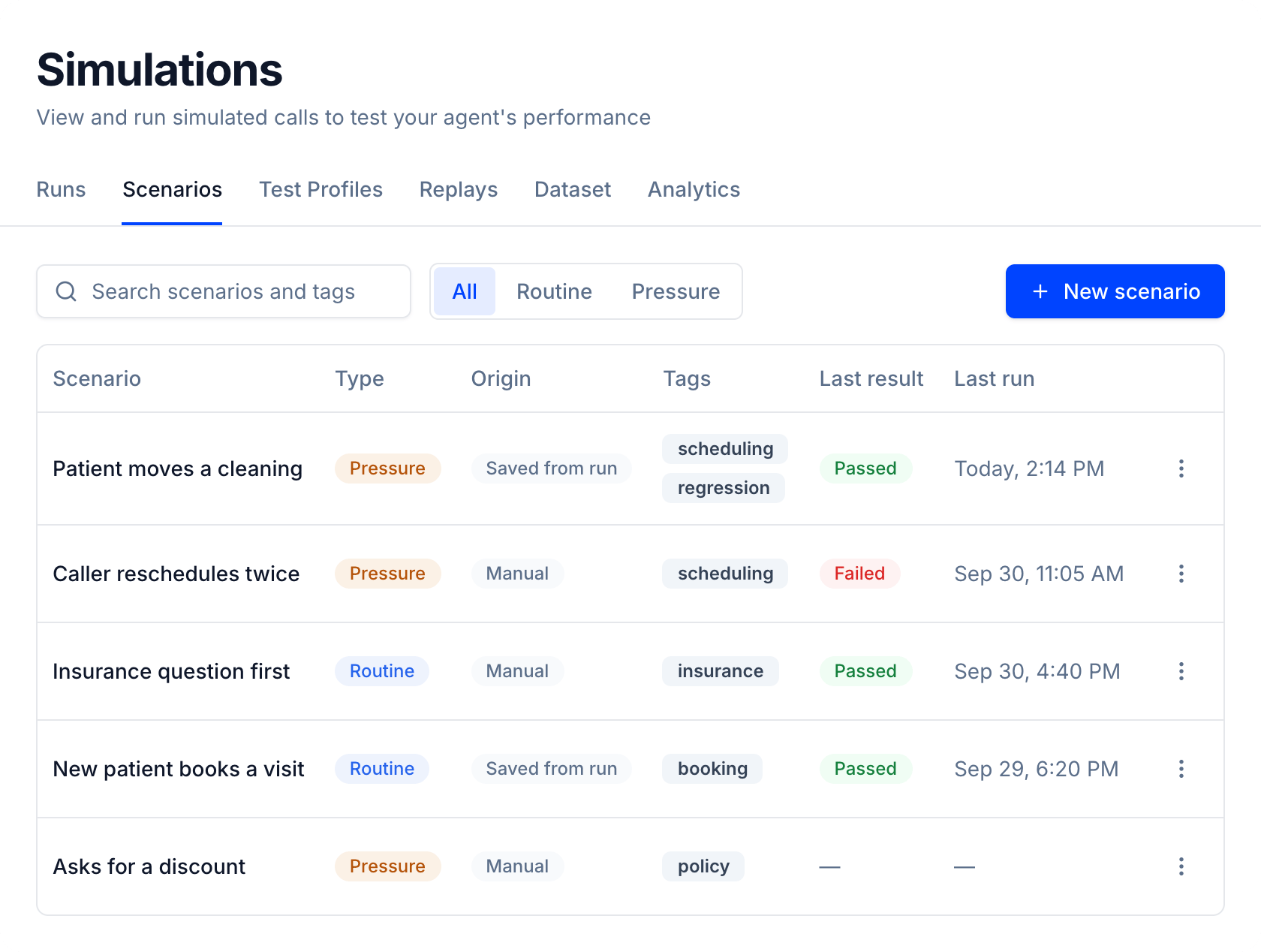
A scenario is a simulated caller you save, so you can run the same situation against your agent again and again. You describe the caller once: who they are, what they want, and how they act. Each time you run it, a simulated caller plays that role on a real voice call with your agent, and Tuner scores the call with your evals.
A normal simulation writes new callers every time. A saved scenario keeps one, so after you change your agent you can run it again and see whether it still passes.
 ***
## Two ways to add a scenario
Write the caller yourself, like a rushed patient or a customer who keeps pushing back. You don't need to run anything first.
Keep a call from a simulation you already ran, like one that caught a bug.
Either way, you [run them again](#run-it-again) the same way.
***
## Build your own
Go to **Simulations > Scenarios** and click **New scenario**.
***
## Two ways to add a scenario
Write the caller yourself, like a rushed patient or a customer who keeps pushing back. You don't need to run anything first.
Keep a call from a simulation you already ran, like one that caught a bug.
Either way, you [run them again](#run-it-again) the same way.
***
## Build your own
Go to **Simulations > Scenarios** and click **New scenario**.
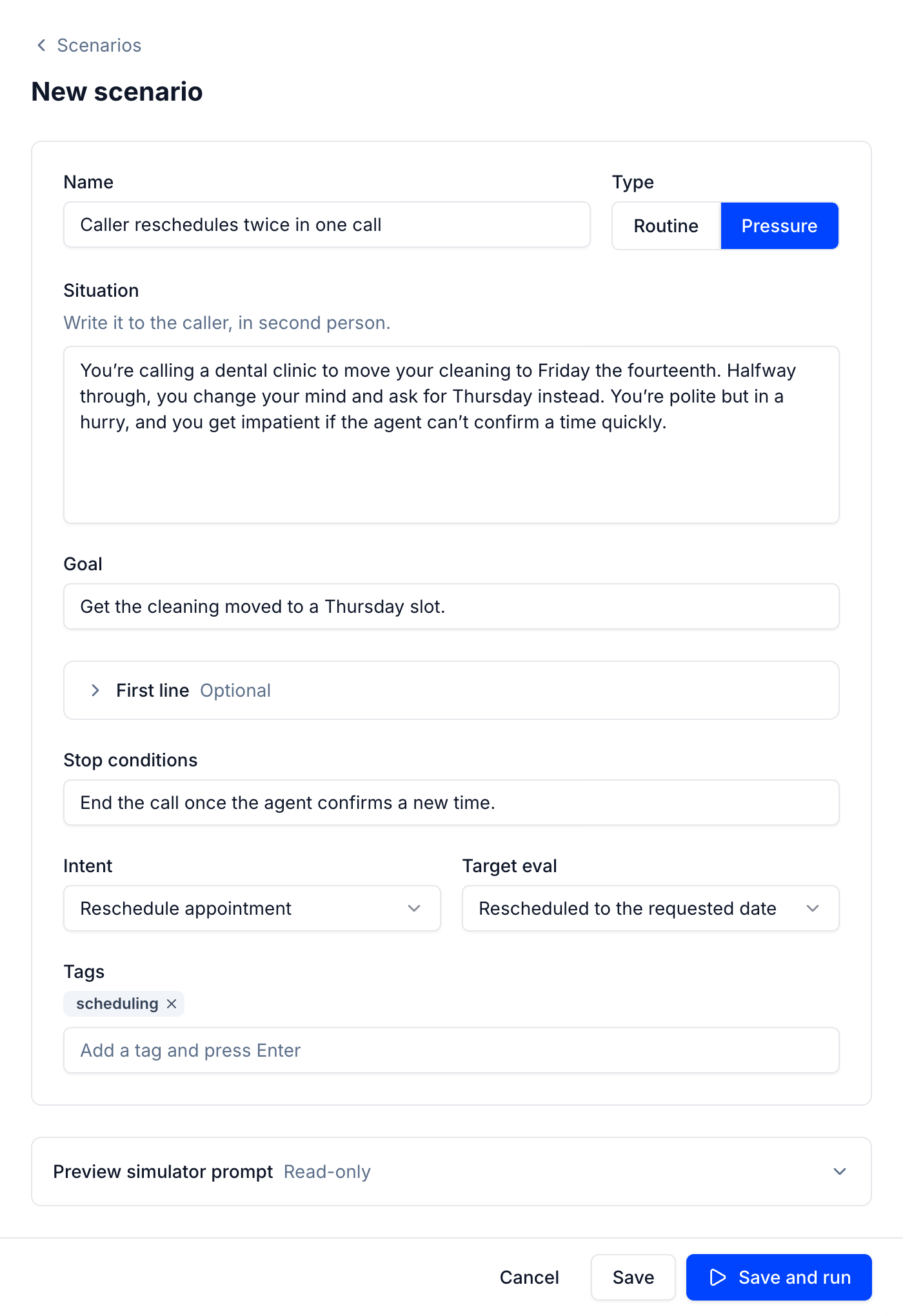 Only **Name** and **Situation** have to be filled in.
* **Type** is **Routine** for an everyday request or **Pressure** for a difficult caller. It's a label for scoring and filtering. Your **Situation** is what makes the caller act that way, so describe any pushback there.
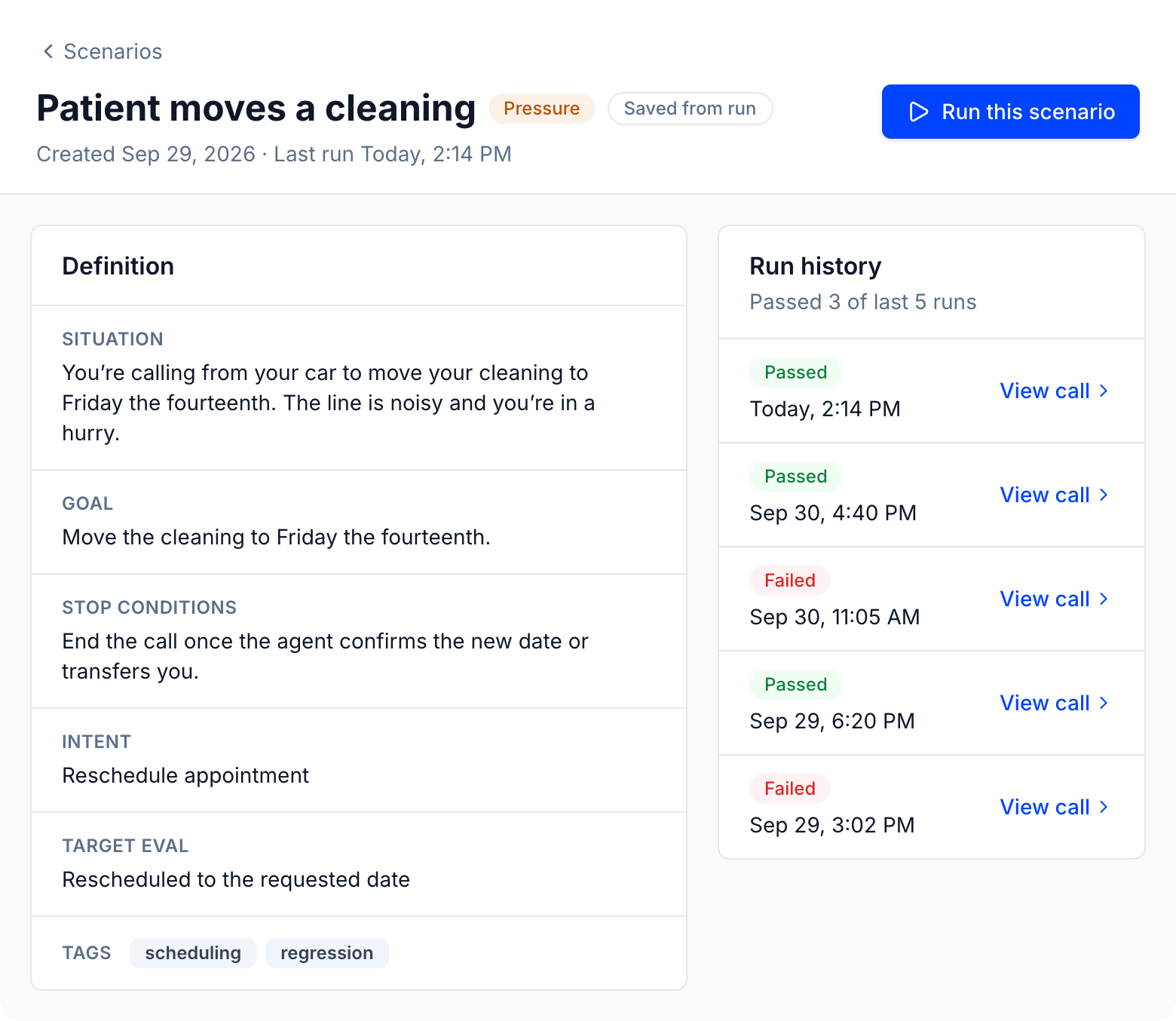
* **Situation** is written to the caller, as "you": who they are, their mood, what they want, and how they react when things don't go their way. For example, "You're calling from your car to move your cleaning to Friday the fourteenth. The line is noisy and you're in a hurry."
* **Goal**, **First line**, and **Stop conditions** are optional. They say what the caller is trying to get done, the first thing they say, and when they're done. A call still ends only when your agent hangs up or the max call duration is reached.
* Pick an **Intent** if the call is about one of your agent's Intents. If your agent places calls, the Intent is also sent to your trigger endpoint as `{{scenario.intent}}`. See [Outbound simulation](/docs/simulation/outbound#configure-the-trigger-endpoint).
* For a Pressure scenario, pick a **Target eval**, the Pass/Fail eval the call is meant to trip. The scenario passes or fails on that eval alone.
* Add **Tags** to group and find your scenarios later.
Click **Save**, or **Save and run** to save it and open **Run Simulation** with this scenario selected. To check what the caller is told from your text, expand **Preview simulator prompt**. It's read-only and never blocks saving.
***
## Save one from a run
Start a run with **AI generated** scenarios, as in [Introduction to Call Simulation](/docs/simulation/overview), and wait until it's **Complete** or **Partial**.
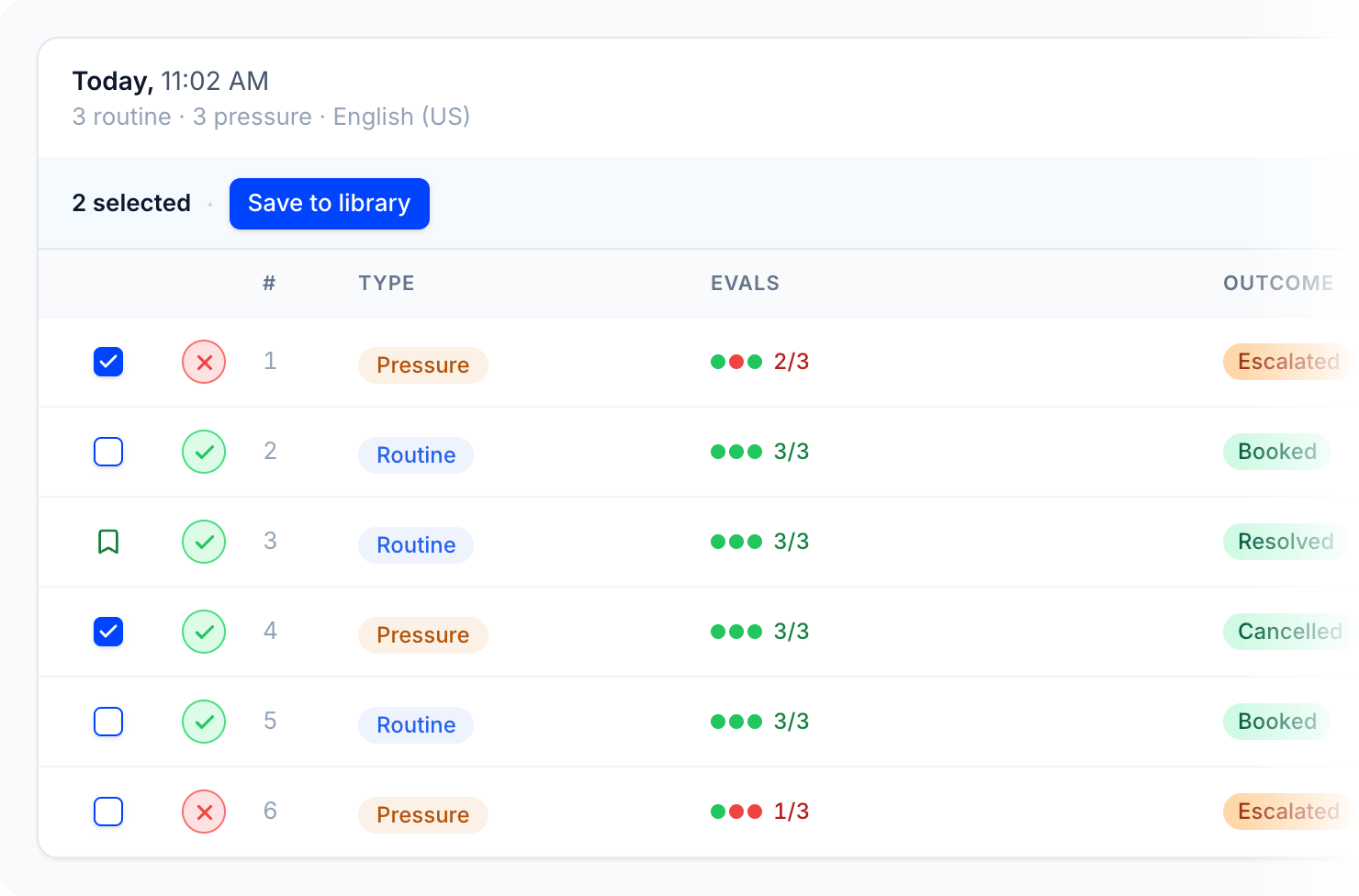
On the **Runs** tab, expand the run and tick the calls you want to keep. A bookmark marks calls that are already in your library.
Click **Save to library**, give each one a name, and optionally add **Tags for all**. Then click **Save 2 scenarios** (the number matches your selection). Your new scenarios appear on the **Scenarios** tab, marked **Saved from run**.
Only **Name** and **Situation** have to be filled in.
* **Type** is **Routine** for an everyday request or **Pressure** for a difficult caller. It's a label for scoring and filtering. Your **Situation** is what makes the caller act that way, so describe any pushback there.
* **Situation** is written to the caller, as "you": who they are, their mood, what they want, and how they react when things don't go their way. For example, "You're calling from your car to move your cleaning to Friday the fourteenth. The line is noisy and you're in a hurry."
* **Goal**, **First line**, and **Stop conditions** are optional. They say what the caller is trying to get done, the first thing they say, and when they're done. A call still ends only when your agent hangs up or the max call duration is reached.
* Pick an **Intent** if the call is about one of your agent's Intents. If your agent places calls, the Intent is also sent to your trigger endpoint as `{{scenario.intent}}`. See [Outbound simulation](/docs/simulation/outbound#configure-the-trigger-endpoint).
* For a Pressure scenario, pick a **Target eval**, the Pass/Fail eval the call is meant to trip. The scenario passes or fails on that eval alone.
* Add **Tags** to group and find your scenarios later.
Click **Save**, or **Save and run** to save it and open **Run Simulation** with this scenario selected. To check what the caller is told from your text, expand **Preview simulator prompt**. It's read-only and never blocks saving.
***
## Save one from a run
Start a run with **AI generated** scenarios, as in [Introduction to Call Simulation](/docs/simulation/overview), and wait until it's **Complete** or **Partial**.
On the **Runs** tab, expand the run and tick the calls you want to keep. A bookmark marks calls that are already in your library.
Click **Save to library**, give each one a name, and optionally add **Tags for all**. Then click **Save 2 scenarios** (the number matches your selection). Your new scenarios appear on the **Scenarios** tab, marked **Saved from run**.
 Tuner saves each call's **Situation**, **Goal**, **Stop conditions**, type, **Intent**, and **Target eval**. It doesn't save the language, background noise, or test profile, because you choose those each time you run. The call you saved from becomes the first entry in the scenario's **Run history**, so you can compare later runs against it.
***
## Run it again
Use whichever is closest:
* On the **Scenarios** tab, open a row's menu and click **Run this scenario**.
* On a scenario's own page, click **Run this scenario**.
* In **Run Simulation**, click **Change** next to **Scenarios**, choose **From library**, tick up to 20 scenarios, and click **Done**.
Tuner saves each call's **Situation**, **Goal**, **Stop conditions**, type, **Intent**, and **Target eval**. It doesn't save the language, background noise, or test profile, because you choose those each time you run. The call you saved from becomes the first entry in the scenario's **Run history**, so you can compare later runs against it.
***
## Run it again
Use whichever is closest:
* On the **Scenarios** tab, open a row's menu and click **Run this scenario**.
* On a scenario's own page, click **Run this scenario**.
* In **Run Simulation**, click **Change** next to **Scenarios**, choose **From library**, tick up to 20 scenarios, and click **Done**.
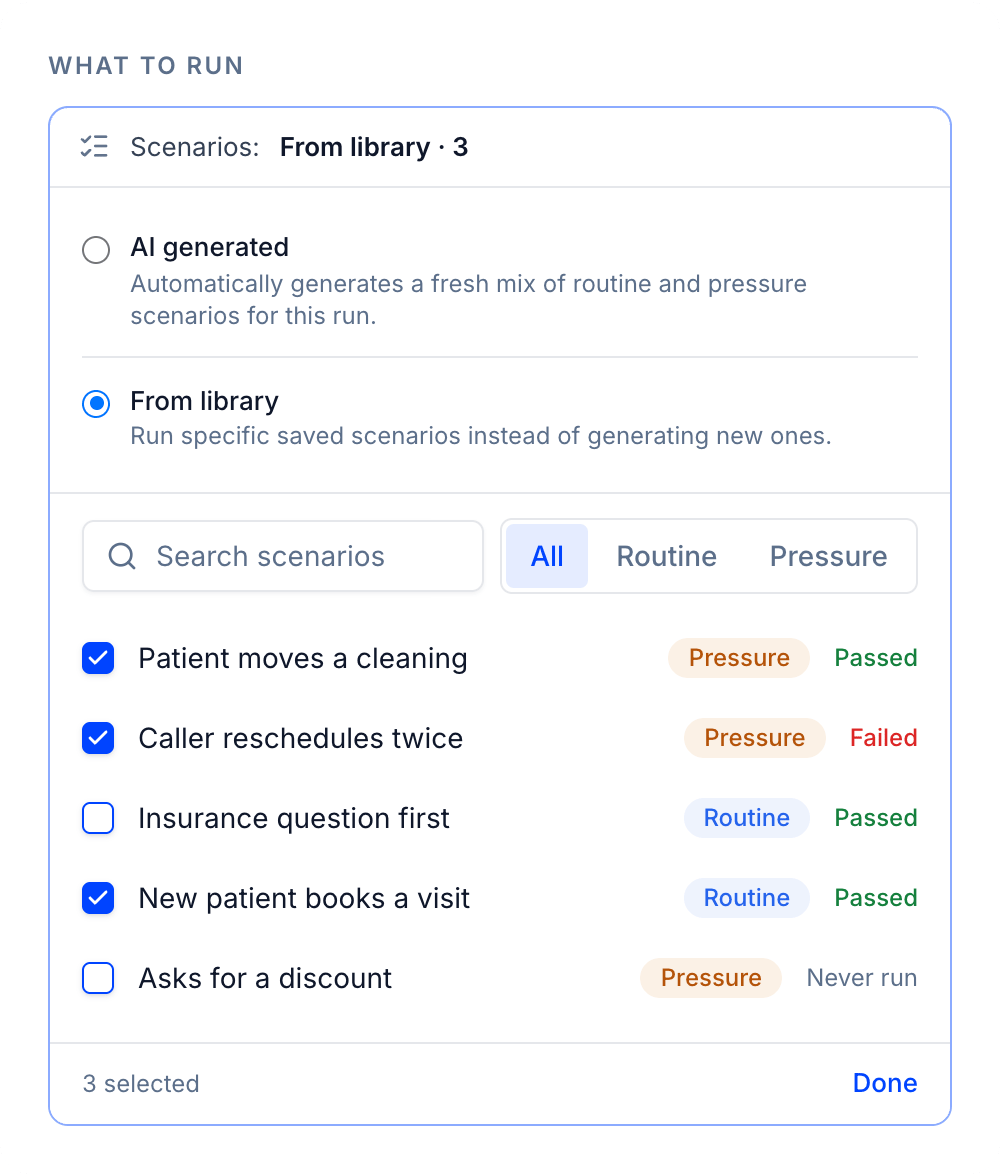 The **Run Simulation** dialog works as in any simulation. Choose the max call duration, language and accent, background noise, and test profile, then click **Run**. Each scenario places one call, and you can run the same scenario under different conditions each time. The dialog shows the number of calls and the credit rate before you run.
***
## Read the results
The run appears on the **Runs** tab, marked with how many scenarios came from your library. Every call is graded against all of your agent's **Pass/Fail** evals, and a Pressure scenario with a **Target eval** passes or fails on that eval.
* On the **Scenarios** tab, **Last result** shows how each scenario did on its latest run. A call that never connected also shows **Failed**.
* Click a scenario to open it. **Run history** shows how it did on its last runs, like "Passed 3 of last 5 runs", with a **View call** link for each one.
* The simulated caller follows the situation but improvises, so the wording and length of each call can differ. To replay the exact same caller audio, use a [replay of a Dataset call](/docs/simulation/replays) instead.
The **Run Simulation** dialog works as in any simulation. Choose the max call duration, language and accent, background noise, and test profile, then click **Run**. Each scenario places one call, and you can run the same scenario under different conditions each time. The dialog shows the number of calls and the credit rate before you run.
***
## Read the results
The run appears on the **Runs** tab, marked with how many scenarios came from your library. Every call is graded against all of your agent's **Pass/Fail** evals, and a Pressure scenario with a **Target eval** passes or fails on that eval.
* On the **Scenarios** tab, **Last result** shows how each scenario did on its latest run. A call that never connected also shows **Failed**.
* Click a scenario to open it. **Run history** shows how it did on its last runs, like "Passed 3 of last 5 runs", with a **View call** link for each one.
* The simulated caller follows the situation but improvises, so the wording and length of each call can differ. To replay the exact same caller audio, use a [replay of a Dataset call](/docs/simulation/replays) instead.
 ***
## Manage your scenarios
* **Search** by name, situation, goal, first line, or tag, and filter by **Routine** or **Pressure**.
* **Edit** a scenario at any time. Past runs keep the version they ran, so old results don't change.
* **Duplicate** a scenario to start a new one from a copy.
* **Delete** a scenario to remove it from the library and from new runs. Past results are kept.
***
## Limits
| Limit | Value |
| - | - |
| Scenarios per run | 1 to 20, each runs once |
| Max call duration | 1 to 12 minutes |
| Runs in progress per agent | 1, shared by all simulation runs |
Scenarios are also available through the public API. Building and managing them is in the **Scenarios** group of the API Reference, and running them or saving them from a run is in the **Simulation** group.
### Next steps
Replay a real call from your Dataset with the exact same caller audio.
Generate new callers to find failures you haven't seen yet.
This documentation is built and hosted on [Mintlify](https://mintlify.com), a developer documentation platform.
***
## Manage your scenarios
* **Search** by name, situation, goal, first line, or tag, and filter by **Routine** or **Pressure**.
* **Edit** a scenario at any time. Past runs keep the version they ran, so old results don't change.
* **Duplicate** a scenario to start a new one from a copy.
* **Delete** a scenario to remove it from the library and from new runs. Past results are kept.
***
## Limits
| Limit | Value |
| - | - |
| Scenarios per run | 1 to 20, each runs once |
| Max call duration | 1 to 12 minutes |
| Runs in progress per agent | 1, shared by all simulation runs |
Scenarios are also available through the public API. Building and managing them is in the **Scenarios** group of the API Reference, and running them or saving them from a run is in the **Simulation** group.
### Next steps
Replay a real call from your Dataset with the exact same caller audio.
Generate new callers to find failures you haven't seen yet.
This documentation is built and hosted on [Mintlify](https://mintlify.com), a developer documentation platform.