> ## Documentation Index
> Fetch the complete documentation index at: https://docs.usetuner.ai/llms.txt
> Use this file to discover all available pages before exploring further.
# SIP for Vapi
> Create a Free Vapi SIP trunk, copy SIP URI and digest credentials, link your assistant, paste into Tuner.
Start at [**Simulation SIP setup**](/docs/simulation/setup).
## Step 1: Create a Free Vapi SIP trunk
1. Open the [Vapi dashboard](https://dashboard.vapi.ai/) → **Phone Numbers**.
2. **Create Phone Number** → **Free Vapi SIP**.
3. Fill in:
* **SIP Identifier** (used in your SIP URI)
* **Label** (your reference only)
* **Username** and **Password** (digest auth)
4. Click **Import SIP URI**.
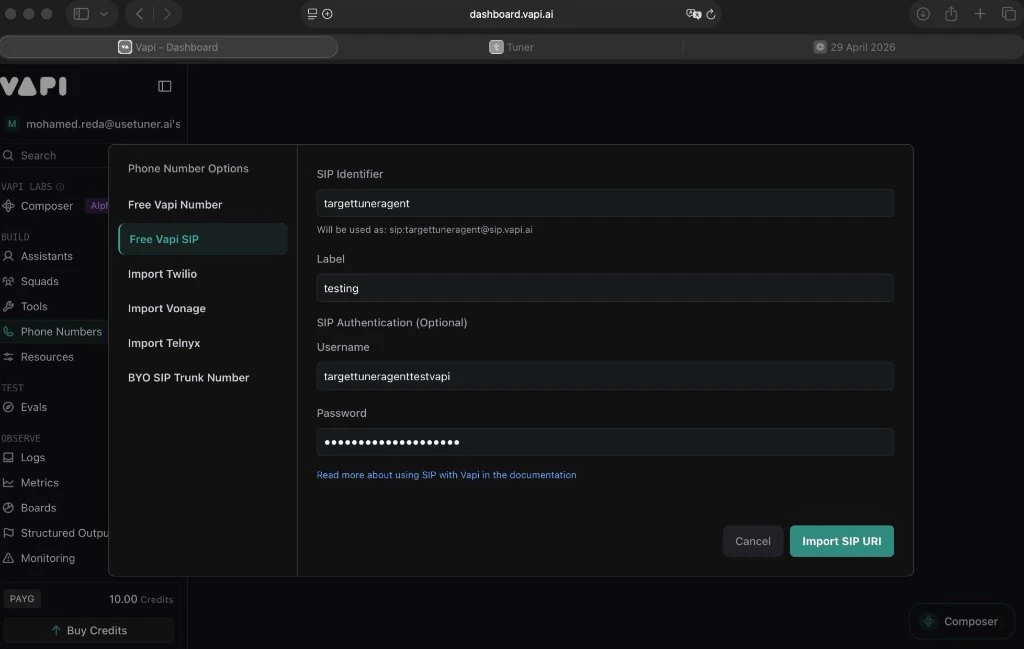 Your SIP URI will match:
```text theme={null}
sip:@sip.vapi.ai
```
**Save username and password immediately.** Vapi shows the password only once. If you lose it, delete the trunk and create a new one.
## Step 2: Link your assistant (required)
Simulation calls will **not** connect if this step is skipped.
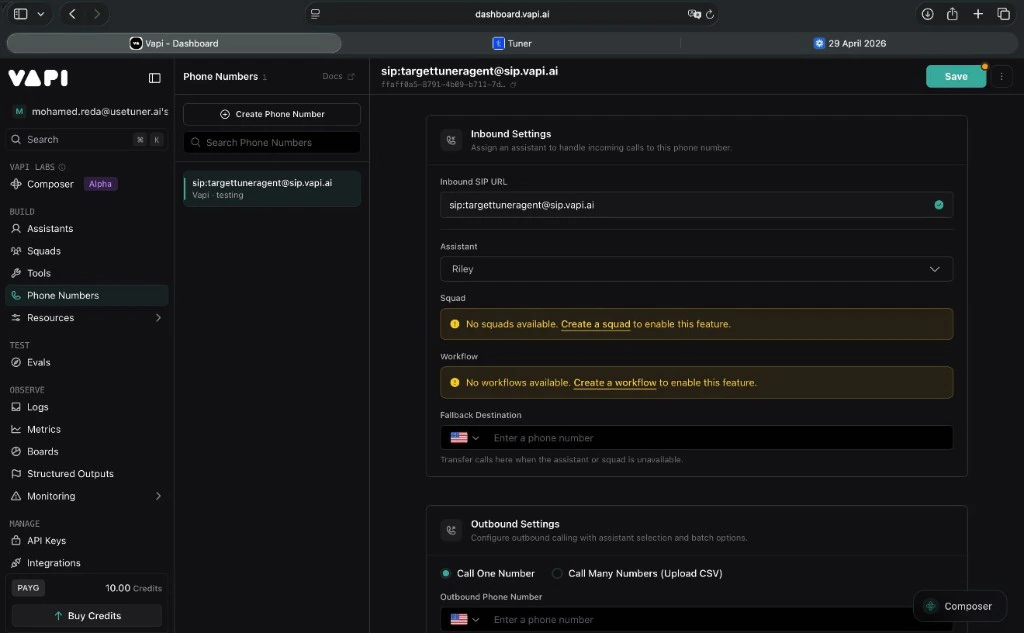
1. **Phone Numbers** → click your SIP trunk.
2. Under **Inbound Settings**, set **Assistant** to the assistant Tuner should reach.
3. **Save**.
Your SIP URI will match:
```text theme={null}
sip:@sip.vapi.ai
```
**Save username and password immediately.** Vapi shows the password only once. If you lose it, delete the trunk and create a new one.
## Step 2: Link your assistant (required)
Simulation calls will **not** connect if this step is skipped.
1. **Phone Numbers** → click your SIP trunk.
2. Under **Inbound Settings**, set **Assistant** to the assistant Tuner should reach.
3. **Save**.
 ## Step 3: Paste into Tuner
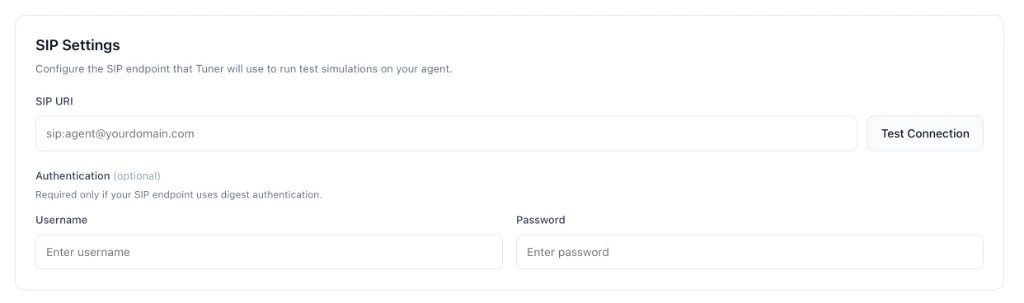
1. **Agent Settings** → **SIP Settings**.
2. **SIP URI:** `sip:@sip.vapi.ai`
3. **Username** / **Password:** same values as in Step 1.
## Step 3: Paste into Tuner
1. **Agent Settings** → **SIP Settings**.
2. **SIP URI:** `sip:@sip.vapi.ai`
3. **Username** / **Password:** same values as in Step 1.
 ## Troubleshooting
| Issue | What to check |
| --------------------- | --------------------------------------------------------------------------------------------------------------- |
| Calls fail to connect | Assistant linked to trunk (Step 2). Credentials match Vapi and Tuner. URI exactly `sip:identifier@sip.vapi.ai`. |
| Assistant silent | Assistant has a prompt and is active (not draft/paused). |
| Unverified in Tuner | No trailing spaces on URI or password. **Verify & Save** again. |
Paste your SIP URI and credentials into **Agent Settings → SIP Settings**, click **Verify & Save**, and you're ready to run simulations.
***
Configure your simulation mix and start a batch.
## Troubleshooting
| Issue | What to check |
| --------------------- | --------------------------------------------------------------------------------------------------------------- |
| Calls fail to connect | Assistant linked to trunk (Step 2). Credentials match Vapi and Tuner. URI exactly `sip:identifier@sip.vapi.ai`. |
| Assistant silent | Assistant has a prompt and is active (not draft/paused). |
| Unverified in Tuner | No trailing spaces on URI or password. **Verify & Save** again. |
Paste your SIP URI and credentials into **Agent Settings → SIP Settings**, click **Verify & Save**, and you're ready to run simulations.
***
Configure your simulation mix and start a batch.