> ## Documentation Index
> Fetch the complete documentation index at: https://docs.usetuner.ai/llms.txt
> Use this file to discover all available pages before exploring further.
# How to Use Red Flags for Issue Triage
> Red flags are your early warning system for critical issues. This guide explains what red flags are, how to use them to prioritize issues, and how to drill down into the root cause.
## What Are Red Flags?
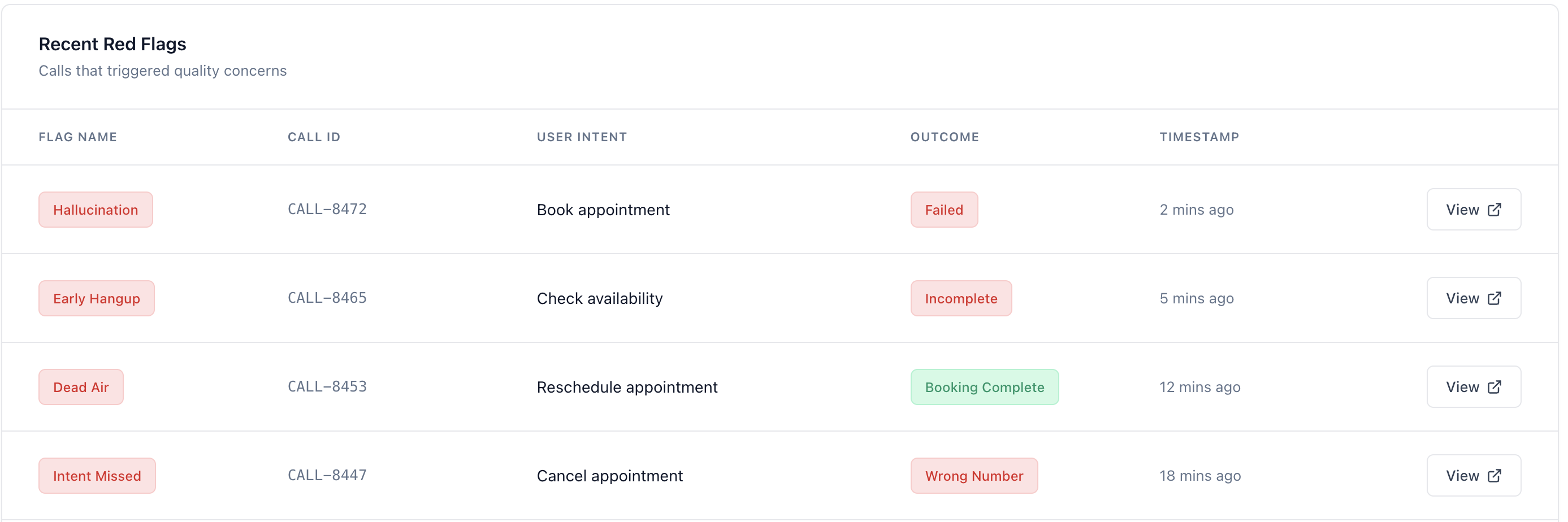
A **red flag** is a tag that Tuner automatically applies to calls that exhibit critical issues. These are surfaced in the **Recent Red Flags** section of the **Overview** dashboard. Common red flags include:
* **Hallucination**: The agent provides incorrect or fabricated information.
* **System Prompt Compliance Failure**: The agent violates the rules or constraints defined in its system prompt.
* **Missed Intent**: The agent fails to understand the user's primary intent.
* **High Negative Sentiment**: The user expresses significant frustration or dissatisfaction.
 ## How to Use Red Flags for Triage
The **Recent Red Flags** section on the **Overview** dashboard is your starting point for issue triage.
Make it a habit to check the **Recent Red Flags** section every day.
Focus on the most critical red flags first. Hallucinations and system prompt compliance failures are usually the highest priority, as they indicate a fundamental problem with your agent's behavior.
Click on a red-flagged call to open the **Call Details** view. This will give you the full context of the conversation.
## Investigating a Red Flag
Once you're in the **Call Details** view, use the following tools to investigate the issue:
* **Transcript**: Read the conversation to understand what happened.
* **Events**: Review the sequence of events to identify where things went wrong.
* **Metrics**: Check the call metrics for anomalies, such as long silences or high crosstalk.
When the same red flag keeps appearing across many calls, investigating one at a time stops being practical. Use the MCP Diagnose agent to analyze the pattern at scale: it reads all your red-flagged calls, groups them by intent and outcome, opens the worst ones, and tells you the shared root cause.
Find the root cause behind recurring red flags across all your calls.
***
### Next Steps
Learn how to perform a detailed root cause analysis on a single call.
A step-by-step guide to performing a deep-dive analysis of a single call to uncover the root cause of an issue.
## How to Use Red Flags for Triage
The **Recent Red Flags** section on the **Overview** dashboard is your starting point for issue triage.
Make it a habit to check the **Recent Red Flags** section every day.
Focus on the most critical red flags first. Hallucinations and system prompt compliance failures are usually the highest priority, as they indicate a fundamental problem with your agent's behavior.
Click on a red-flagged call to open the **Call Details** view. This will give you the full context of the conversation.
## Investigating a Red Flag
Once you're in the **Call Details** view, use the following tools to investigate the issue:
* **Transcript**: Read the conversation to understand what happened.
* **Events**: Review the sequence of events to identify where things went wrong.
* **Metrics**: Check the call metrics for anomalies, such as long silences or high crosstalk.
When the same red flag keeps appearing across many calls, investigating one at a time stops being practical. Use the MCP Diagnose agent to analyze the pattern at scale: it reads all your red-flagged calls, groups them by intent and outcome, opens the worst ones, and tells you the shared root cause.
Find the root cause behind recurring red flags across all your calls.
***
### Next Steps
Learn how to perform a detailed root cause analysis on a single call.
A step-by-step guide to performing a deep-dive analysis of a single call to uncover the root cause of an issue.