> ## Documentation Index
> Fetch the complete documentation index at: https://docs.usetuner.ai/llms.txt
> Use this file to discover all available pages before exploring further.
# Introduction to Call Simulation
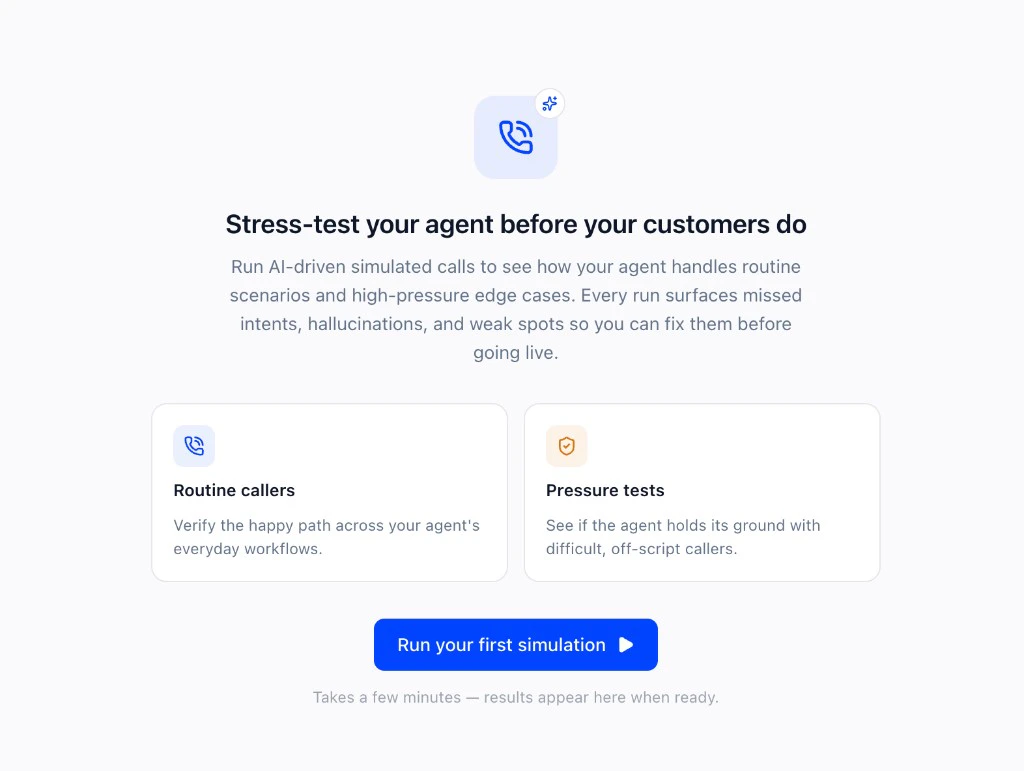
> Stop calling your own voice agent. Run hundreds of simulation calls in minutes, and know exactly what breaks before your customers find it.
## What is Call Simulation?
Testing voice AI manually is slow, incomplete, and nobody's favourite task. Call Simulation runs real voice calls with your agent so you know it's ready, before launch, after every update, and every time something changes.
You define what your agent does. Tuner builds the scenarios that stress test it, connects a real voice call to your agent, and scores every call against the same Evals you've configured for production.
Simulation works in both call directions: **inbound** (Tuner dials your agent over SIP) and **outbound** (Tuner triggers your endpoint, and your agent dials Tuner's simulation agent).
 ***
## How It Works
A one-time setup that depends on your agent's call direction, pick yours:
Tuner dials **into** your agent over SIP, like a real customer calling in. You paste your agent's SIP URI (and credentials, if any) into **Agent Settings → SIP Settings**.
***
## How It Works
A one-time setup that depends on your agent's call direction, pick yours:
Tuner dials **into** your agent over SIP, like a real customer calling in. You paste your agent's SIP URI (and credentials, if any) into **Agent Settings → SIP Settings**.
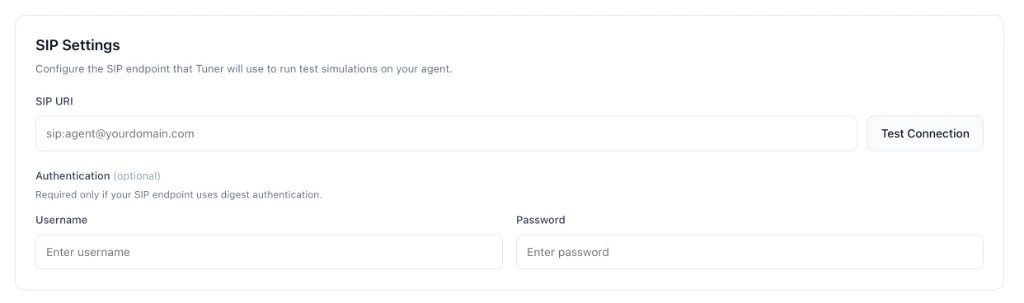 Full setup steps: [**Inbound Simulation, SIP setup**](/docs/simulation/setup).
Your agent makes the call instead. You give Tuner the API that starts your outbound calls in **Agent Settings → Simulation Setup**, and Tuner triggers it with a SIP URI to dial for each simulated call.
Full setup steps: [**Inbound Simulation, SIP setup**](/docs/simulation/setup).
Your agent makes the call instead. You give Tuner the API that starts your outbound calls in **Agent Settings → Simulation Setup**, and Tuner triggers it with a SIP URI to dial for each simulated call.
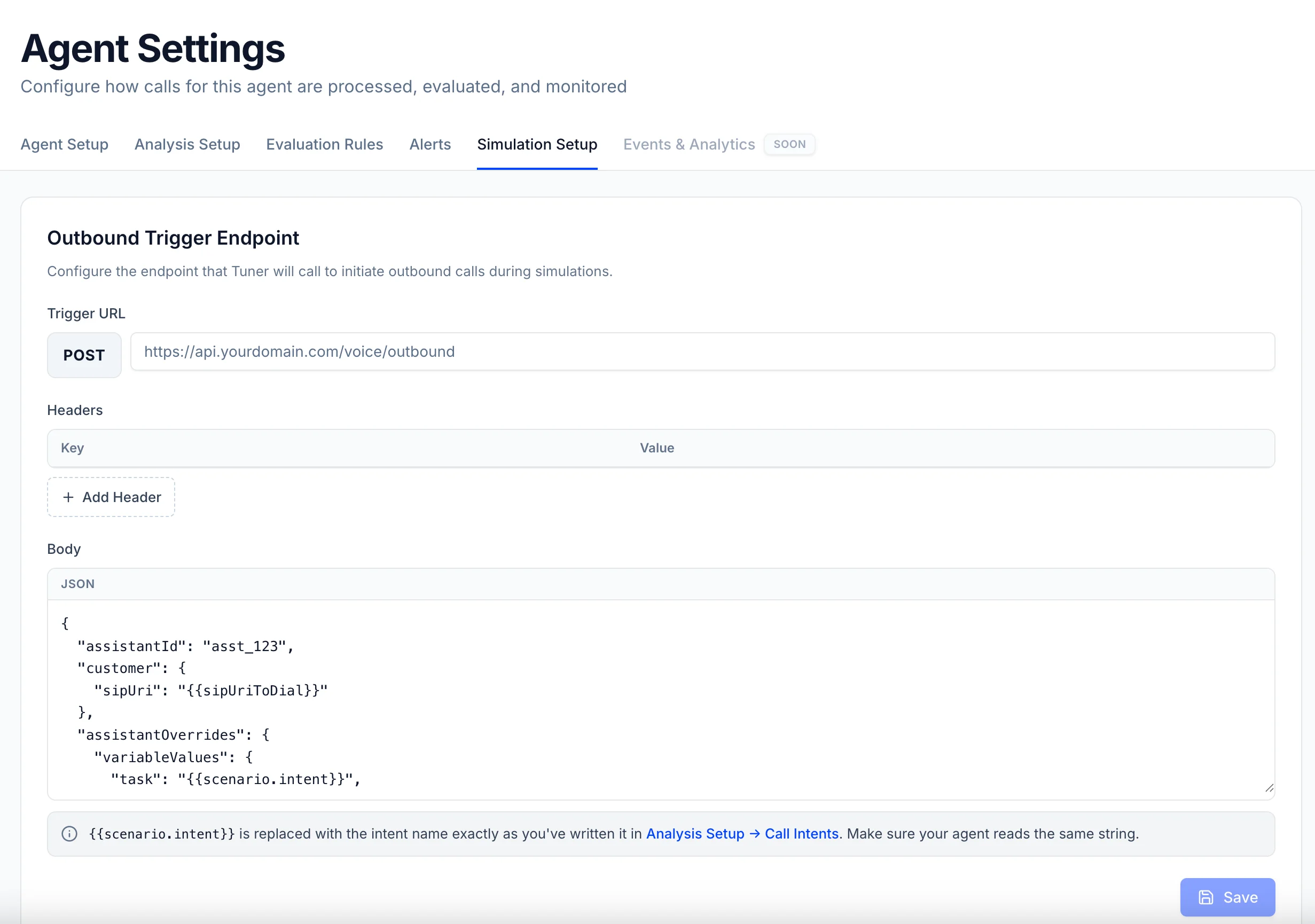 Full setup steps: [**Outbound Simulation, overview**](/docs/simulation/outbound/overview).
Open **Run Simulation** and set the number of calls (5–20 per batch), adjust the **Routine Callers** vs **Pressure Tests** mix, and narrow which intents or evals each side targets.
Full setup steps: [**Outbound Simulation, overview**](/docs/simulation/outbound/overview).
Open **Run Simulation** and set the number of calls (5–20 per batch), adjust the **Routine Callers** vs **Pressure Tests** mix, and narrow which intents or evals each side targets.
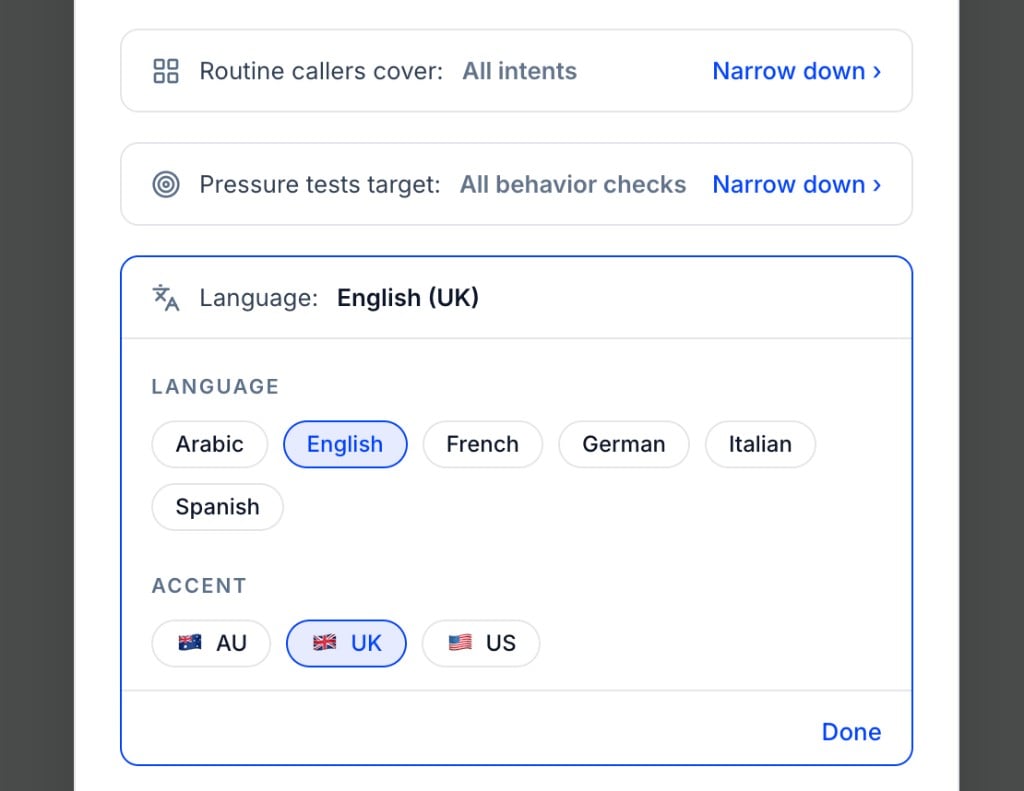
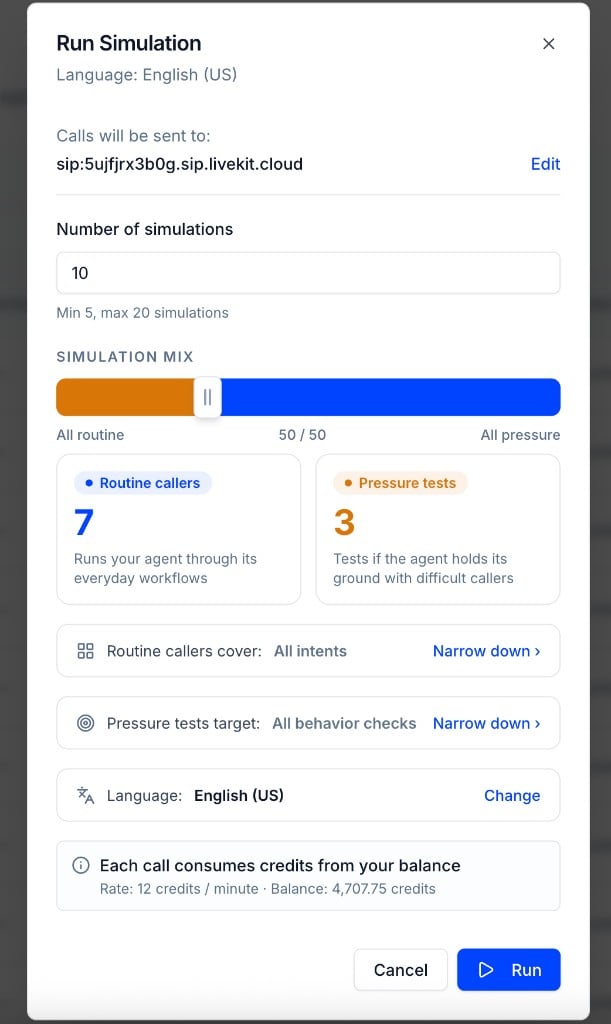 Click **Change** next to the language row to pick which language and accent the simulation agents use. Test how your agent handles different locales without waiting for live traffic from each region.
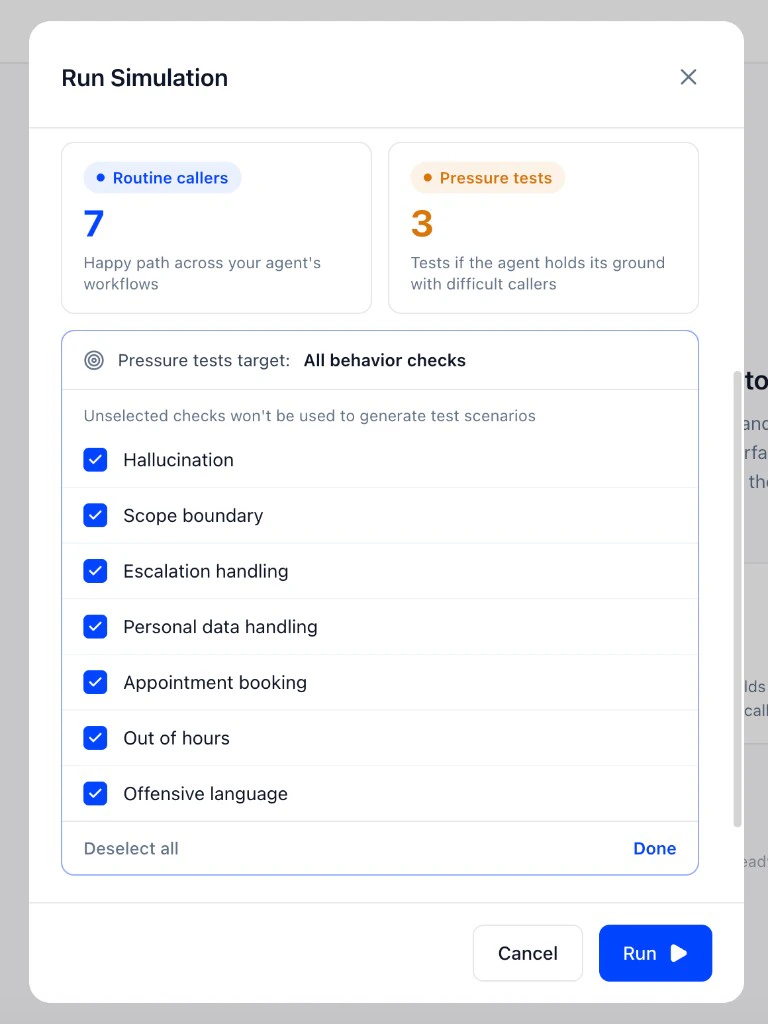
 Click **Narrow down** under **Pressure tests target** to focus on specific failure modes, hallucination, scope boundary, escalation handling, offensive language, personal data, and more. Unselected evals won't generate scenarios.
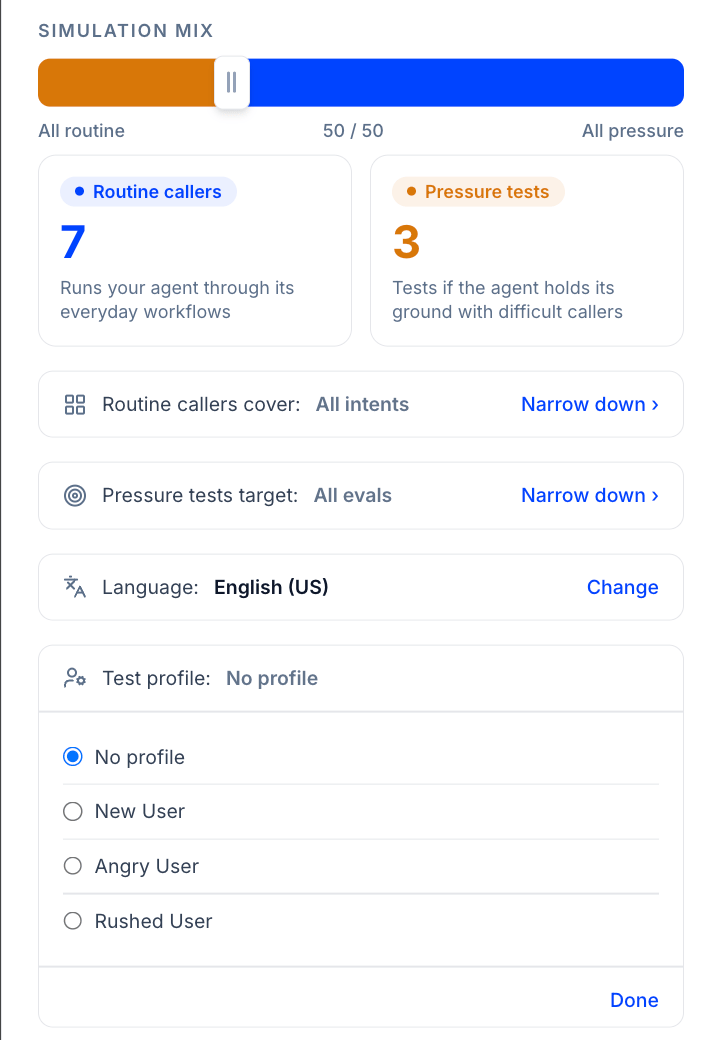
 Click the **Test profile** row to attach a profile to the run. A test profile is a named set of key-value fields that get injected into the simulated caller's context — caller name, account details, reason for calling, or any other data your agent needs to handle the scenario correctly. Profiles are created and managed in **Simulations → Test Profiles**.
 See [Test Profiles](/docs/simulation/test-profiles) for a full guide.
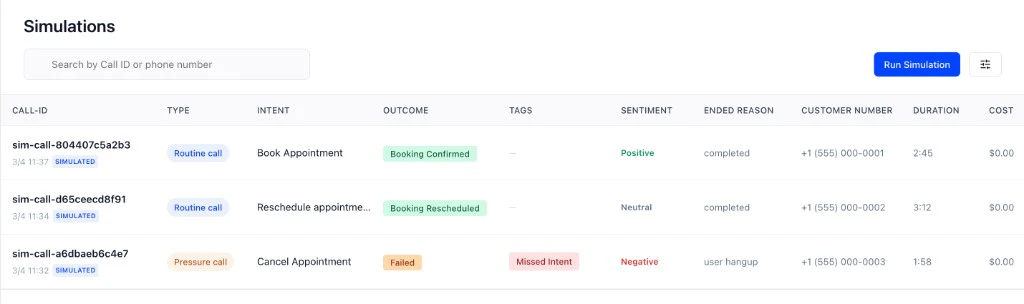
Every completed call appears in the **Simulations** table with type, intent, outcome, tags, sentiment, ended reason, duration, and cost. Click any row for the full transcript, latency breakdown, tool traces, and evaluation results.
See [Test Profiles](/docs/simulation/test-profiles) for a full guide.
Every completed call appears in the **Simulations** table with type, intent, outcome, tags, sentiment, ended reason, duration, and cost. Click any row for the full transcript, latency breakdown, tool traces, and evaluation results.
 ***
## The Simulation Mix
You control what gets tested. Run a full health check or narrow down to a single Intent, Call Outcome, or eval. Every run is yours to configure.
| | Routine Callers | Pressure Tests |
| ------------------------- | ------------------------------------------------------------------------------------------------------------------------- | ------------------------------------------------------------------------------------------------------------------------------------------------------ |
| **What they do** | Simulation agents that play your everyday customers, cooperative, on-topic, working through your agent's normal workflows | Simulation agents that play the difficult ones, unhappy customers, edge cases, people trying to bypass your process or ask for something outside scope |
| **What you learn** | How your agent performs on the happy path when everything goes the way it's supposed to | Where your agent has a breaking point, hallucination, scope boundary, escalation handling, and other failure modes |
| **How they're generated** | From your agent's configured Intents and Call Outcomes | Auto-generated from your configured evals |
### Why volume matters
In voice, the same intent said ten different ways produces ten different conversations. Rushed, hesitant, overly detailed, unclear, small differences in how a customer speaks can completely change how your agent responds. The more simulations you run, the more of these variations you cover.
### Languages and accents
In the **Run Simulation** dialog, click **Change** on the language row to choose the language and accent for your simulation agents. Supported languages include **Arabic**, **English**, **French**, **German**, **Italian**, and **Spanish**. For English, you can also pick a regional accent: **AU**, **UK**, or **US**.
Use this to stress-test multilingual agents or confirm your agent still performs when customers speak with a different accent than your default setup.
### Test Profiles
A **test profile** gives the simulated caller a specific identity and context before the call starts. Instead of an anonymous caller, the simulation agent knows it's playing a new user, an angry repeat caller, or someone in a rush — and it behaves accordingly throughout the conversation.
Each profile is a name plus any number of key-value fields: `caller_name`, `issue`, `urgency`, `appointment_date`, whatever your agent is expected to handle. Profiles are scoped to the agent and are snapshotted at run time, so editing a profile later won't change past results.
Create and manage profiles under **Simulations → Test Profiles**. When running a simulation, select a profile from the **Test profile** row in the Run Simulation dialog to apply it to the entire batch.
***
## The Simulation Mix
You control what gets tested. Run a full health check or narrow down to a single Intent, Call Outcome, or eval. Every run is yours to configure.
| | Routine Callers | Pressure Tests |
| ------------------------- | ------------------------------------------------------------------------------------------------------------------------- | ------------------------------------------------------------------------------------------------------------------------------------------------------ |
| **What they do** | Simulation agents that play your everyday customers, cooperative, on-topic, working through your agent's normal workflows | Simulation agents that play the difficult ones, unhappy customers, edge cases, people trying to bypass your process or ask for something outside scope |
| **What you learn** | How your agent performs on the happy path when everything goes the way it's supposed to | Where your agent has a breaking point, hallucination, scope boundary, escalation handling, and other failure modes |
| **How they're generated** | From your agent's configured Intents and Call Outcomes | Auto-generated from your configured evals |
### Why volume matters
In voice, the same intent said ten different ways produces ten different conversations. Rushed, hesitant, overly detailed, unclear, small differences in how a customer speaks can completely change how your agent responds. The more simulations you run, the more of these variations you cover.
### Languages and accents
In the **Run Simulation** dialog, click **Change** on the language row to choose the language and accent for your simulation agents. Supported languages include **Arabic**, **English**, **French**, **German**, **Italian**, and **Spanish**. For English, you can also pick a regional accent: **AU**, **UK**, or **US**.
Use this to stress-test multilingual agents or confirm your agent still performs when customers speak with a different accent than your default setup.
### Test Profiles
A **test profile** gives the simulated caller a specific identity and context before the call starts. Instead of an anonymous caller, the simulation agent knows it's playing a new user, an angry repeat caller, or someone in a rush — and it behaves accordingly throughout the conversation.
Each profile is a name plus any number of key-value fields: `caller_name`, `issue`, `urgency`, `appointment_date`, whatever your agent is expected to handle. Profiles are scoped to the agent and are snapshotted at run time, so editing a profile later won't change past results.
Create and manage profiles under **Simulations → Test Profiles**. When running a simulation, select a profile from the **Test profile** row in the Run Simulation dialog to apply it to the entire batch.
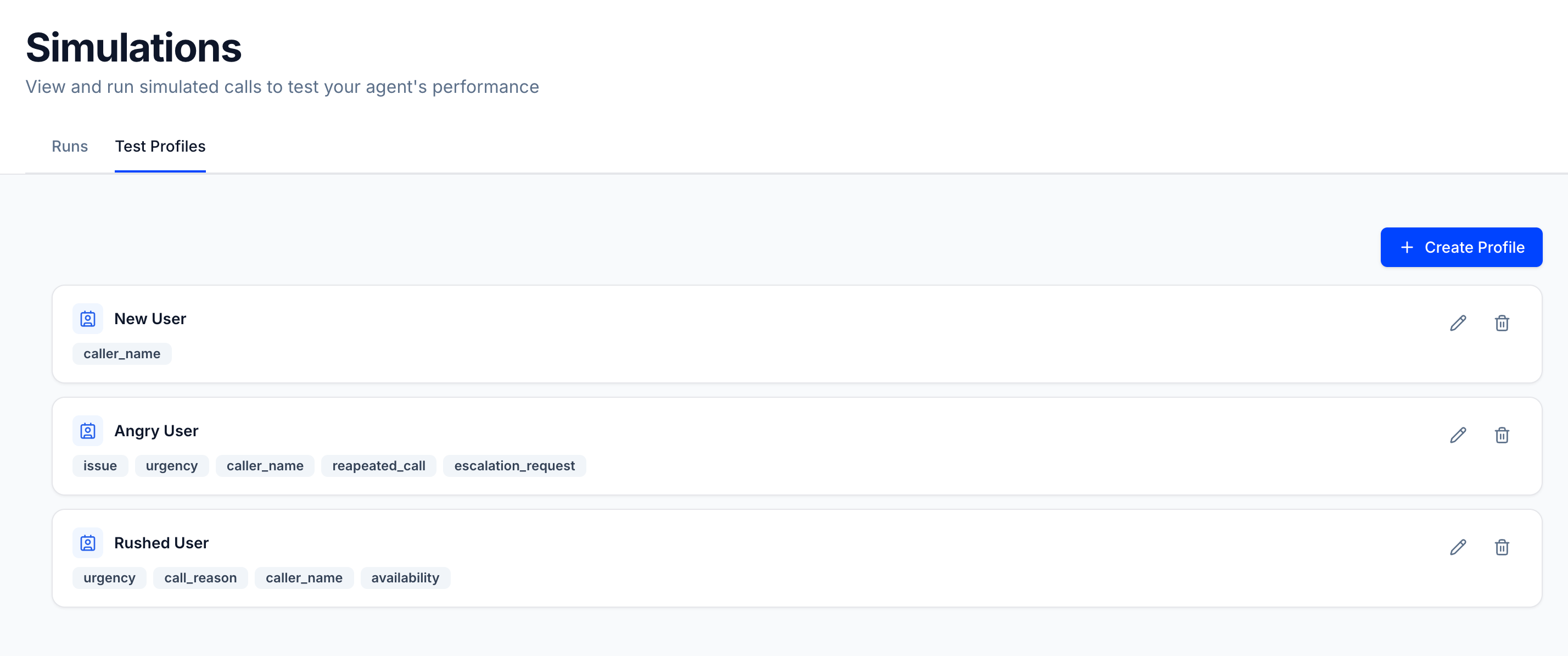 See [Test Profiles](/docs/simulation/test-profiles) for the full guide — including how to create profiles, manage fields, and use them with outbound agents.
***
## Your Production Evals Run Every Simulation
No separate scoring. No extra configuration. Every simulation call is evaluated against the exact same Evals, Call Outcomes, and Intents you've already set up for your live agent.
* **Same Evals, every run.** Whatever you've configured to catch failures in production, hallucinations, missed Intents, wrong Call Outcomes, runs automatically on every simulation call. What fails in production will fail here first.
* **See failures before your customers do.** Every run surfaces exactly what passed and what failed. Fix the failures, adjust your agent, and run again.
* **Regression built-in.** Changed a prompt? Updated a workflow? Every time you run a simulation, you're also checking that nothing you already fixed has broken again.
***
## Getting Started
Pick the path that matches your agent's call direction:
Your agent **receives** calls. Tuner dials your agent over SIP, configure a SIP URI and credentials in **Agent Settings → SIP Settings**. Guides for Vapi, Retell, Twilio, Telnyx, LiveKit Cloud SIP, and any SIP URI you already have.
Your agent **places** calls. Tuner triggers your webhook with a SIP URI to dial, and your agent calls Tuner's simulation agent. Configure it in **Agent Settings → Simulation Setup**, guides for LiveKit, Pipecat, and Custom API.
***
## FAQ
Each simulated call takes 1–4 minutes depending on scenario complexity. A batch of 10 calls typically completes in 5–10 minutes.
Yes. Each simulated call consumes credits from your balance. The rate is shown in the Run Simulation dialog before you start.
Yes. Simulation calls are separate from production traffic and don't affect your production metrics.
**Inbound:** managed platforms [Vapi](/docs/simulation/vapi) and [Retell](/docs/simulation/retell), plus any SIP-capable provider ([**Other platforms**](/docs/simulation/other-platforms), including Twilio, Telnyx, LiveKit Cloud SIP, etc.) if you paste the correct URI and credentials into **Agent Settings → SIP Settings**. See [**Inbound Simulation, SIP setup**](/docs/simulation/setup).
**Outbound:** any stack that can place a call to a SIP URI, with guides for LiveKit, Pipecat, and Custom API. See [**Outbound Simulation**](/docs/simulation/outbound/overview).
Contact support if you are unsure which path fits.
See [Test Profiles](/docs/simulation/test-profiles) for the full guide — including how to create profiles, manage fields, and use them with outbound agents.
***
## Your Production Evals Run Every Simulation
No separate scoring. No extra configuration. Every simulation call is evaluated against the exact same Evals, Call Outcomes, and Intents you've already set up for your live agent.
* **Same Evals, every run.** Whatever you've configured to catch failures in production, hallucinations, missed Intents, wrong Call Outcomes, runs automatically on every simulation call. What fails in production will fail here first.
* **See failures before your customers do.** Every run surfaces exactly what passed and what failed. Fix the failures, adjust your agent, and run again.
* **Regression built-in.** Changed a prompt? Updated a workflow? Every time you run a simulation, you're also checking that nothing you already fixed has broken again.
***
## Getting Started
Pick the path that matches your agent's call direction:
Your agent **receives** calls. Tuner dials your agent over SIP, configure a SIP URI and credentials in **Agent Settings → SIP Settings**. Guides for Vapi, Retell, Twilio, Telnyx, LiveKit Cloud SIP, and any SIP URI you already have.
Your agent **places** calls. Tuner triggers your webhook with a SIP URI to dial, and your agent calls Tuner's simulation agent. Configure it in **Agent Settings → Simulation Setup**, guides for LiveKit, Pipecat, and Custom API.
***
## FAQ
Each simulated call takes 1–4 minutes depending on scenario complexity. A batch of 10 calls typically completes in 5–10 minutes.
Yes. Each simulated call consumes credits from your balance. The rate is shown in the Run Simulation dialog before you start.
Yes. Simulation calls are separate from production traffic and don't affect your production metrics.
**Inbound:** managed platforms [Vapi](/docs/simulation/vapi) and [Retell](/docs/simulation/retell), plus any SIP-capable provider ([**Other platforms**](/docs/simulation/other-platforms), including Twilio, Telnyx, LiveKit Cloud SIP, etc.) if you paste the correct URI and credentials into **Agent Settings → SIP Settings**. See [**Inbound Simulation, SIP setup**](/docs/simulation/setup).
**Outbound:** any stack that can place a call to a SIP URI, with guides for LiveKit, Pipecat, and Custom API. See [**Outbound Simulation**](/docs/simulation/outbound/overview).
Contact support if you are unsure which path fits.