

Documentation Index
Fetch the complete documentation index at: https://docs.usetuner.ai/llms.txt
Use this file to discover all available pages before exploring further.
For an overview of how simulation works, see Introduction to Call Simulation.
Prerequisites
- A Retell account with an active agent
- An agent created in Tuner with prompt and evaluation rules configured (see Connecting to Retell)
- Tuner credits available for simulation calls
Step 1: Prepare Your Agent in Retell
- Log in to Retell.
- Create (or verify) your agent with the desired prompt, tools, and settings.
- Ensure the agent is active and ready to receive calls.
Step 2: Configure SIP in Tuner
- In Tuner, go to Agent Settings → SIP Settings.
- Enter the Retell SIP endpoint URI.
- Click Test Connection, then Save.
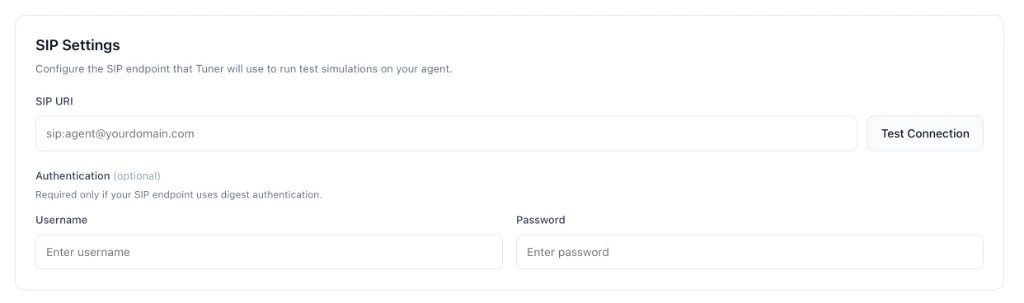
Retell’s integration typically requires only the SIP URI, no separate username/password authentication.
Step 3: Run Your First Simulation
- In Tuner, open Simulations in the sidebar.
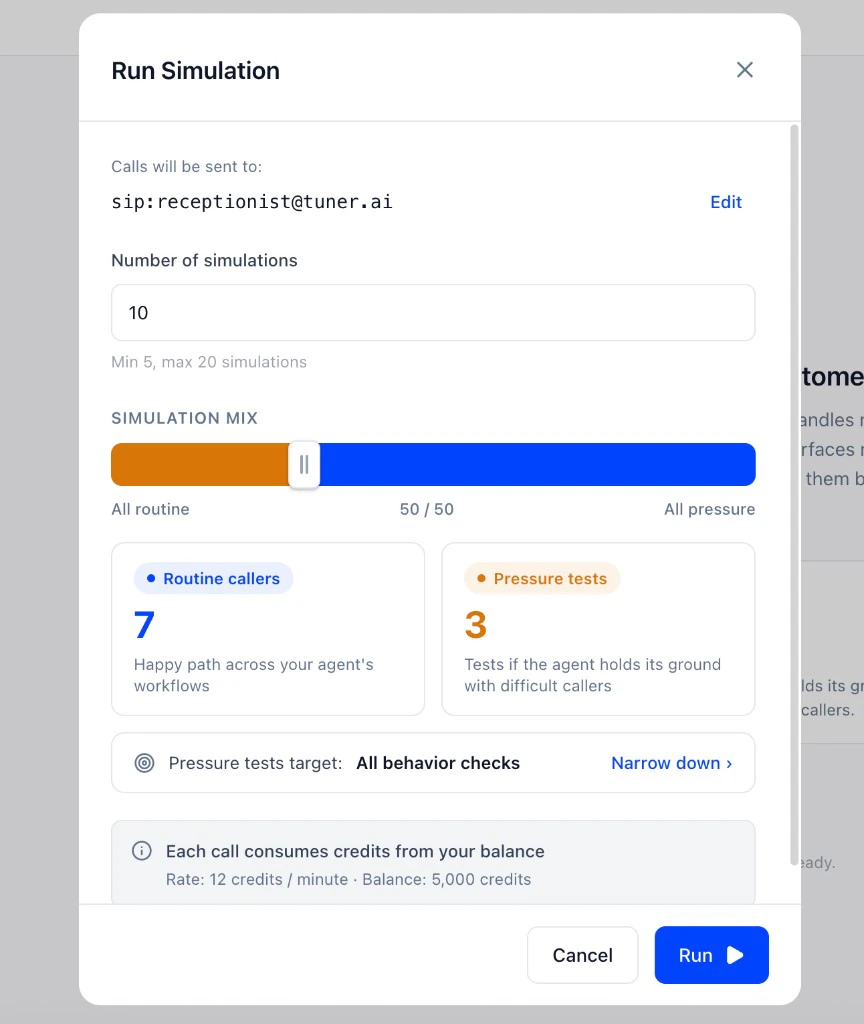
- Click Run Simulation.
- Confirm the SIP target points to your Retell agent.
- Set the number of calls (5–20).
- Adjust the simulation mix (routine vs. pressure).
- Click Run.
Troubleshooting
| Symptom | Resolution |
|---|---|
| Calls fail to connect | Verify the Retell agent is active (not draft). Confirm the SIP URI in Tuner matches the Retell endpoint exactly. |
| Agent doesn’t respond as expected | Check prompt and tool configuration in Retell. Run a manual test call in Retell to isolate the issue. |