

Start at Simulation SIP setup.
Step 1: Create a Free Vapi SIP trunk
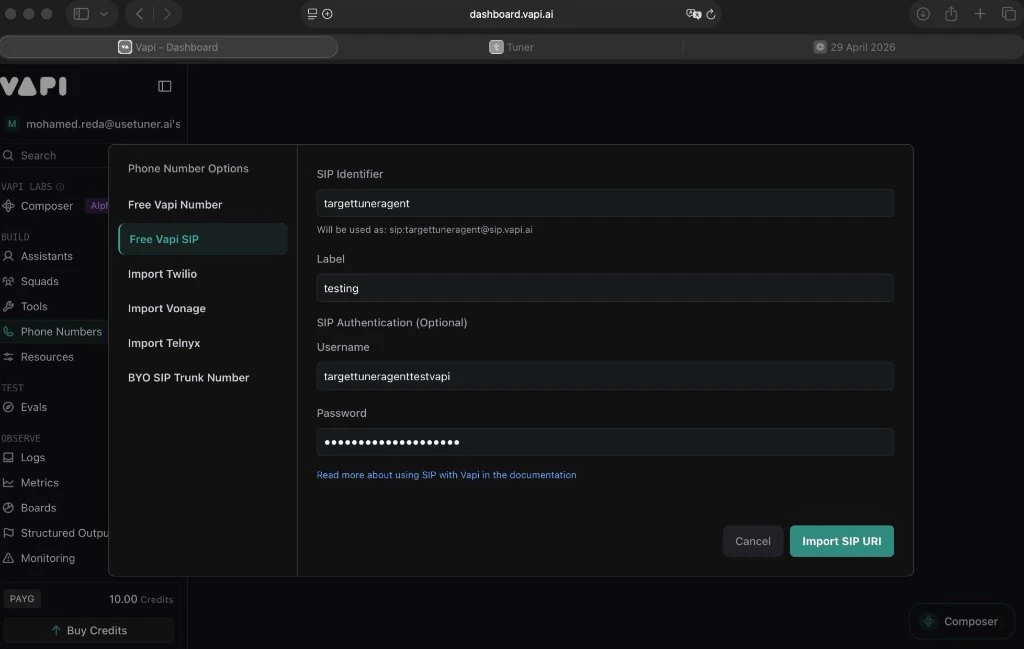
- Open the Vapi dashboard → Phone Numbers.
- Create Phone Number → Free Vapi SIP.
- Fill in:
- SIP Identifier (used in your SIP URI)
- Label (your reference only)
- Username and Password (digest auth)
- Click Import SIP URI.
Step 2: Link your assistant (required)
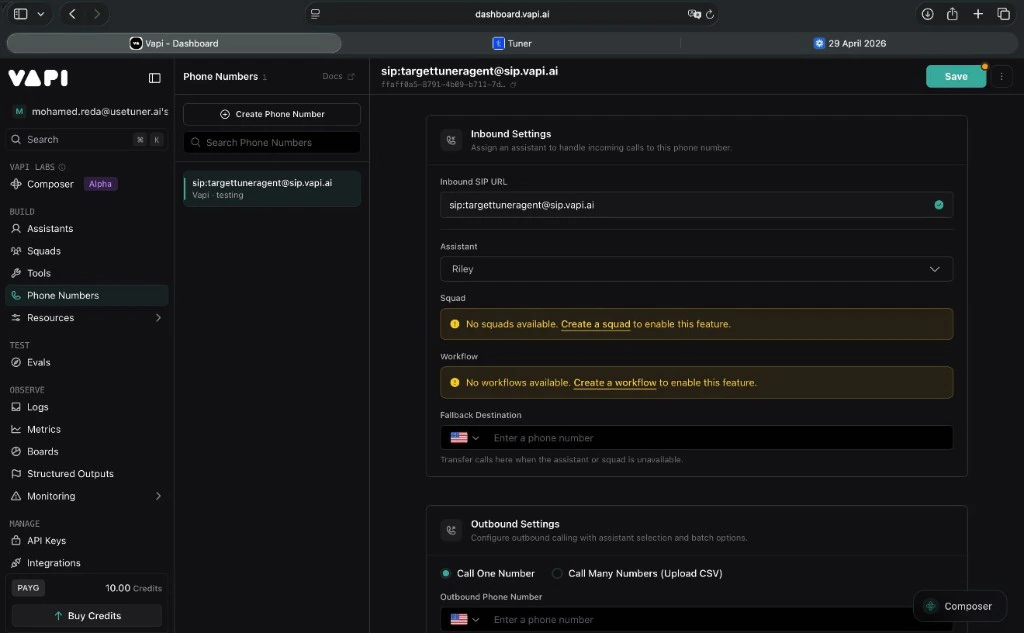
Simulation calls will not connect if this step is skipped.- Phone Numbers → click your SIP trunk.
- Under Inbound Settings, set Assistant to the assistant Tuner should reach.
- Save.
Step 3: Paste into Tuner
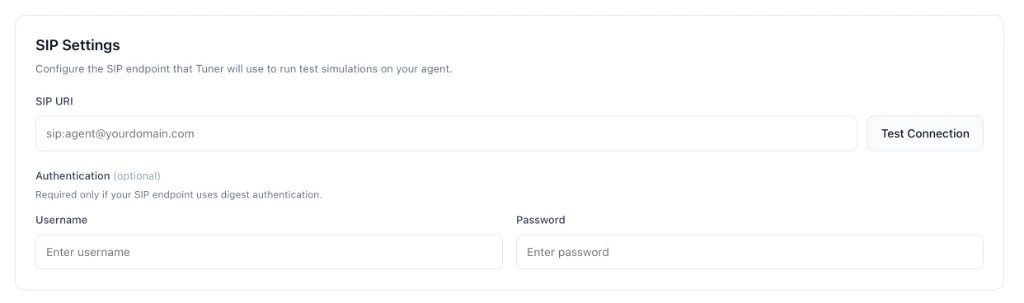
- Agent Settings → SIP Settings.
- SIP URI:
sip:<identifier>@sip.vapi.ai - Username / Password: same values as in Step 1.
Troubleshooting
| Issue | What to check |
|---|---|
| Calls fail to connect | Assistant linked to trunk (Step 2). Credentials match Vapi and Tuner. URI exactly sip:identifier@sip.vapi.ai. |
| Assistant silent | Assistant has a prompt and is active (not draft/paused). |
| Unverified in Tuner | No trailing spaces on URI or password. Verify & Save again. |
Run your first simulation
Configure your simulation mix and start a batch.