

Key Definitions
Before diving into the configuration, it’s important to understand the core concepts:What is Call Classification?
Call Classification is the process of categorizing each call based on its outcome and the user’s intent. By classifying calls, you transform raw conversation data into actionable insights that help you understand how your agent is performing and where improvements are needed. Call classification in Tuner consists of two main components:What is a Call Outcome?
A Call Outcome represents the result or conclusion of a call from your business perspective. It answers the question: “Did this call achieve its intended goal?” Call outcomes are typically categorized as either Success or Failure, but the specific definition depends entirely on your use case. For example:- For a sales agent, a successful outcome might be “Demo Scheduled” or “Purchase Completed”
- For a support agent, a successful outcome might be “Issue Resolved” or “Ticket Created”
- For a booking agent, a successful outcome might be “Appointment Confirmed”
What is User Intent?
User Intent represents the reason why the user initiated the call—their goal or purpose. It answers the question: “What did the user want to accomplish?” Understanding user intent helps you:- Identify demand patterns: See what users are most frequently calling about
- Optimize agent training: Focus on the most common intents
- Spot gaps: Discover intents your agent struggles to handle
- Measure intent-specific success rates: Track how well your agent handles each type of request
Why Classify Calls?
By default, Tuner does not know what a successful call looks like for your specific use case. Is it a call where an appointment was booked? A call where the user’s question was answered? By defining your success criteria, you can:- Accurately Track Your Success Rate: Get a clear picture of how well your agent is performing.
- Identify Failing Calls: Quickly find and analyze calls that did not meet your success criteria.
- Improve Your Agent: Use the data from failed calls to identify and fix the root cause of issues.
How to Classify Calls
1
Navigate to Call Analysis
In Agent Settings, go to the Call Analysis tab.
2
Define Call Outcomes
In the Call Outcome section, click Add. You can select from a library of predefined common outcomes (e.g., “Resolved”, “Callback Requested”, “Wrong Number”), or click + Create custom outcome to define your own with a Label, Prompt Definition, Outcome Type (Success or Failure), and optional Stop Analysis to skip further evaluation and save credits.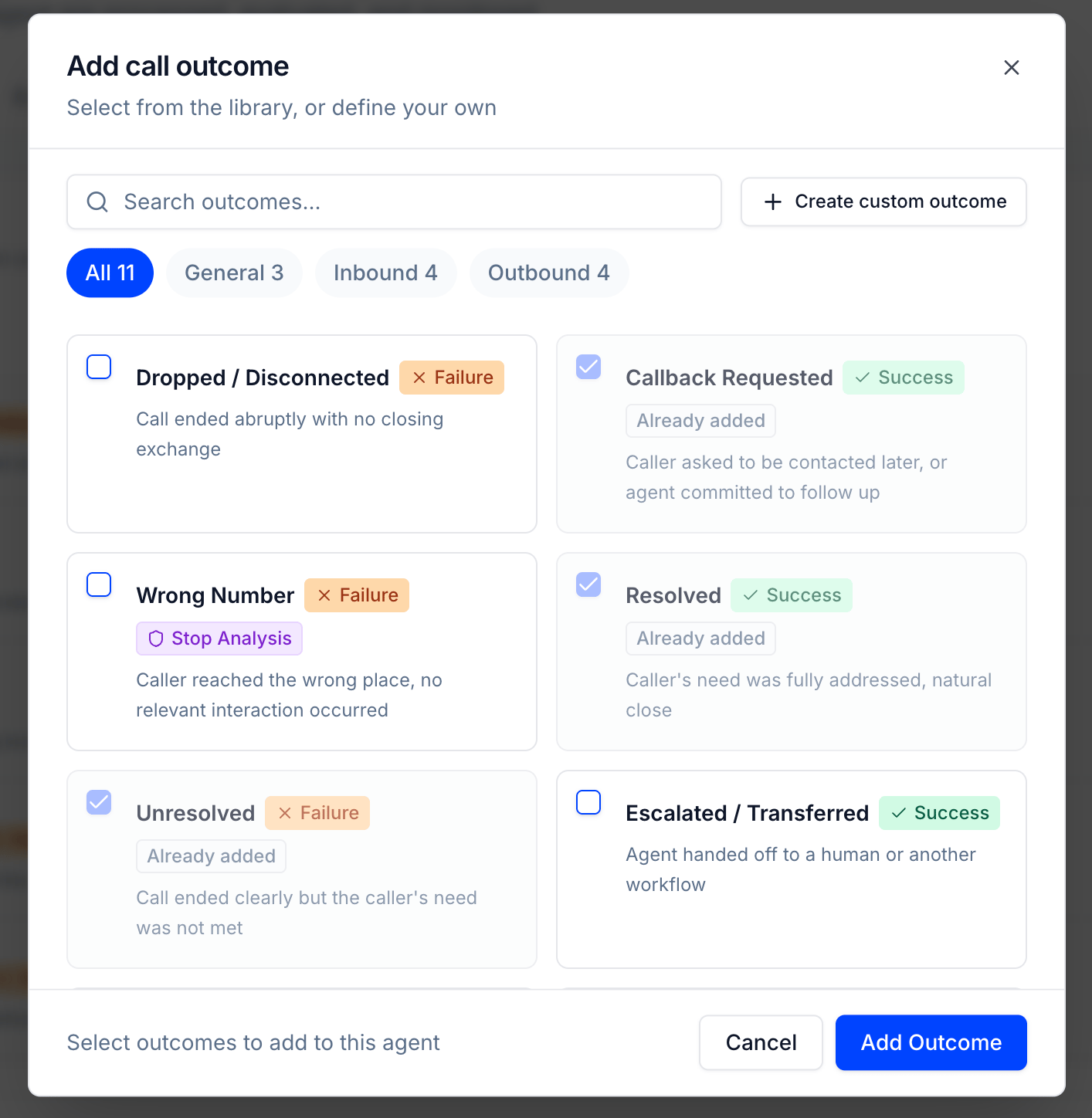
3
Enable Intent Detection (Optional)
If you want to track user intents, enable the User Intent toggle. You can then define the possible intents for your agent.
4
Define Data Extraction Fields (Optional)
In the Data Extraction section, you can define custom fields to extract structured data from the call, such as
user_sentiment or appointment_date.Best Practices
- Start with the Library: Predefined outcomes cover the universal call endings (resolved, dropped, wrong number, etc.). Add them first, then create custom outcomes only for results specific to your business.
- Be Specific: The more specific your custom outcome definitions, the more accurate your classification will be.
- Start Simple: Begin with a few key outcomes and add more as you gather data.
- Use Stop Analysis Wisely: Enable “Stop Analysis” for outcomes where further evaluation provides no value, such as wrong numbers, spam calls, or disconnected calls. This helps conserve credits.
- Iterate: Regularly review your classified calls to ensure your outcome definitions are still relevant and accurate.
Example: Inbound Lead Qualification Agent
To illustrate how to set up call classification effectively, let’s walk through a detailed example for an inbound lead qualification agent. This type of agent handles incoming calls from potential customers, qualifies them based on specific criteria, and routes qualified leads to the sales team.Defining Call Outcomes
For a lead qualification agent, you need to think about all the possible ways a call can end. Generic endings like “Wrong Number” or “User Hung Up Early” can be added straight from the outcome library; the business-specific ones (qualification results) are custom outcomes. Here’s a comprehensive set:Defining User Intents
User intents capture why the caller reached out. For a lead qualification agent, common intents include:Sample Prompt Definitions
When configuring outcomes in Tuner, clear prompt definitions improve classification accuracy. Here are examples: For “Qualified Lead - Meeting Booked”:Classify as this outcome when ALL of the following are true:For “Not Qualified - Wrong Fit”:
- The caller confirmed they are a decision maker or can influence the purchasing decision
- The caller’s company meets our target criteria (mentioned company size, industry, or use case that fits)
- A specific meeting date and time was confirmed during the call
- The agent confirmed the meeting details (date, time, attendees) before ending the call
Classify as this outcome when the caller does not meet qualification criteria. Look for indicators such as:
- Company size too small (e.g., “just me” or “small team of 2-3”)
- Industry we don’t serve (e.g., mentioned being in an unsupported vertical)
- Budget significantly below our minimum (e.g., “looking for something free” or mentioned budget under $X)
- Use case we don’t support (e.g., looking for features we don’t offer)
Putting It All Together
With this configuration, your Tuner dashboard will show you:- Overall success rate: What percentage of calls result in qualified leads?
- Outcome breakdown: How many calls end in each outcome category?
- Intent distribution: What are callers most frequently asking about?
- Intent-to-outcome correlation: Which intents have the highest conversion to qualified leads?
Next Steps
Once your calls are classified, add evals to go deeper — Tuner’s predefined evals cover accuracy, tool use, conversation quality, and compliance out of the box, or you can create your own. You can also configure all of this using natural language via the Tuner MCP server.Create Evals
Browse the predefined eval library or create custom evaluations to check for specific behaviors in your calls.
Set Up Your Agent via MCP
Configure your agent using natural language by connecting the Tuner MCP server to your IDE or chatbot.