

Prerequisites: an active Retell account with at least one agent, and a Tuner account. No code is needed.
Overview
You connect a Retell agent from the agent setup wizard in Tuner. You paste your Retell API key, pick the Retell agent, and Tuner configures the Retell webhook for you.1
Get your Retell API key
Copy an API key from the Retell dashboard.
2
Create the agent in Tuner
Click Create New Agent, choose Retell, connect your key and pick your Retell agent.
3
Import recent calls
On the last wizard step, import your most recent Retell calls so they’re evaluated right away.
No webhook configuration needed. When you create the agent, Tuner sets the webhook URL on your Retell agent. This replaces any webhook URL already set there. See Webhooks for how to keep your existing automations running.
Step 1: Get your Retell API key
Your Retell API Key lets Tuner authenticate with Retell, list your agents and ingest call data.- Log in to your Retell dashboard.
- Open Settings and go to API Keys (or your workspace’s API key section, depending on your Retell UI).
- Create a new key or copy an existing one.
Find your Retell Agent ID (only if needed)
The wizard lists your Retell agents, so you usually don’t need the Agent ID. You only type it in if the list can’t load or is empty.- Open the Retell dashboard and click the agent you want to connect.
- Copy the Agent ID shown at the top of the page. It starts with
agent_.
Step 2: Create your agent in Tuner
1
Open the wizard
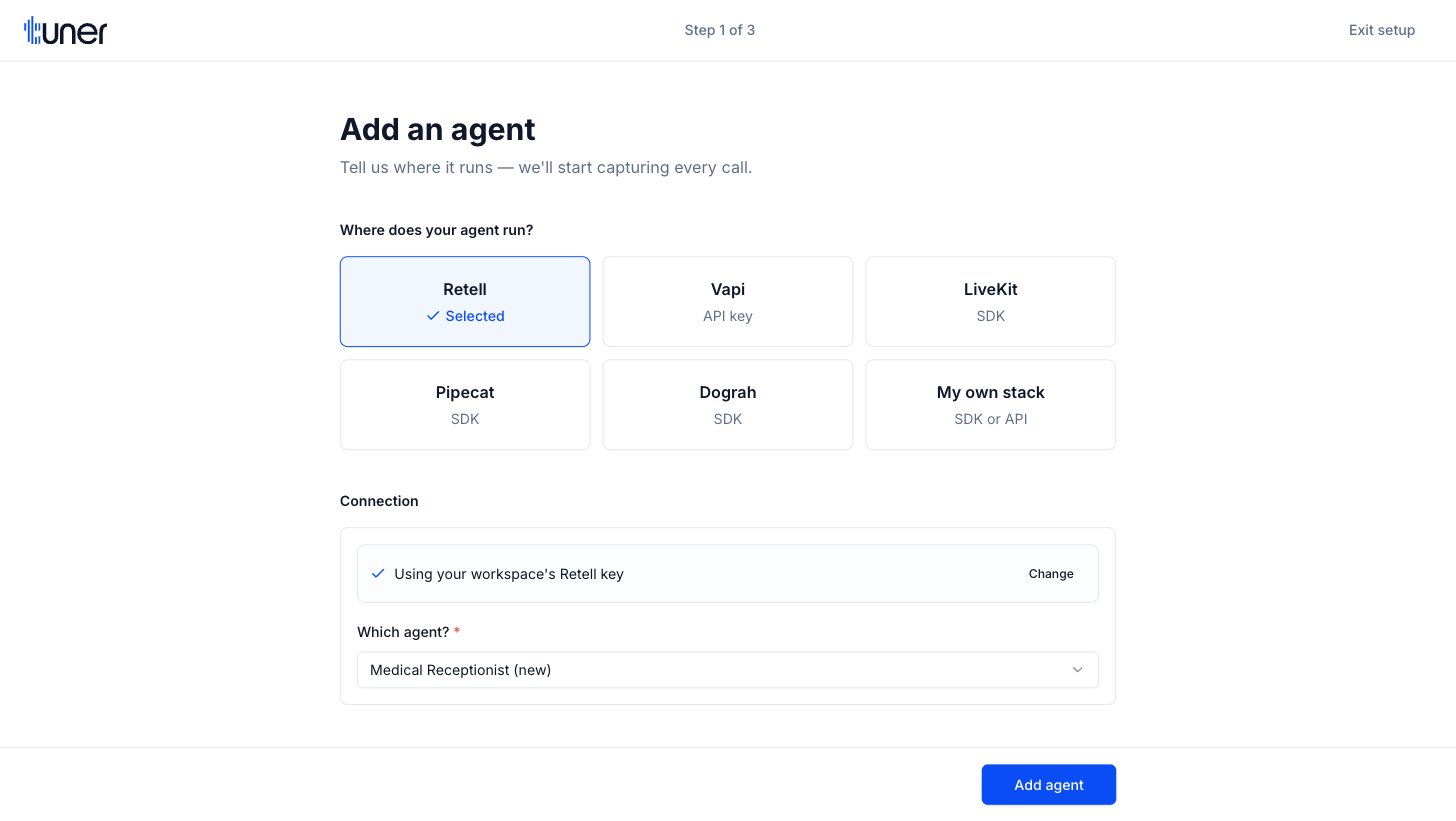
In the sidebar, click Create New Agent. Before your workspace has its first agent, the button reads Set up your first agent. The full-screen setup wizard opens.
2
Choose Retell
Under Where does your agent run?, select Retell.
3
Connect your Retell API key
Under Connection, paste your key into Retell API key and click Connect. Tuner validates the key and stores it in your workspace settings.If your workspace already has a Retell key, the wizard shows Using your workspace’s Retell key instead. Click Change to use a different key.
4
Pick your Retell agent
In Which agent?, choose the Retell agent to connect. Tuner selects the first agent in the list and fills in Agent name and the system prompt from Retell. You can edit both.If the list can’t load or your account has no agents, the wizard shows an Agent ID field instead. Paste the Agent ID from Retell.
5
Fill in the details
Under Details, check Agent name and set Call direction to Inbound or Outbound, matching how the agent is used. The system prompt is optional; click Add system prompt (optional) to add one if it wasn’t imported.
6
Add the agent
Click Add agent. Tuner creates the agent and sets its webhook URL on your Retell agent.
7
Choose how to configure it
Under How do you want to configure it?, choose Start from a template, Configure via MCP or Set up manually, then click Continue.
8
Get your first evaluated call
The last step checks your Retell account for recent calls. See Import recent Retell calls.
Save the key in Workspace Settings instead
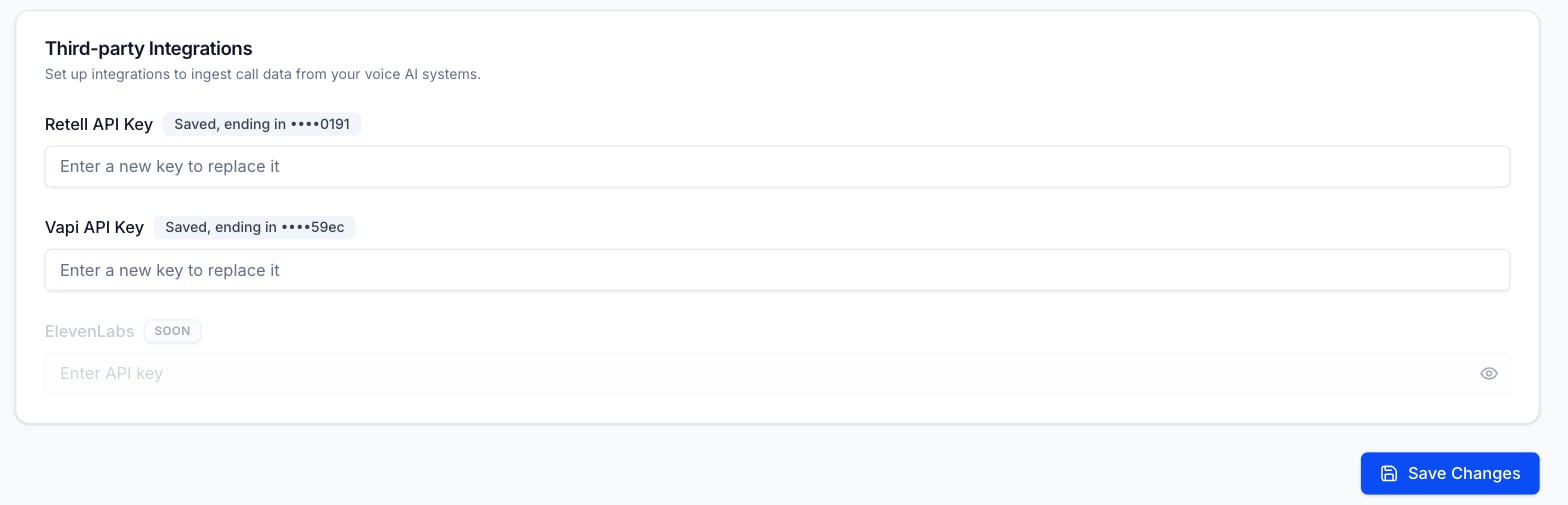
You can also save or replace your Retell key outside the wizard:- Open Workspace Settings > General Settings.
- Under Third-party Integrations, paste your key into Retell API Key.
- Click Save Changes.
Import recent Retell calls
On the last wizard step, Get your first evaluated call, Tuner checks your Retell account for calls from the connected agent.1
Review the calls found
If Tuner finds recent calls, it shows a Found N recent calls card.
2
Import and evaluate them
Click Import & evaluate all N. Tuner imports your most recent calls and runs your evals on them. A progress bar shows how many are done. Importing needs available credits in your workspace.
3
View the results
When the import finishes, click View your calls to finish setup and open Call Logs.
Enable simulation
Required if you’ll use Call Simulation. Skip it otherwise.Inbound
There is nothing to set up. Tuner starts each simulated call through Retell, using your agent’s Agent Remote ID and the Retell API key saved in your workspace. See Simulate a Retell agent.Outbound
Outbound simulation isn’t available for Retell agents.Check simulation works
Start a simulation run. See Run a simulation. When the call ends, check its result in the run. If it shows Unreported, Tuner never received a matching call from Retell. See Fix an Unreported run.Webhooks
Add that URL in Tuner under Agent Settings > Webhooks instead. It then receives:- Tuner events:
call.analyzedandalert.fired. - Retell’s
call_analyzedevent: forwarded as acall.receivedevent, with Retell’s original body inpayload.
call_analyzed event. Other Retell events are not forwarded, so an automation that depends on them stops receiving them.
See Webhooks for the event format, headers and URL requirements.
Troubleshooting
The key won't connect
The key won't connect
The wizard shows an error under Retell API key when Retell rejects the key. Check that you copied the whole key with no extra spaces, or create a new key in Retell and try again.
My agent isn't in the list
My agent isn't in the list
If you have many Retell agents, the list shows the most recent ones. If your agent is missing, or the wizard shows the Agent ID field, paste the Agent ID from Retell. It starts with
agent_.Calls don't appear in Tuner
Calls don't appear in Tuner
Check that the agent’s Agent Remote ID in Agent Settings > Agent Setup matches the Retell Agent ID, and that a Retell key is saved under Workspace Settings > General Settings > Third-party Integrations.
Next steps
Run a simulation
Test your Retell agent against generated Scenarios.
Configure via MCP
Use your IDE or chat app to generate outcomes, intents, evals and alerts.