

Runs start from Simulations in the Tuner app. Your agent needs inbound or outbound simulation set up first. See What your setup needs.
Start a run
1
Choose what to run
Go to Simulations and click Run Simulation. Next to Scenarios:, keep AI generated to have Tuner write new Scenarios, or click Change › and choose From library to rerun saved ones (see Scenario Library).For AI-generated Scenarios, set Number of simulations (5 to 20, default 10) and drag the Simulation mix slider between All routine and All pressure. The default is 30% Pressure tests. See The Simulation Mix.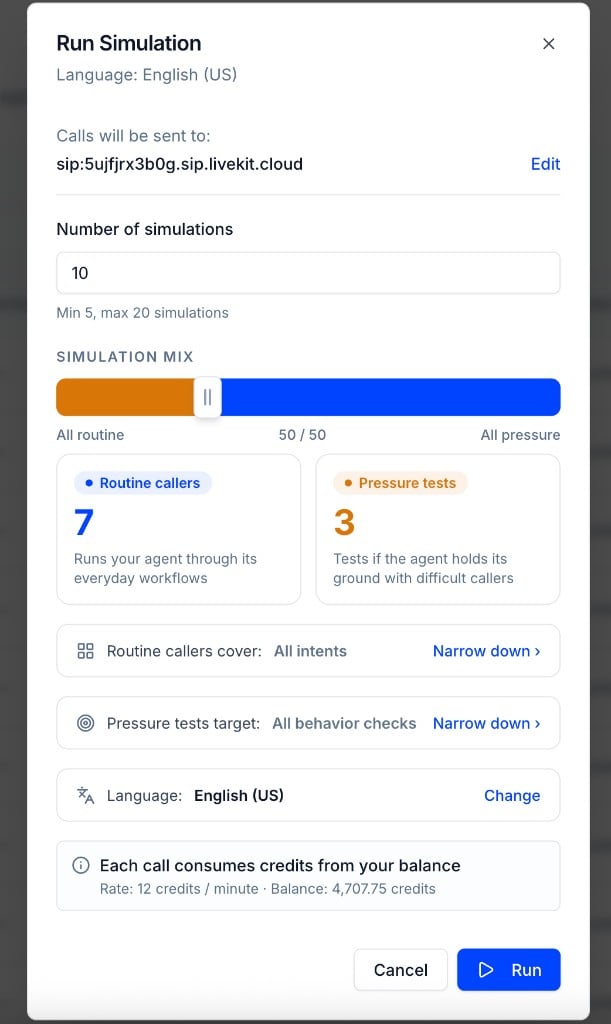
2
Narrow the targets (optional)
Click Narrow down › next to Routine callers cover: to limit Routine callers to some of your Intents, or next to Pressure tests target: to limit Pressure tests to some of your Pass/Fail evals. Unselected Intents and evals don’t get Scenarios in this run.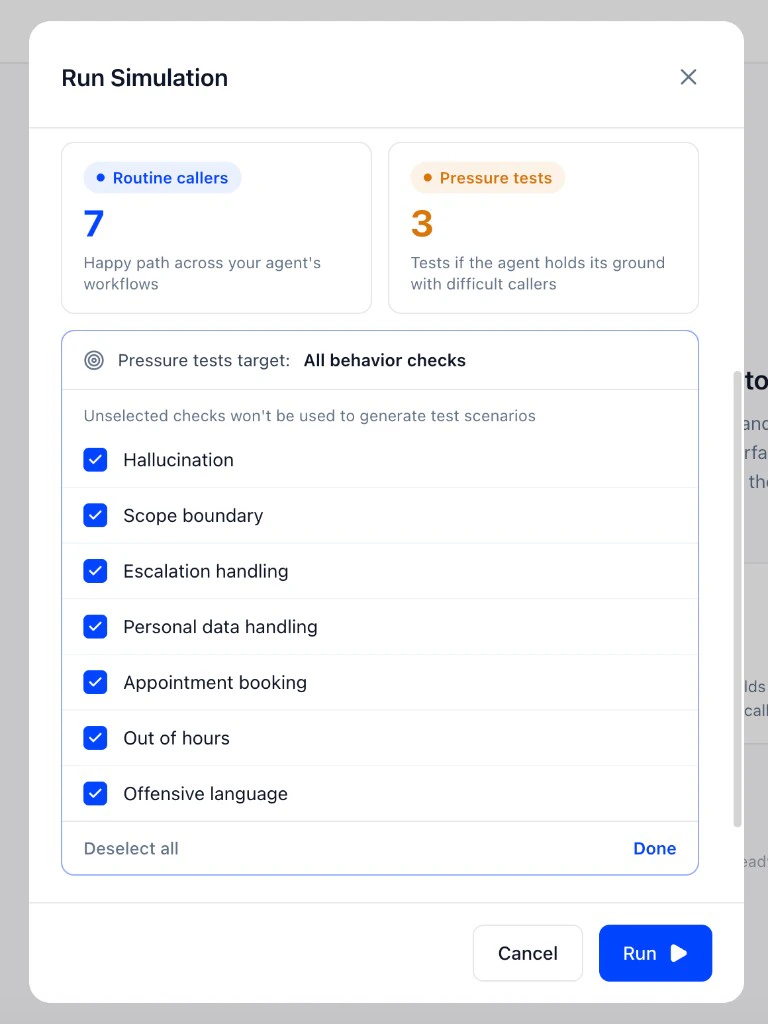
3
Set up the calls
Under Call settings:
- Max call duration: use - and + to cap each call (1 to 12 minutes, default 3). See Max call duration.
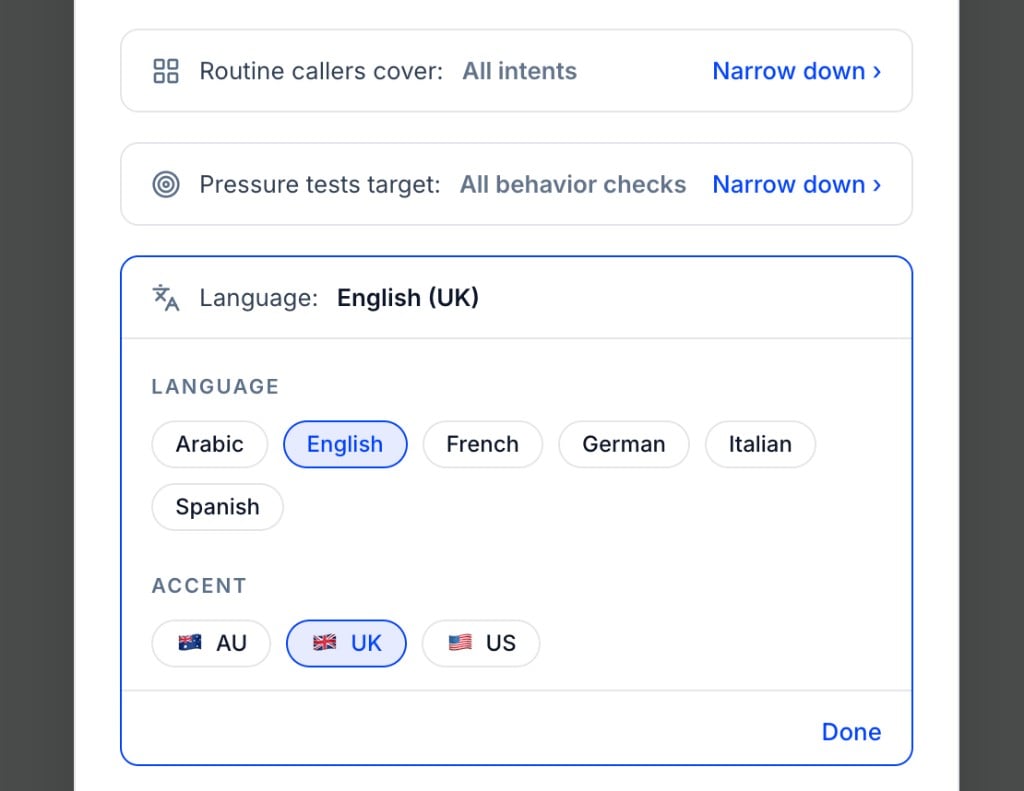
- Language: click Change to pick the language and accent the Simulated Caller speaks. See Languages and accents.
- Environment: click Change › to add background noise. The default is No environment.
-
Test profile: click Change to give the Simulated Caller a test profile. The default is No profile.
4
Run
The dialog shows the credit rate per minute and your balance. Click Run. The run appears on the Runs tab. See Run statuses.
The Simulation Mix
The same intent said in different ways produces different conversations. Running more calls covers more of these variations. Every new run also checks that something you already fixed hasn’t broken again. To rerun the exact same Scenarios, save them to your Scenario Library.
Max call duration
Max call duration caps how long any single simulated call can run, from 1 to 12 minutes (default 3). A call ends when your agent hangs up or the cap is reached, so the cap keeps a Simulated Caller from looping against an agent that’s stuck.Languages and accents
In the Run Simulation dialog, click Change next to Language: to choose the language and accent of the Simulated Caller.
Use this to test multilingual agents, or to check your agent still performs when callers have a different accent from your default.
Background noise
Background noise mixes an ambient recording into the Simulated Caller’s side of the call, so you can see how your agent’s transcription and turn-taking hold up when the caller is in a café or driving. In the Run Simulation dialog, click Change › next to Environment:, pick Café, Office, Street or Car, and set the Noise intensity to Low, Medium or High.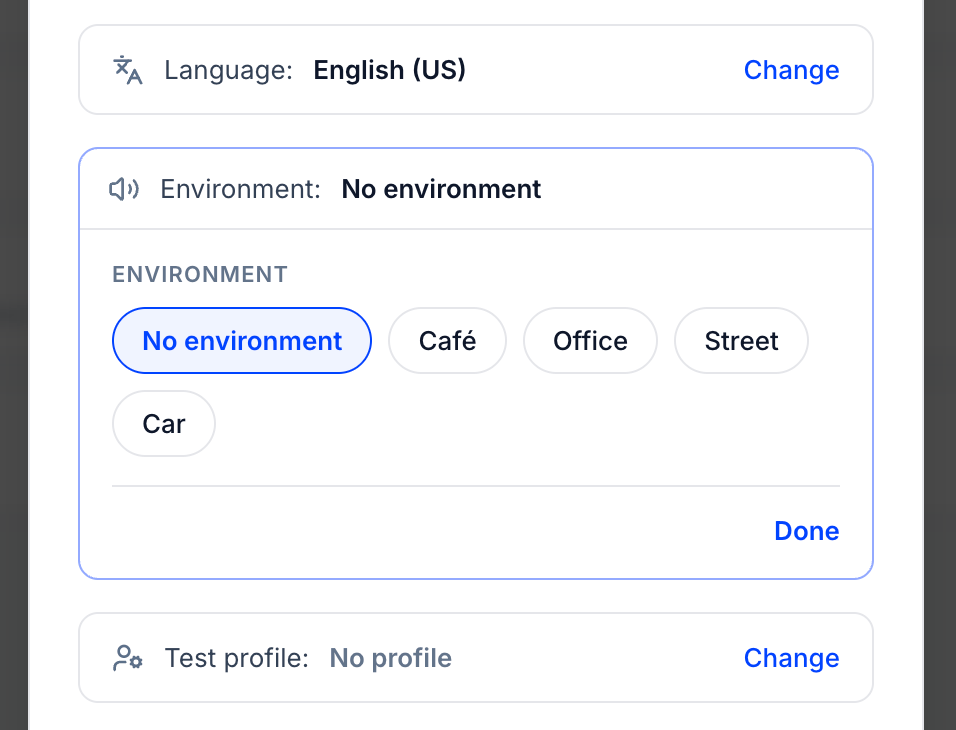
Test profiles
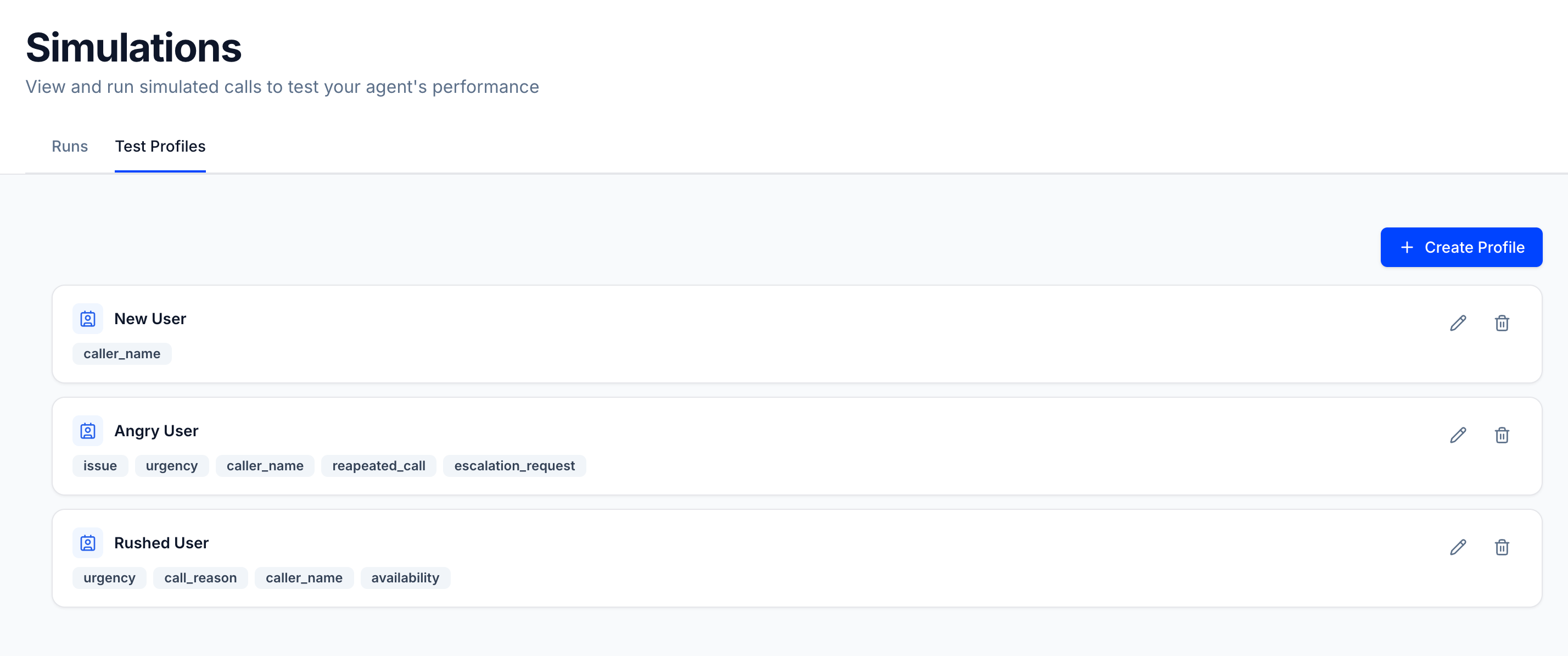
A test profile gives the Simulated Caller a specific identity and context before the call starts, such as a new user, an angry repeat caller or someone in a rush. Each profile is a name plus key-value fields, likecaller_name, issue or appointment_date.
Create profiles on the Test Profiles tab of Simulations, then pick one next to Test profile: in the Run Simulation dialog. It applies to every call in the run.
Limits
Simulation runs are also available through the public API: see Create Run in the Simulation group of the API Reference.
Next steps
Run statuses
What each run status and call result means.
Scenario Library
Save Scenarios and rerun the same ones.