

Connect your agent first. Simulation runs against an agent that already exists in Tuner, so start with the Quickstart and connect your agent there. Once it is connected, the SIP or trigger setup below is what tells Tuner how to reach it for a test call.
What is Call Simulation?
Testing voice AI manually is slow, incomplete, and nobody’s favourite task. Call Simulation runs real voice calls with your agent so you know it’s ready, before launch, after every update, and every time something changes. You define what your agent does. Tuner builds the scenarios that stress test it, connects a real voice call to your agent, and scores every call against the same Evals you’ve configured for production. Simulation works in both call directions: inbound (Tuner dials your agent over SIP) and outbound (Tuner triggers your endpoint, and your agent dials Tuner’s simulation agent).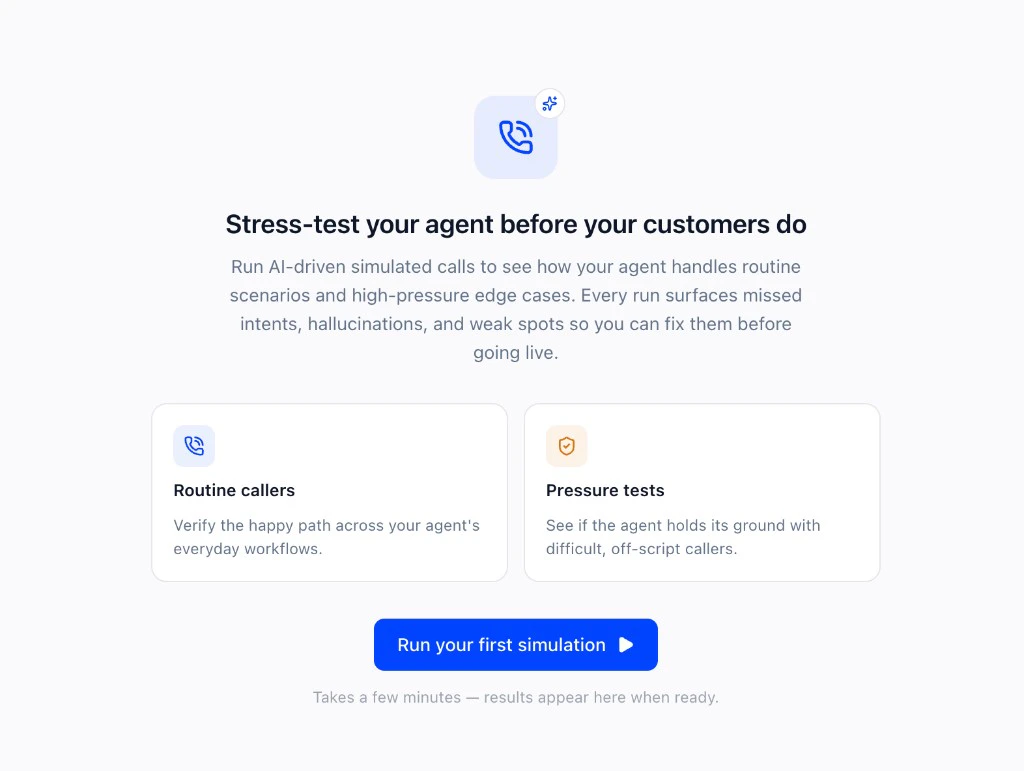
How It Works
1
Connect your agent
A one-time setup that depends on your agent’s call direction, pick yours:
- Inbound (your agent receives calls)
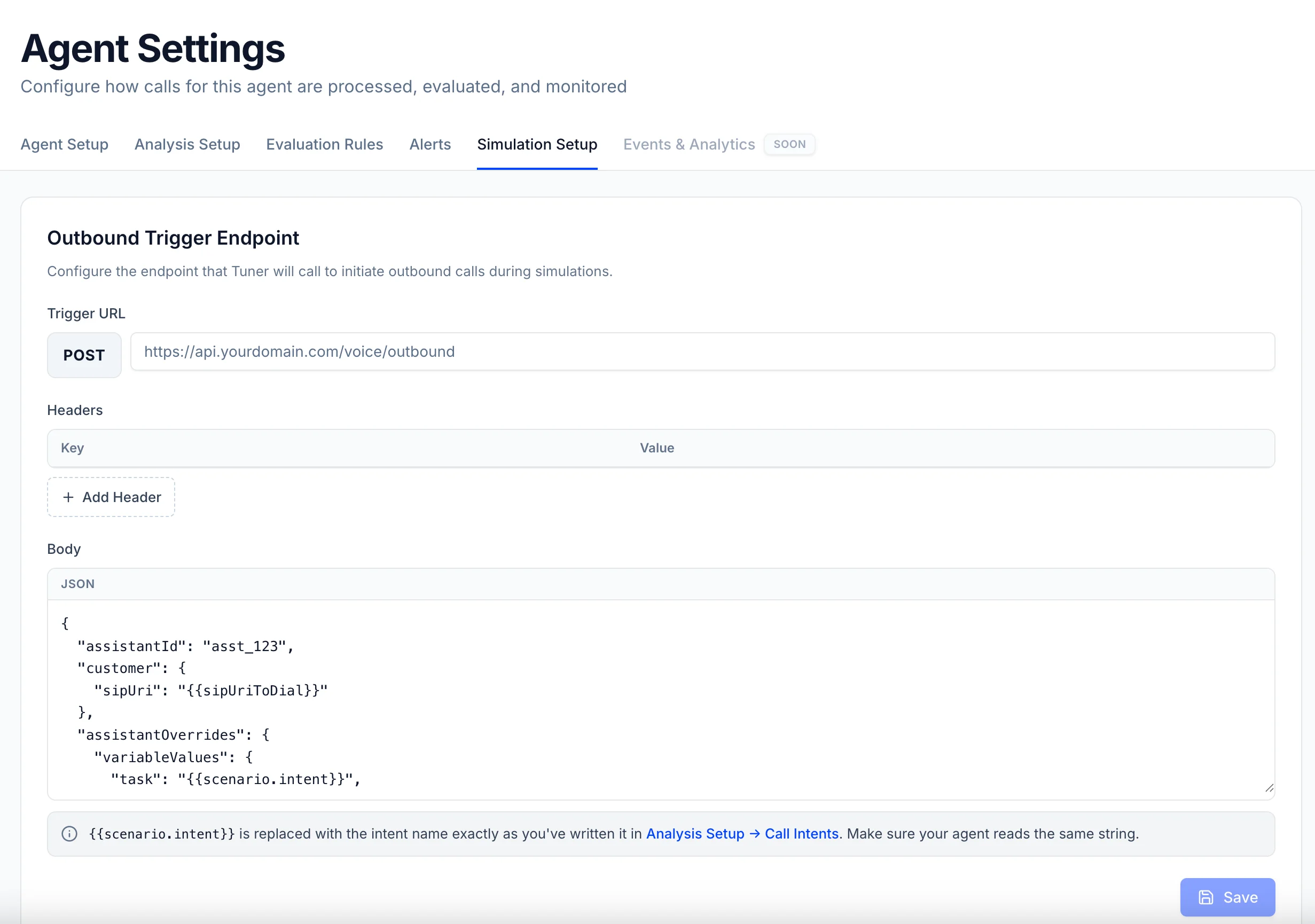
- Outbound (your agent places calls)
Tuner dials into your agent over SIP, like a real customer calling in. You paste your agent’s SIP URI (and credentials, if any) into Agent Settings > SIP Settings.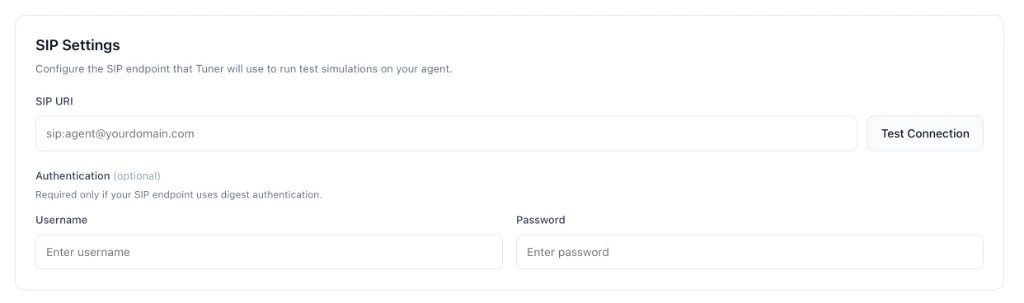
2
Configure your Simulation Mix
Open Run Simulation and set the number of calls (5 to 20 per batch), the max call duration, and adjust the Routine Callers vs Pressure Tests mix.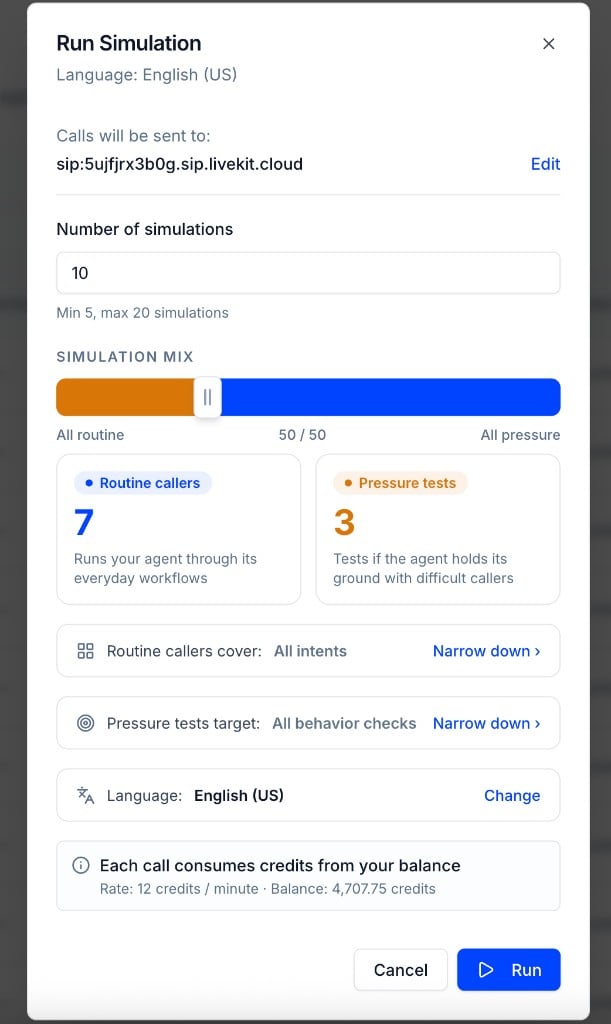
3
Choose language and accent
Click Change next to the language row to pick which language and accent the simulation agents use. Test how your agent handles different locales without waiting for live traffic from each region.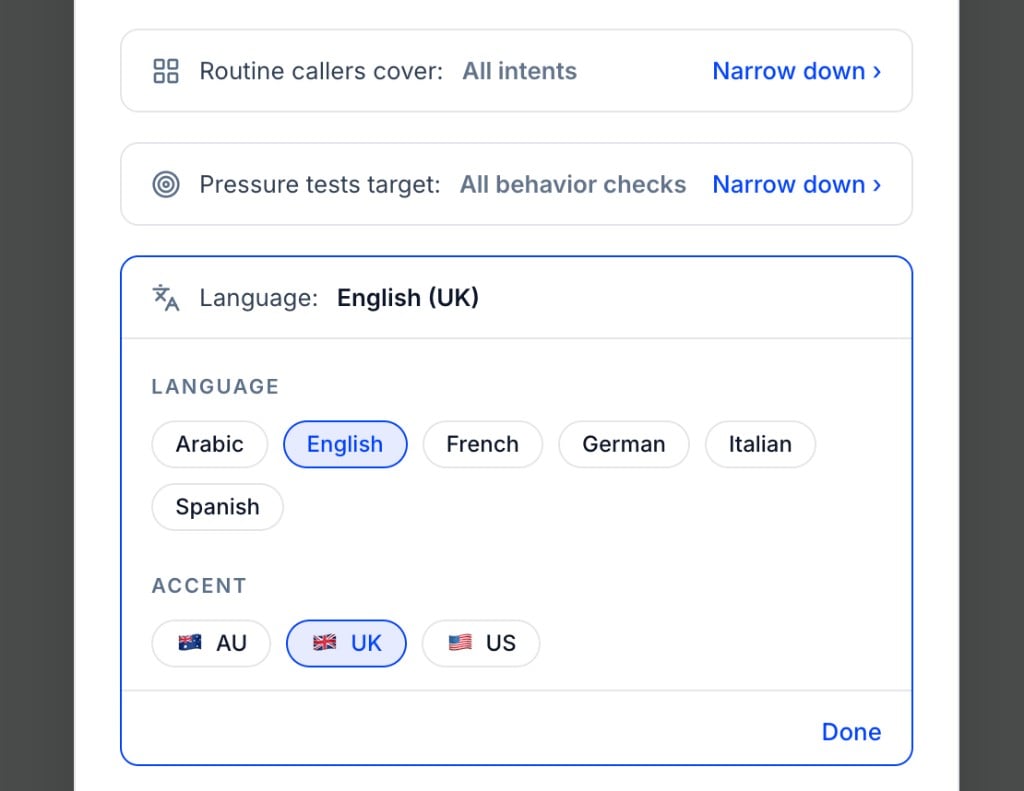
4
Select Eval targets
Click Narrow down under Pressure tests target to focus on specific failure modes, hallucination, scope boundary, escalation handling, offensive language, personal data, and more. Unselected evals won’t generate scenarios.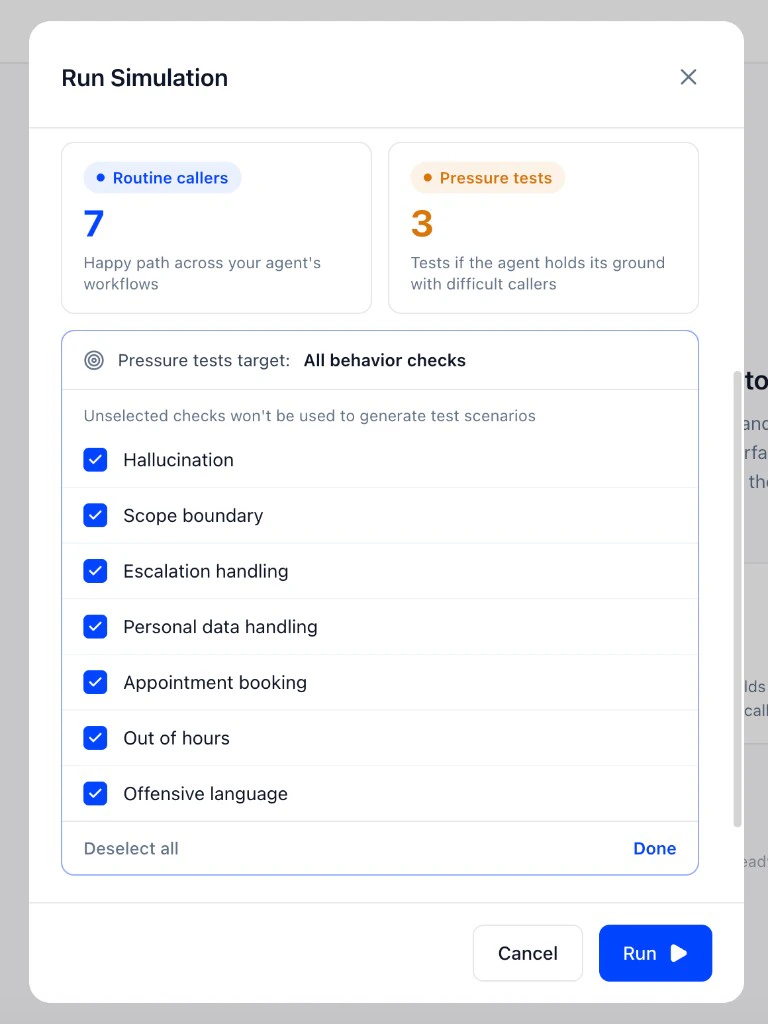
5
Select Intent targets
Click Narrow down under Routine callers target to limit the run to specific Intents instead of testing every configured intent at once. Unselected intents won’t generate Routine Caller scenarios for this run.
6
Add background noise (optional)
Click the Background noise row to run the batch under a noisy environment. Pick Café, Office, Street, or Car, then set intensity to Low, Medium, or High. Runs are clean unless you set this.
7
Choose a test profile (optional)
Click the Test profile row to attach a profile to the run. A test profile is a named set of key-value fields that get injected into the simulated caller’s context: caller name, account details, reason for calling, or any other data your agent needs to handle the scenario correctly. Profiles are created and managed in Simulations > Test Profiles.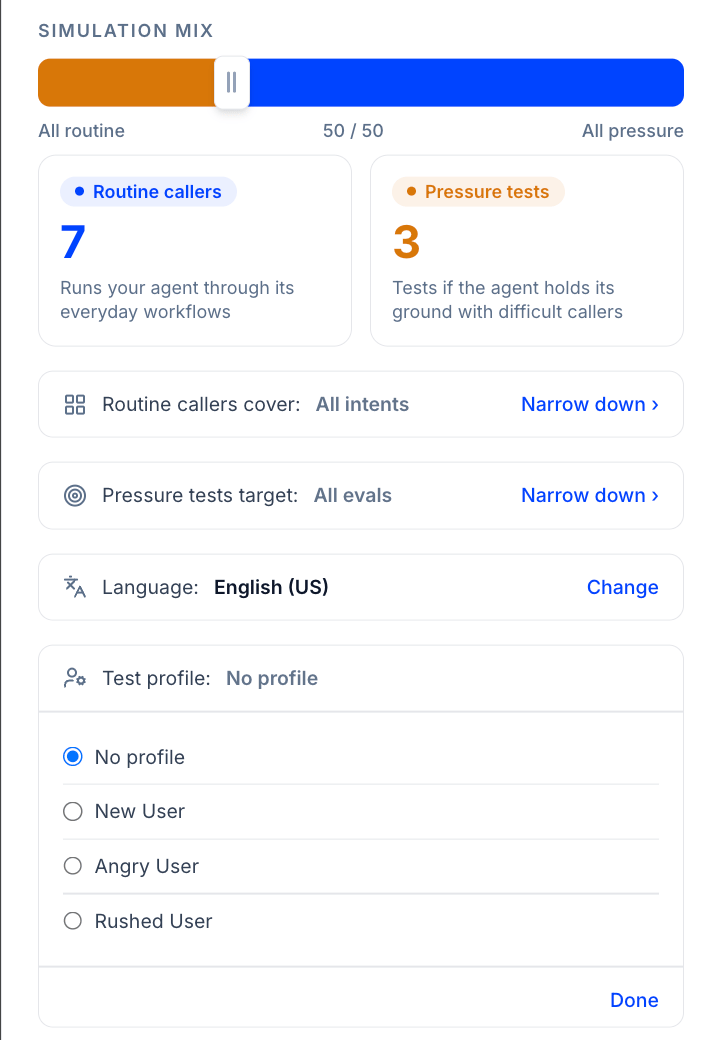
8
Review results
Every completed call appears in the Simulations table with type, intent, outcome, tags, sentiment, ended reason, duration, and cost. Click any row for the full transcript, latency breakdown, tool traces, and evaluation results.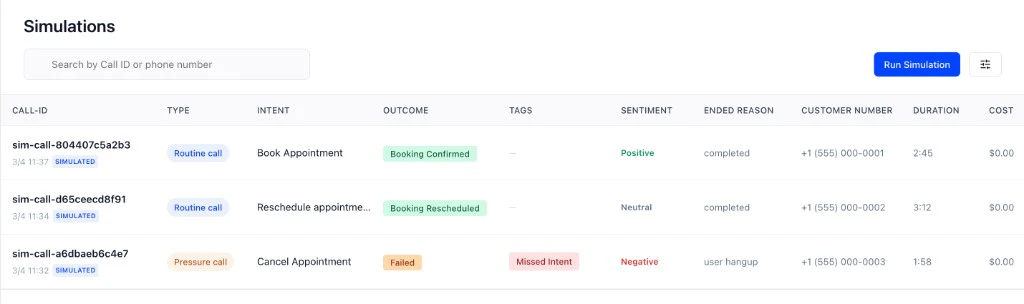
The Simulation Mix
You control what gets tested. Run a full health check or narrow down to a single Intent, Call Outcome, or eval. Every run is yours to configure.Why volume matters
In voice, the same intent said ten different ways produces ten different conversations. Rushed, hesitant, overly detailed, unclear, small differences in how a customer speaks can completely change how your agent responds. The more simulations you run, the more of these variations you cover.Max call duration
Set a max call duration in the Run Simulation dialog to cap how long any single simulated call is allowed to run. This keeps a simulation agent from looping indefinitely against an agent that’s stuck, and keeps batch runs predictable in both time and cost.Languages and accents
In the Run Simulation dialog, click Change on the language row to choose the language and accent for your simulation agents. Supported languages include Arabic, English, French, German, Italian, and Spanish. For English, you can also pick a regional accent: AU, UK, or US. Use this to stress-test multilingual agents or confirm your agent still performs when customers speak with a different accent than your default setup.Background noise
Most real calls don’t happen in a quiet room. Background noise mixes an ambient recording into the simulated caller’s side of the call, so you can see how your agent’s transcription and turn-taking hold up when the caller is in a café or driving. In the Run Simulation dialog, pick an environment — Café, Office, Street, or Car — and an intensity: Low, Medium, or High.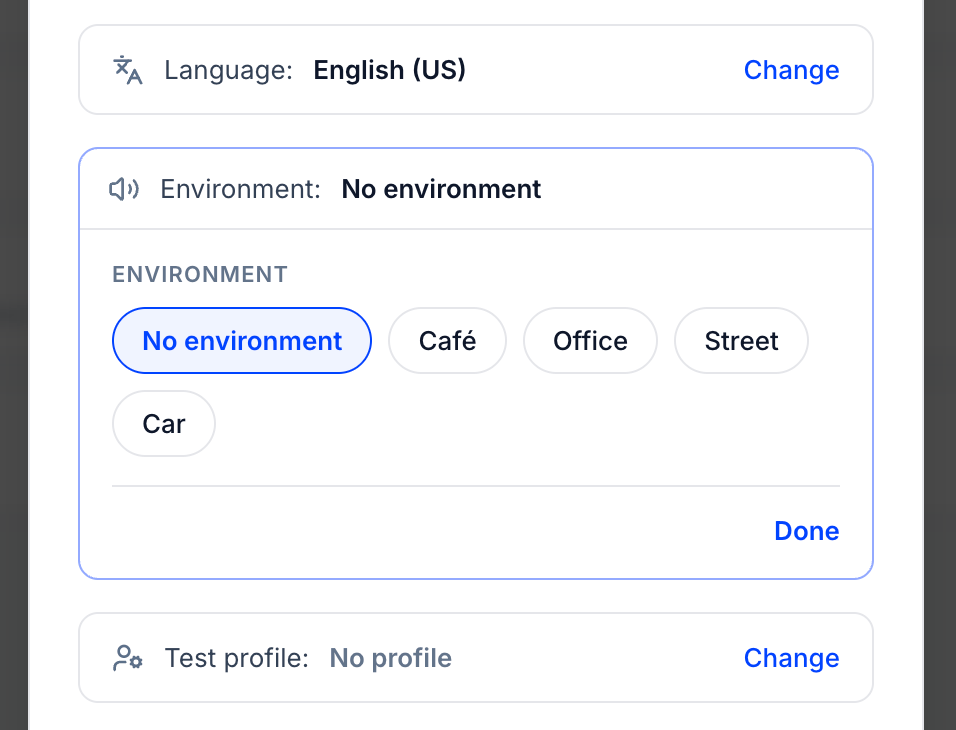
Test Profiles
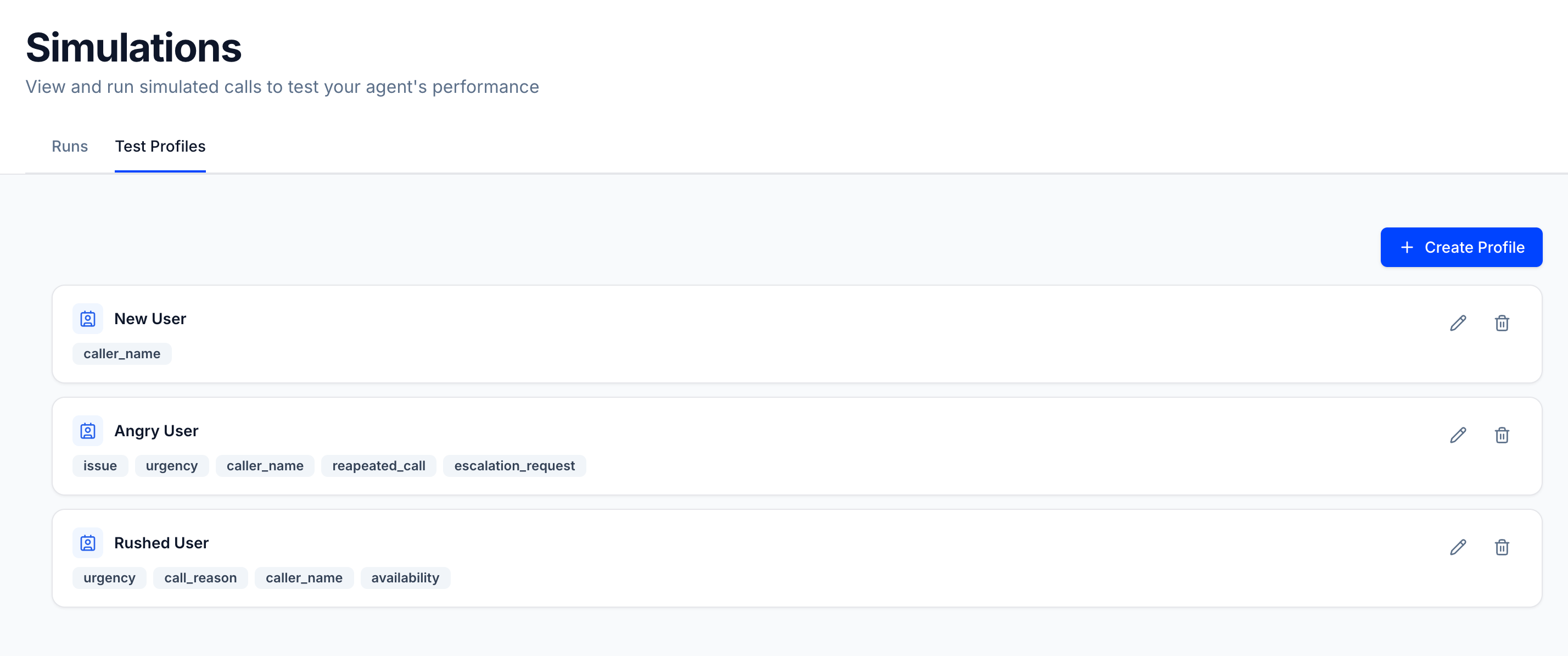
A test profile gives the simulated caller a specific identity and context before the call starts. Instead of an anonymous caller, the simulation agent knows it’s playing a new user, an angry repeat caller, or someone in a rush, and it behaves accordingly throughout the conversation. Each profile is a name plus any number of key-value fields:caller_name, issue, urgency, appointment_date, whatever your agent is expected to handle. Profiles are scoped to the agent and are snapshotted at run time, so editing a profile later won’t change past results.
Create and manage profiles under Simulations > Test Profiles. When running a simulation, select a profile from the Test profile row in the Run Simulation dialog to apply it to the entire batch.
Your Production Evals Run Every Simulation
No separate scoring. No extra configuration. Every simulation call is evaluated against the exact same Evals, Call Outcomes, and Intents you’ve already set up for your live agent.- Same Evals, every run. Whatever you’ve configured to catch failures in production, hallucinations, missed Intents, wrong Call Outcomes, runs automatically on every simulation call. What fails in production will fail here first.
- See failures before your customers do. Every run surfaces exactly what passed and what failed. Fix the failures, adjust your agent, and run again.
- Regression built-in. Changed a prompt? Updated a workflow? Every time you run a simulation, you’re also checking that nothing you already fixed has broken again.
Getting Started
Pick the path that matches your agent’s call direction:Inbound Simulation
Your agent receives calls. Tuner dials your agent over SIP, configure a SIP URI and credentials in Agent Settings > SIP Settings. Guides for Vapi, Retell, Dograh, Twilio, Telnyx, LiveKit Cloud SIP, and any SIP URI you already have.
Outbound Simulation
Your agent places calls. Tuner triggers your webhook with a SIP URI to dial, and your agent calls Tuner’s simulation agent. Configure it in Agent Settings > Simulation Setup, guides for LiveKit, Pipecat, and Custom API.
FAQ
How long does a simulation run take?
How long does a simulation run take?
Each simulated call takes 1 to 4 minutes depending on scenario complexity. A batch of 10 calls typically completes in 5 to 10 minutes.
Does simulation cost credits?
Does simulation cost credits?
Yes. Each simulated call consumes credits from your balance. The rate is shown in the Run Simulation dialog before you start.
Can I run simulation on an agent that's already in production?
Can I run simulation on an agent that's already in production?
Yes. Simulation calls are separate from production traffic and don’t affect your production metrics.
Does background noise work on both inbound and outbound simulations?
Does background noise work on both inbound and outbound simulations?
Yes. The noise is mixed into the simulation agent’s audio, so it applies the same way whichever side places the call.
What providers are supported?
What providers are supported?
Inbound: managed platforms Vapi, Retell, and Dograh, plus any SIP-capable provider (Other platforms, including Twilio, Telnyx, LiveKit Cloud SIP, etc.) if you paste the correct URI and credentials into Agent Settings > SIP Settings. See Inbound Simulation, SIP setup.Outbound: any stack that can place a call to a SIP URI, with guides for LiveKit, Pipecat, and Custom API. See Outbound Simulation.Contact support if you are unsure which path fits.