

API keys live on the API Keys page in workspace space. The workspace ID is on Workspace Settings > General Settings, and each agent’s Agent Remote ID is on Agent Settings > Agent Setup.
The three values
Every integration that sends calls to Tuner from your own code (LiveKit, Pipecat, Dograh, the custom SDK, the public API) and every MCP client connected with a key uses some of these three values.
Retell and Vapi agents don’t use a Tuner API key to send calls. They connect with your Retell or Vapi key instead, which you enter while creating the agent or under Workspace Settings > General Settings > Third-party Integrations.
Switch between agent space and workspace space
The sidebar has two modes. Agent space shows pages for the selected agent (Overview, Call Logs, Simulations, Agent Settings and more). Workspace space shows pages for the whole workspace (Workspace Settings and API Keys).- To open workspace space, click Switch to Workspace at the bottom of the sidebar.
- To return to the agent you were on, click Back to Agent Space.
Create a Tuner API key
A key’s value is shown once, when you create it. Tuner stores only a hash, so nobody can show you the value again. If you lose a key, create a new one and revoke the old one.1
Open API Keys
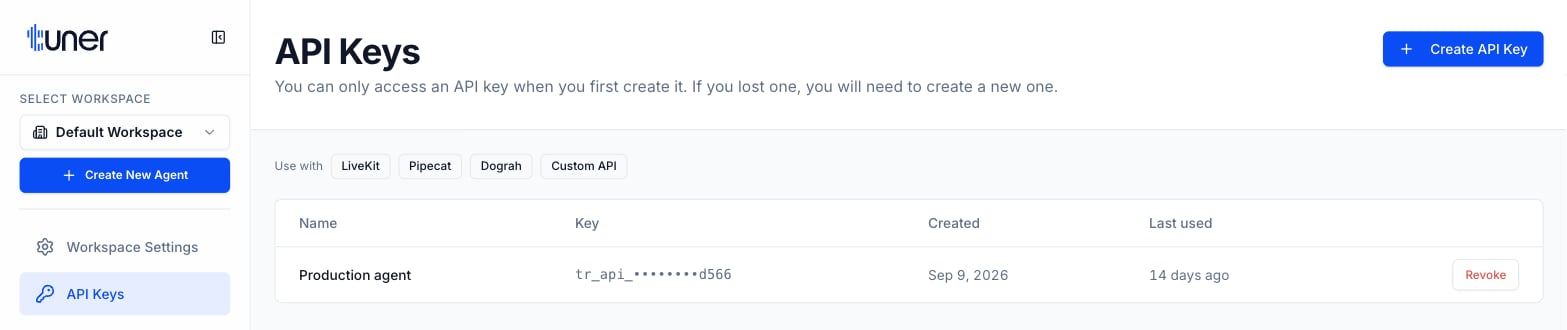
Click Switch to Workspace at the bottom of the sidebar, then click API Keys.
2
Create the key
Click Create API Key. Enter a Key name that says where the key will run, for example
prod, then click Create Key.3
Copy the key
The Copy your key dialog shows the full key. Click Copy and store it somewhere safe, such as your secrets manager.
4
Confirm and close
Tick I have saved this key somewhere safe. I understand it will not be shown again., then click Done. The dialog can’t be closed until you tick the box.
Use the key
Send the key in theAuthorization header as a bearer token: Authorization: Bearer <key>. The SDKs do this for you when you pass the key to them. The MCP setup page shows where it goes for each MCP client.
Revoke a key
Revoking a key stops it working immediately and permanently. Anything still using it stops sending data. Your other keys keep working. To replace a key without downtime, create the new key, deploy it, and then revoke the old one.1
Find the key
On API Keys, find the key by its Name and Last used time.
2
Revoke it
Click Revoke on its row. The dialog shows the masked key and when it was last used. Click Revoke Key to confirm.
Find your workspace ID
1
Open Workspace Settings
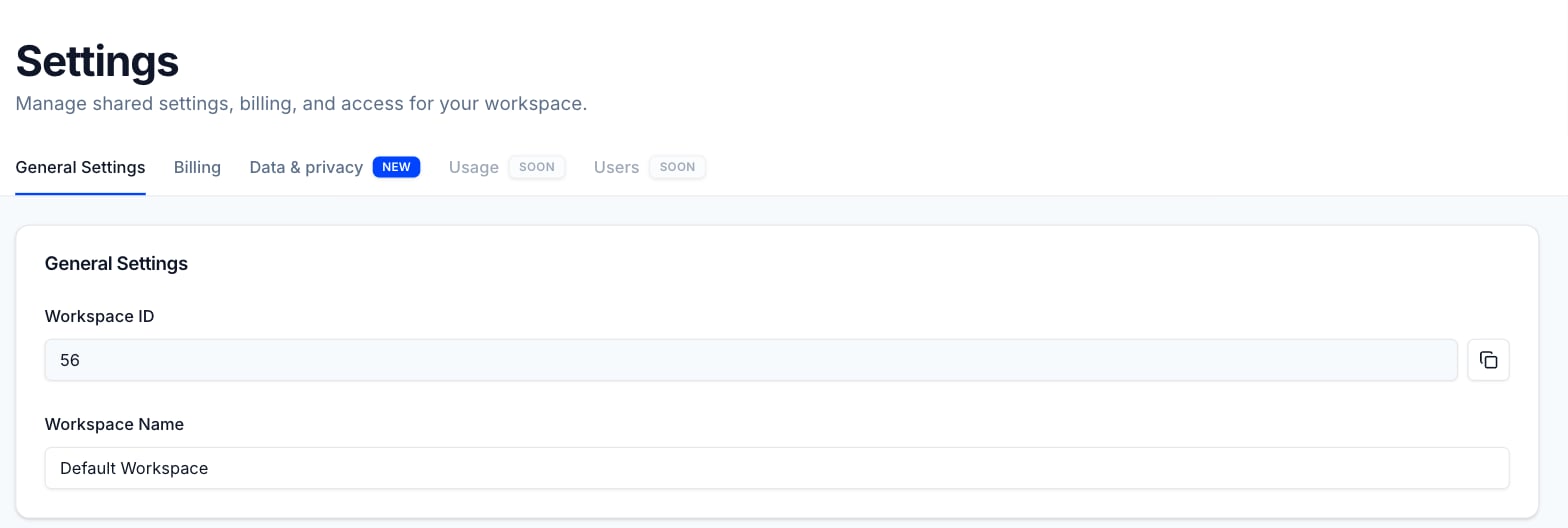
Click Switch to Workspace at the bottom of the sidebar, then click Workspace Settings.
2
Copy the ID
On the General Settings tab, the Workspace ID field is at the top. Click the copy button next to it.
Find your Agent Remote ID
Each agent has its own Agent Remote ID.- Retell and Vapi: it’s the agent’s ID on Retell or Vapi, which Tuner takes from the agent you pick while creating the agent.
- LiveKit, Pipecat, Dograh and My own stack: Tuner generates it when you create the agent, and the setup wizard puts it in your code snippet.
1
Select the agent
In agent space, choose the agent under Select Agent in the sidebar.
2
Open Agent Setup
Click Agent Settings, then the Agent Setup tab.
3
Copy the ID
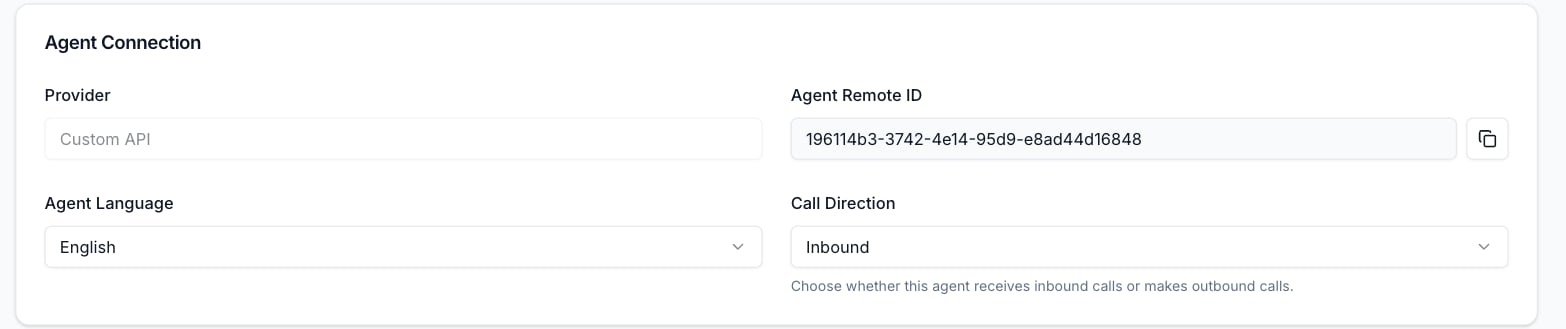
In the Agent Connection card, click the copy button next to Agent Remote ID.
Limits
API
The Workspaces group of the API Reference covers keys: Create Workspace API Key, List Workspace API Keys and Revoke Workspace API Key.Next steps
Quickstart
Create an agent and get your first evaluated call.
Set up the MCP server
Connect Claude, Claude Code, Cursor or Antigravity to your workspace.