

Overview
Connect a Dograh voice workflow to Tuner in two halves: wire the workflow in Dograh, then align a Dograh agent in Tuner and paste the same identifiers back into Dograh.1
Dograh
Add the Tuner integration node to your workflow.
2
Tuner agent
Create a Dograh agent in Tuner.
3
Credentials
Copy Agent Remote ID, Workspace ID, and API key into the Dograh node.
4
Go live
Save, Publish, place a test call, confirm in Call Logs.
Estimated time: ~10 minutes
You need: a Dograh workflow and a Tuner account.
Step 1: Add the Tuner node (Dograh)
- Open the voice workflow you want to observe.
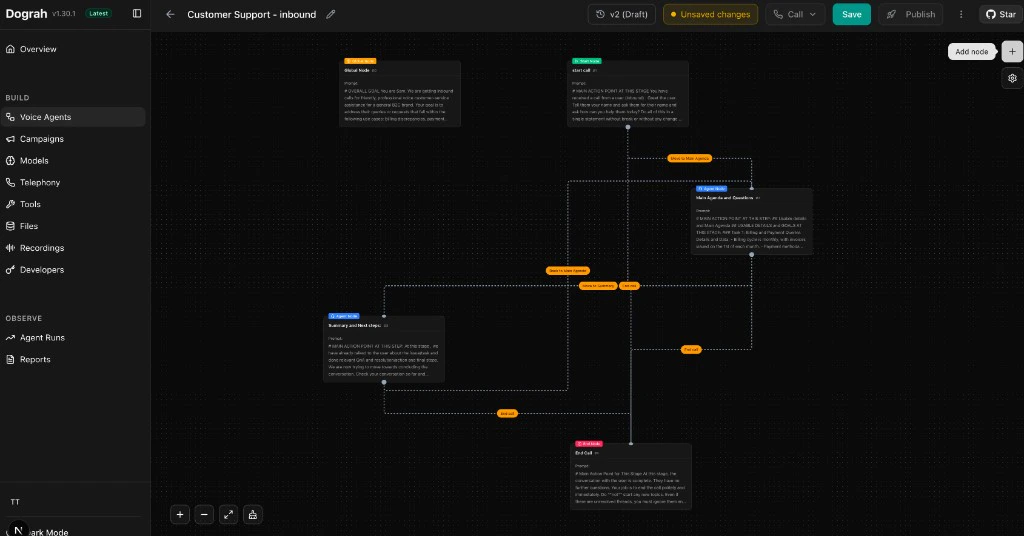
- Use Add node (top of the canvas) and open the right-hand node panel.
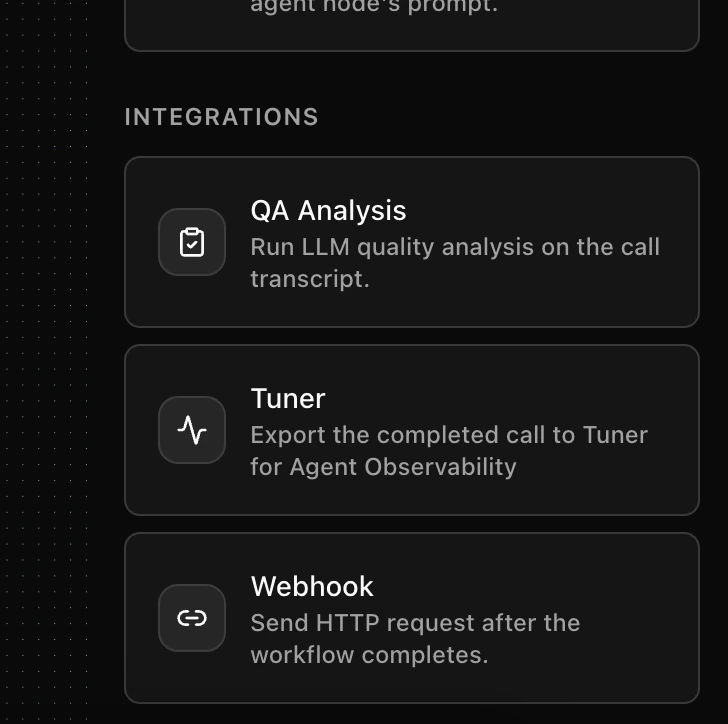
- Scroll to Integrations and locate QA Analysis, Tuner, and Webhook.
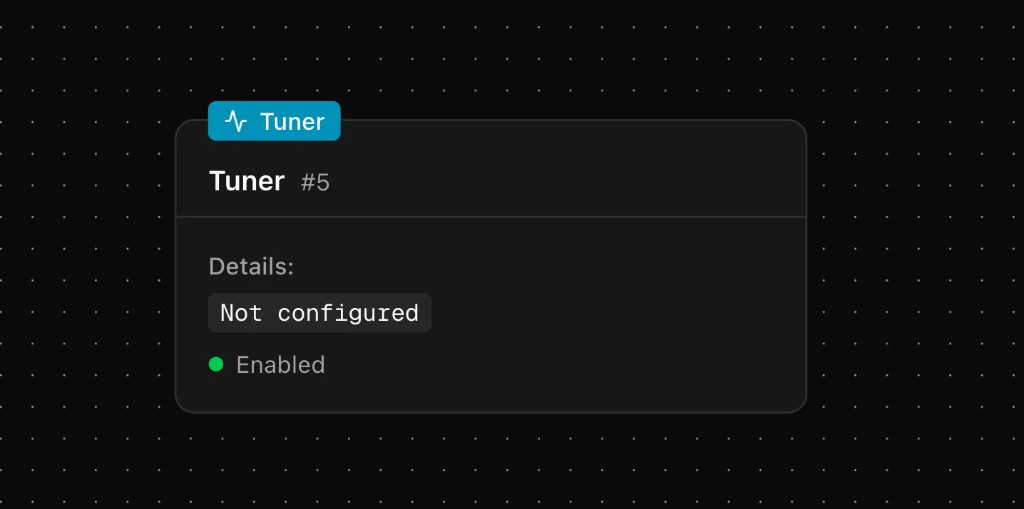
- Select Tuner. A node appears with Not configured — you will configure it in Step 4, after Steps 2 and 3.
Step 2: Create your Tuner agent
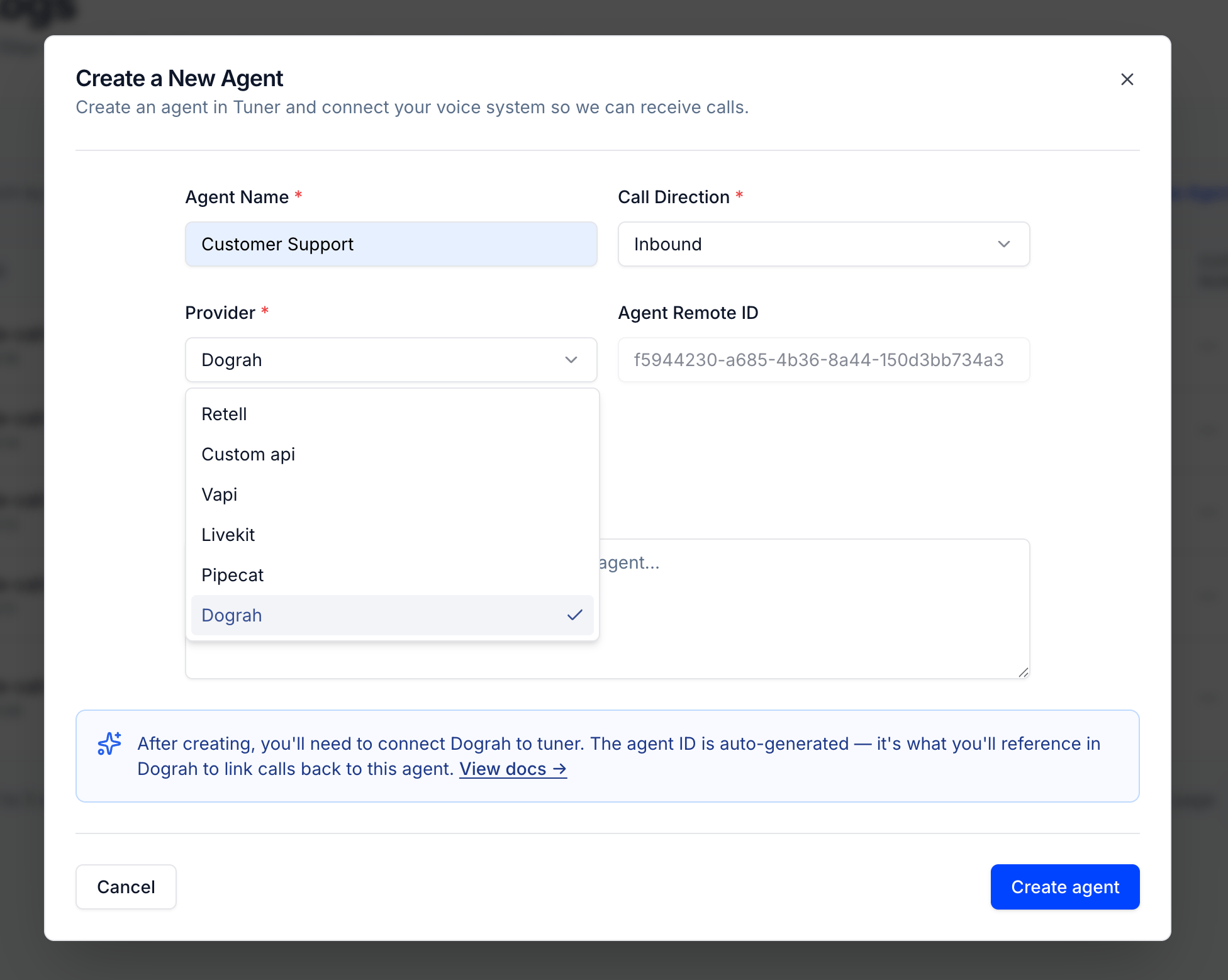
- In app.usetuner.ai, click + Create New Agent.
- In Create a New Agent, set:
- Click Create agent.
Step 3: Collect credentials from Tuner
You need exactly three values for the Dograh Edit Tuner panel:Agent Remote ID
Open Agent Settings for your agent and copy Agent Remote ID.
Workspace ID and API key
Open Workspace Settings. Copy Workspace ID, then locate Tuner API Key on the same page.
Step 4: Configure the Tuner node (Dograh)
- Select the Tuner node on your canvas → Edit Tuner opens.
- Confirm Enabled is on (off = Dograh skips export).
- Fill in:
- Name — Optional label (default Tuner is fine).
- Tuner Agent ID — Agent Remote ID from Step 3.
- Tuner Workspace ID — numeric ID from Step 3.
- Tuner API Key — from Step 3.
- Click Save.
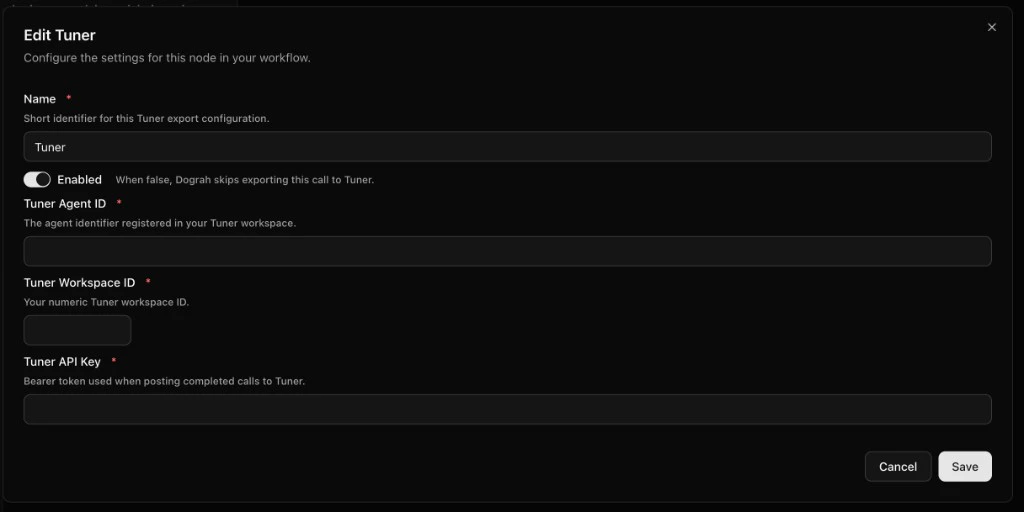
- To enable tuner to calculate the call cost, enable the “Calculate Cost” button.
- Insert the rates of your providers and press save.
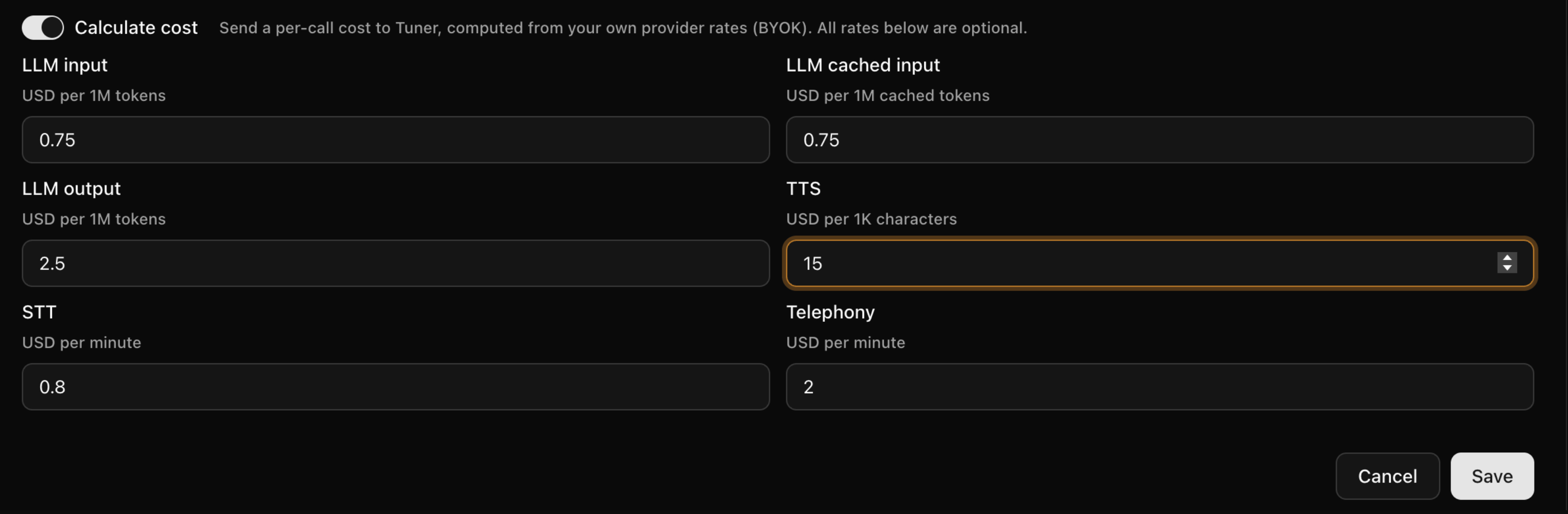
Step 5: Save, publish, verify
- In Dograh, Save the workflow.
- Publish — drafts won’t send production traffic to this export.
- Run a short test call.
- In Tuner, open Call Logs. The session should arrive within moments with transcript and metadata.
Webhooks
Tuner can notify your systems when it has something to report on a call — see Webhooks.Troubleshooting
Calls not appearing in Call Logs
Calls not appearing in Call Logs
- Enabled: Tuner node’s Enabled toggle is on.
- Copy/paste: No leading or trailing spaces on Agent ID, Workspace ID, or API key.
- Published: Workflow is published, not draft-only.
- Provider: The Tuner agent uses the Dograh provider (Dograh exports through this ingestion path).
What’s Next?
Your Dograh workflow is now connected. All future calls will be automatically sent to Tuner for analysis.Set up Simulation for Dograh
Route an extension through Cloudonix, connect it to Tuner, and run your first simulation batch.
Developer Quick Start
Set up MCP or blank configuration and send your first call.