

Suites live on the Suites tab under Simulations. A suite runs Scenarios from your Scenario Library, so you need saved Scenarios and an agent set up for inbound or outbound simulation.
What is a suite?
A suite is a named list of Scenarios plus the run settings to call them with. Every run of a suite uses the same Scenarios and settings, so two runs test the same thing. Each agent has its own suites.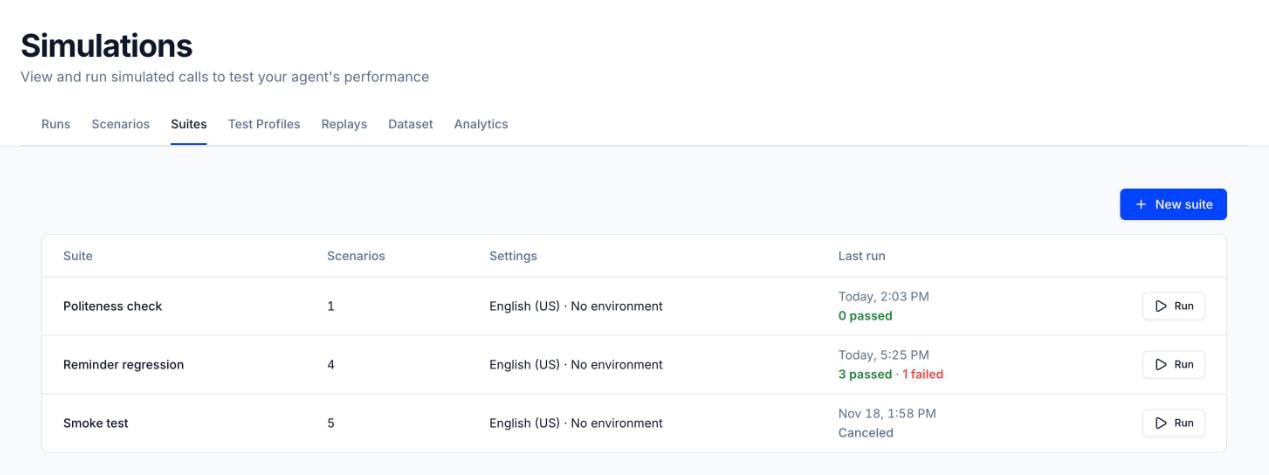
Create a suite
1
Open the form
Go to Simulations > Suites and click New suite.
2
Name the suite
Enter a Name, for example “Booking regression”. Each suite of an agent needs a different name.
3
Set the call duration
Under Run settings, set Max call duration.
4
Pick the other settings
Click Change next to Language, Environment and Test profile and pick each one. The options are the same as in the Run Simulation dialog.
5
Add Scenarios
Click Add scenarios, tick the Scenarios to include, and click Done.
6
Save
Click Save suite. The suite’s page opens.
Save a run as a suite
1
Choose library Scenarios
Open the Run Simulation dialog and choose From library.
2
Set the call settings
Set the call settings under Call settings.
3
Name the suite
Tick Save as suite and enter a name.
4
Save and run
Click Save and run. Tuner creates the suite with those Scenarios and call settings, then runs it.
- Each suite name must be unique per agent. If the name is taken, nothing is created; enter another name.
- If the suite is saved but the run doesn’t start, the dialog closes and the suite is kept. Run it from the Suites tab.
Add Scenarios to a suite
Open the suite menu from any of these places:
Then tick the suites. How the tick saves depends on where you are:
- On the Scenarios tab and a Scenario’s page, a tick saves right away. Unticking removes the Scenarios from that suite.
- A half-ticked suite holds some of the selected Scenarios. Tick it to add the rest.
- In the Scenario editor and the Save to library dialog, the suites you pick are saved when you save the form.
Create a suite from the menu
Click New suite at the bottom of the menu, enter a name and click Create. The suite starts with the selected Scenarios and default run settings:- Language: your agent’s default language
- Max call duration: 3 minutes
- Environment: none
- Test profile: none
Run a suite
Click Run on the suite’s row on the Suites tab, or Run suite on its page. Check the credit rate against your balance, then click Run suite. The run appears on the suite’s page and on the Runs tab. See Run statuses. Run is disabled in these cases. Hover it to see why.- This suite is running: the suite’s latest run is still in progress.
- Add scenarios to run this suite: the suite has no Scenarios.
- Test profile deleted. Choose another in the suite’s settings.: on the suite’s page, Test profile reads Deleted. Pick another test profile under Run settings and click Save.
- Save or discard your settings changes to run this suite: the suite’s page has unsaved run settings.
- Simulations can’t run for this agent right now, for example because of your plan, your credits or the agent’s provider.
Read the results
- On the Suites tab, Last run shows the date of the suite’s latest run and how many Scenarios passed and failed.
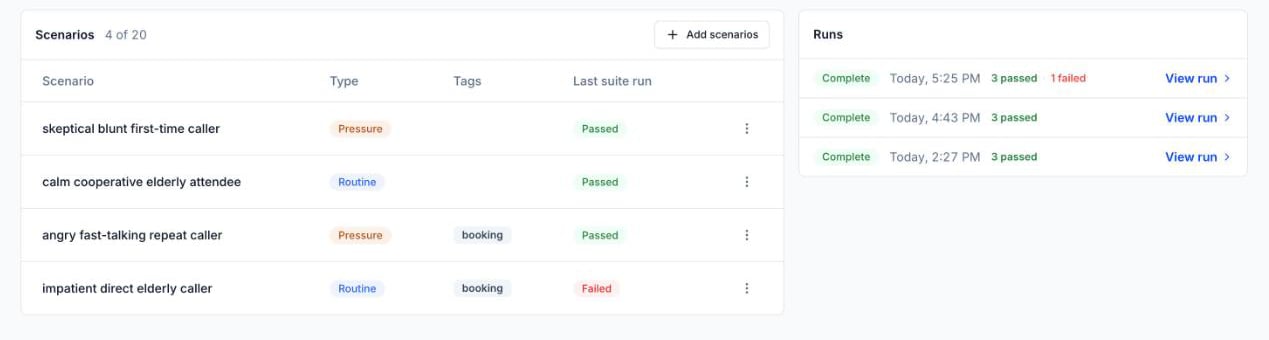
- On the suite’s page, Last suite run on the Scenarios card shows each Scenario’s result in the latest suite run. A dash means the Scenario hasn’t run in this suite yet.
- The Runs card lists the suite’s latest 10 runs with their status and counts. Click View run to open that run on the Runs tab.
- On the Runs tab, a suite run’s card starts with “Suite” and the suite’s name. Click the name to open the suite’s page.
For what the run and call statuses mean, see Run statuses.
Manage suites
On the Suites tab, click a suite to open its page.- Run settings: change any setting, then click Save, or Discard to undo. Saved settings apply to the next run.
- Add Scenarios: click Add scenarios on the Scenarios card, tick Scenarios and click Done. Scenarios already in the suite show as Already added. The change saves right away.
- Remove a Scenario: open the row’s menu and click Remove from suite. The Scenario stays in your library, and the change saves right away.
- Rename: click the pencil icon next to the name, edit it and click Save.
- Duplicate: open the menu next to Run suite and click Duplicate. The New suite form opens with the same settings and Scenarios, named ” copy”. A deleted test profile isn’t copied.
- Delete: open the menu, click Delete and confirm. Past runs stay on the Runs tab with the suite’s name, without a link.
Limits
Suites are also available through the public API, in the Simulation group of the API Reference:
- List Suites and Get Suite read them.
- Run Saved Scenarios starts a run from a suite.
Next steps
Scenario Library
Write Scenarios or save them from a run, so you can add them to a suite.
Run statuses
What each run status and call result means, and how to fix a run.